
Picture this: The massive seasonal sale just started. You rush to your computer, ready to grab that game you have been waiting months for, only to be stopped cold by an “Incorrect Password” message. We have all been there. It is frustrating, stressful, and usually happens at the absolute worst moment. With the average person managing over 160 accounts across the web, keeping track of every unique credential is a massive challenge.
Login issues are rarely about being careless; they are a side effect of living a connected life where we are expected to function like walking databases. When you search for Steam forgotten password solutions, you aren’t just looking for a technical fix—you are trying to regain access to your library, your friends, and the money you have invested in your games.
In this guide, we will walk you through the exact process to restore your access. You will learn why these authentication hiccups happen, how to verify your identity even if you have lost your email, and how to organize your credentials so this doesn’t happen again. Think of this as your roadmap to getting back in the game quickly and securely.
Understanding Steam Account Login Problems
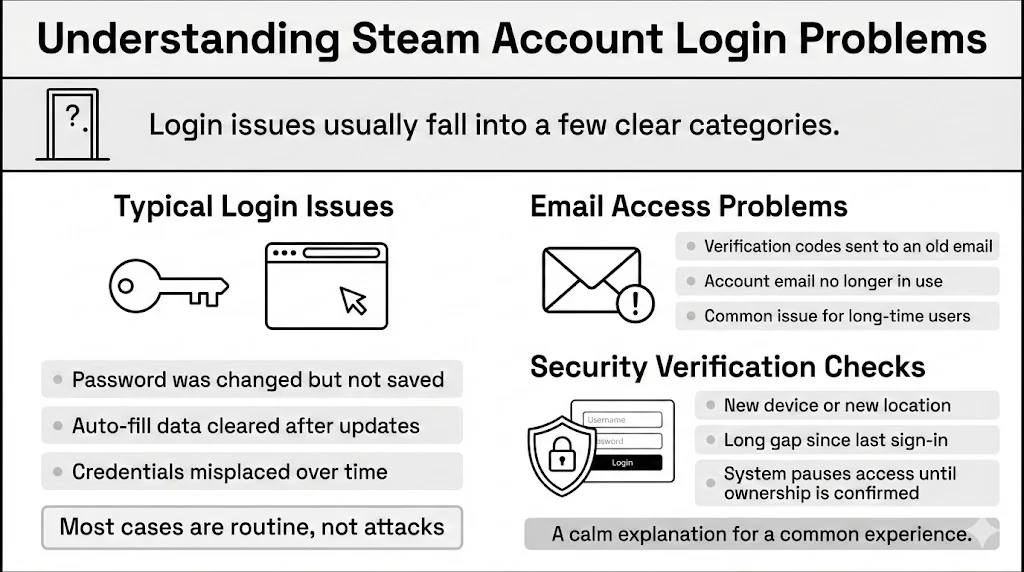
Before we dive into the fix, it helps to understand why the door slammed shut in the first place. Authentication issues usually fall into a few specific categories, and knowing which one you are facing can save you a lot of time.
Typical Causes of Authentication Issues
Most login failures aren’t malicious hacks; they are simple administrative errors. The most frequent culprit is simply lost credentials. You might have updated your password three months ago during a security check and your browser didn’t save the new one. Or perhaps you rely on auto-fill features that have been cleared after a browser update.
Another common issue involves email access. You might know your Steam password perfectly well, but Steam Guard requires a verification code sent to an email address you haven’t used in five years. This disconnect between your current primary email and the one on file is a major hurdle for long-time users.
Security Verification Failures
Sometimes, you have the right username and password, but Steam stops you anyway. This often happens when you log in from a new location, a new device, or after a long period of inactivity. Steam’s security systems are designed to be paranoid for your protection. If anything looks different, they lock the gate until you prove you are the owner. This isn’t a password error; it is a verification challenge.
Password Errors vs. Account Lockouts
It is vital to distinguish between a “forgotten password” and an “account lockout.” A forgotten password means the credentials you are entering do not match what is stored in the database. An account lockout, often indicated by a message saying “Too many login attempts,” means the system has temporarily blocked all access to prevent brute-force attacks.
If you are seeing a lockout message, resetting your password immediately might not work. You often need to wait roughly 30 minutes to an hour for the cooldown period to expire. However, if you are simply seeing “Incorrect login,” then initiating a password reset is the right move.
What You Need Before Starting Account Recovery
Rushing into the recovery process without preparation can lead to timeouts and frustration. Having a few specific items ready will speed things up significantly.
Access to Your Registered Email
The fastest path to recovery is via the email address currently linked to your Steam account. Ensure you can log into that inbox before you begin. Check that your inbox isn’t full and that you aren’t blocking automated messages.
The Right Device
If possible, perform the recovery steps on a computer or mobile device you have used to access Steam in the past. Steam’s risk analysis algorithms are more likely to trust a request coming from a known device and IP address. Trying to reset a password from a brand-new phone on a public Wi-Fi network will trigger higher security scrutiny.
Basic Account Details
If you can’t access your email, you will need to prove ownership through other means. Gather the following before contacting support:
- Billing Information: The name on the credit card used for recent purchases.
- Physical Proof: If you bought physical game copies years ago, find the box with the CD key.
- Past Usernames: Any previous aliases you used on the profile.
Why does this matter? Because speed is crucial. The Steam forgot password process is automated for email users, but manual for everyone else. Having this data ready transforms a potential week-long wait into a quick resolution.
Step-by-Step Guide: Steam Forgot Password Recovery
Now, let’s get your account back. Follow these steps carefully to move through the recovery system.
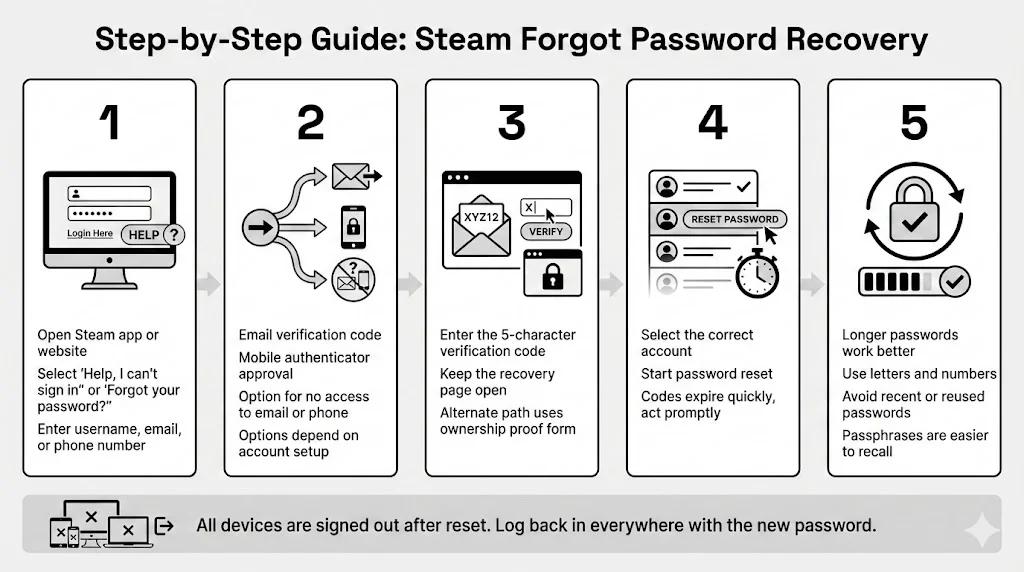
Step 1: Open the Steam Login Page
Start by launching the Steam client on your desktop or visiting the Steam website in your browser. On the login screen, look below the entry fields for the button labeled “Help, I can’t sign in” or “Forgot your password?”.
Clicking this will take you to the official Steam Support site. It is designed to ask you a series of questions to determine the best recovery method. You will typically be asked to enter your account name, email address, or phone number. Enter whichever one you are most confident is current.
Step 2: Choose the Correct Recovery Option
Once you identify the account, Steam will present you with options based on the security information on file.
- Email Confirmation: If you have access to the linked email, select “Email an account verification code to…” This is the gold standard for quick recovery.
- Mobile Authenticator: If you set up the Steam mobile app, you might see an option to confirm via the app.
- No Access? If you can’t access the email or phone number shown, you must select “I no longer have access to this email.”
Steam decides which path to show based on what security features you enabled previously. If you never set up a phone number, you won’t see that option. This is why keeping recovery methods up to date is so important.
Step 3: Verify Your Identity
If you selected the email option, check your inbox immediately. You are looking for an email from Steam Support containing a 5-character alphanumeric code.

Important:
Do not close the recovery tab in your browser while checking your email. Opening a new tab or window is fine, but closing the recovery session might invalidate the code by the time you return.
Enter the code into the verification field. If you choose the “I no longer have access” route, this step changes from entering a code to filling out a form with the proof of ownership details we discussed earlier (credit card type, account holder name, etc.).
Step 4: Use the Password Reset Link
After successfully entering the code, you might not be asked to make a new password immediately. Instead, you may be shown a list of accounts associated with that email. Select the correct username.
Once you select the account, you will initiate the reset phase. For the Steam forgot password workflow, this usually involves a final button click that says “Reset my password” or “Change my password.”
Be aware of time limits. The verification codes and reset tokens generated by Steam are temporary. They often expire within 10 to 20 minutes to prevent interception. If you walk away to make coffee and come back, you will likely need to restart the process.
Step 5: Create a New Password
Now you can set your new credentials. Steam has specific rules for this:
- Must be at least 6 characters long (though we strongly suggest longer).
- Must use a mix of letters and numbers.
- Cannot be a password you have used recently.
Team WhiteVault Advice: Do not use “Steam123” or your dog’s name. We know it is tempting to pick something easy so you won’t forget it again, but that defeats the purpose. Instead, use a passphrase—four random words strung together, like “Correct-Horse-Battery-Staple.” These are harder for computers to crack but easier for humans to recall, a method recommended by the Electronic Frontier Foundation (EFF).
After you confirm the new password, the system will log you out of all other devices. This is a safety feature to ensure that if someone else has access to your account, they are kicked off immediately. You will need to log back in on your phone and other computers.
Troubleshooting Common Password Reset Issues
Even with clear instructions, technology can misbehave. Here is how to handle the most frequent roadblocks.
Email Confirmation Not Showing Up
You requested the code, but your inbox is empty.
- Check Spam/Junk: This is the most common hiding spot.
- Wait 15 Minutes: Sometimes email servers are slow.
- Check Filters: Ensure you haven’t accidentally set up a filter that archives messages from “steampowered.com”.
Verification Code Errors
If Steam says your code is invalid:
- Check for typos. It is easy to confuse the letter ‘O’ with the number ‘0’, or ‘I’ with ‘1’.
- Ensure you are using the most recent code. If you clicked “Resend” multiple times, you might be entering the first code (which is now invalid) while the second code is still arriving.
Reset Link Already Used or Expired
If you see an error saying the link is expired, you simply need to restart the process. Go back to step 1 and trigger the Steam forgot password mechanism again. This time, ensure you keep the browser tab open and act immediately when the email arrives.
What to Do If Login Problems Continue
If you reset your password but still can’t log in, your browser might be caching old data. Clear your browser’s cache and cookies, or try logging in through a private/incognito window. If the Steam client on your desktop is failing, try restarting the computer to clear any temporary network glitches.
Recovering a Steam Account Without Email Access
This is the most stressful scenario: You forgot the password and you can’t get into your email. Don’t panic; all is not lost, but the road is longer.
Alternative Recovery Options
When you select “I no longer have access to this email,” you are essentially asking a human support agent to verify you manually. You will be directed to a support ticket form.
Providing Proof of Ownership
This is where your preparation pays off. You will need to attach files or provide text details proving you are the owner.
- Payment Methods: Provide the last 4 digits of a credit card used on the account. Do NOT provide the full number.
- PayPal: If you used PayPal, provide the billing name and the unique Invoice ID from a past transaction receipt.
- Retail Keys: If you have a physical CD key from a game activated on the account, write the ticket number on the card with a pen and upload a photo of it. This is considered one of the strongest forms of proof.
Expected Response Times
Unlike the automated system, this takes time. Support responses can take anywhere from a few hours to a few days, depending on ticket volume. Be patient and do not submit multiple tickets, as this pushes you to the back of the queue.
Protecting Your Steam Account After Recovery
Once you are back in, your priority should be ensuring you never have to deal with the Steam forgot password stress again. Security isn’t just about strong walls; it is about smart organization.
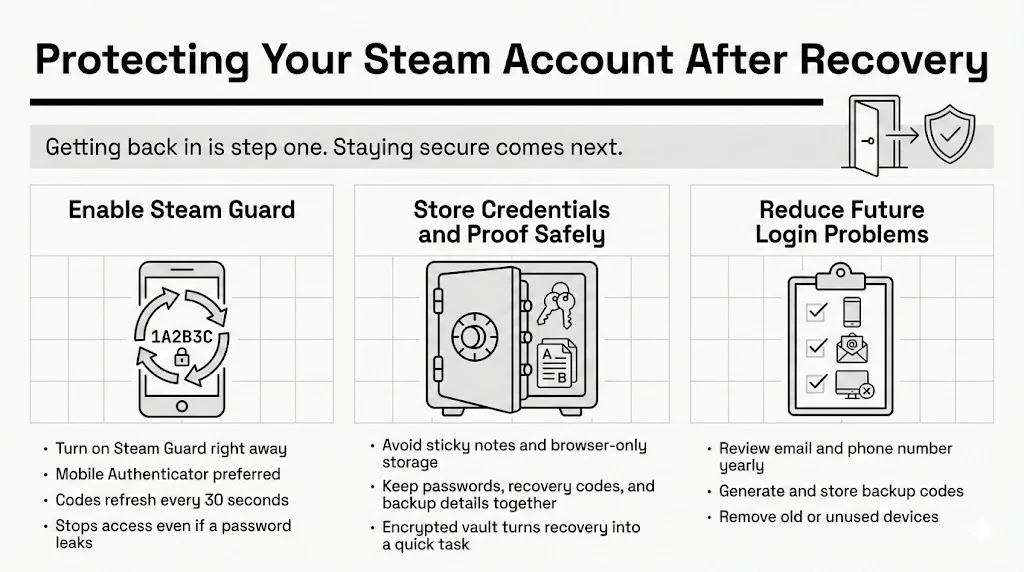
Enabling Steam Guard
If it wasn’t already on, enable Steam Guard immediately. Ideally, use the Mobile Authenticator rather than email verification. The mobile app generates a code every 30 seconds, making it nearly impossible for intruders to access your account even if they steal your password.
Managing Saved Credentials Safely
The cycle of forgetting and resetting passwords usually happens because we lack a good system for storing them. Writing them on sticky notes is insecure; saving them in your browser is risky if your computer is compromised.
This is where a dedicated personal vault becomes invaluable. Tools like WhiteVault allow you to store not just passwords, but the recovery codes, backup emails, and even photos of those CD keys we mentioned earlier. By keeping all your “proof of ownership” documents in one encrypted, accessible location, you turn a potential crisis into a five-minute fix.
Reducing Future Authentication Issues
- Update Contact Info: Set a reminder to check your email and phone number on Steam once a year.
- Generate Backup Codes: Steam allows you to generate a list of one-time use codes. Print these out or save them in your secure vault. They allow you to log in even if you lose your phone.
- Review Authorized Devices: Periodically check the list of devices authorized to access your account and deauthorize any you no longer own.
Conclusion
Losing access to your gaming library feels like losing a part of your personal history, but it is almost always fixable. The Steam forgot password process is designed to be rigorous enough to keep bad actors out, yet accessible enough to let legitimate owners back in.
The secret to avoiding this panic in the future isn’t having a perfect memory—it is having a better system. Whether it is enabling two-factor authentication or using a secure vault to organize your critical internet credentials, taking small steps today protects you tomorrow. You have done the hard work of recovering your account; now take a moment to secure it so you can focus on what really matters: enjoying your games.
Frequently Asked Questions (FAQ)
1) How long does Steam password recovery take?
If you have access to your email or mobile app, the process is nearly instant—typically under 5 minutes. If you have lost access to your email and must submit a support ticket with proof of ownership, it can take anywhere from 4 hours to 48 hours for support staff to review your case.
2) What if I never receive the verification code?
First, check your spam and trash folders. If it is not there, ensure your email provider isn’t blocking Steam. You can also try waiting 30 minutes and requesting a new code. If you consistently fail to receive emails from Steam, you may need to contact your email provider or use the “I no longer have access to this email” option to change your contact address.
3) Can I reset my Steam password from a mobile device?
Yes. The Steam forgot password steps work perfectly on mobile browsers (Chrome, Safari) and within the Steam Mobile App itself. The interface is optimized for smaller screens, but the security questions and verification steps remain the same.
4) What happens if someone else tries to reset my password?
They will be stopped at the verification stage. Without access to your email account or mobile phone to receive the code, they cannot complete the reset. This is why securing your email account is just as important as securing your Steam account. If you receive a verification code you didn’t request, change your email password immediately.
5) How often should I update my Steam password?
Cybersecurity experts, including guidelines from NIST (National Institute of Standards and Technology), suggest that you only need to change your password if you suspect a breach. Forcing yourself to change it every 90 days often leads to choosing weaker, predictable passwords. Instead, focus on creating one very strong, unique password and protecting it with two-factor authentication.
Why This Matters: According to recent reports on account takeover fraud, account takeovers are on the rise, often due to weak or reused credentials. By following the steps in this guide, you are aligning with recommendations from organizations like OWASP and the Electronic Frontier Foundation (EFF), ensuring your virtual assets stay under your control.


