
You are clearing out your inbox on a busy morning, trying to get ahead of the day, when you click a document link from what looks like a colleague or a child’s school. The page asks you to login again. Without thinking, you enter your credentials. It is only when the screen refreshes to a blank error page that your stomach drops. Adopting phishing resistant passwords matters because modern scams no longer look like obvious tricks—they look like routine daily chores. At WhiteVault, we help people save, remember, and protect what matters, keeping your digital life secure even when you are rushing.
Quick Answer Phishing resistant passwords are advanced login methods—like passkeys and hardware keys—that cannot be stolen by fake websites or scam texts. They replace easily tricked, traditional secrets with secure technology, keeping your private information safe.
Why This Topic Matters for Everyday Security
For years, password security meant coming up with complicated combinations of letters, numbers, and symbols. We were told to make them impossible to guess, which usually meant they were impossible to remember. Naturally, people started reusing the same password for email, streaming, and banking just to survive the digital day.
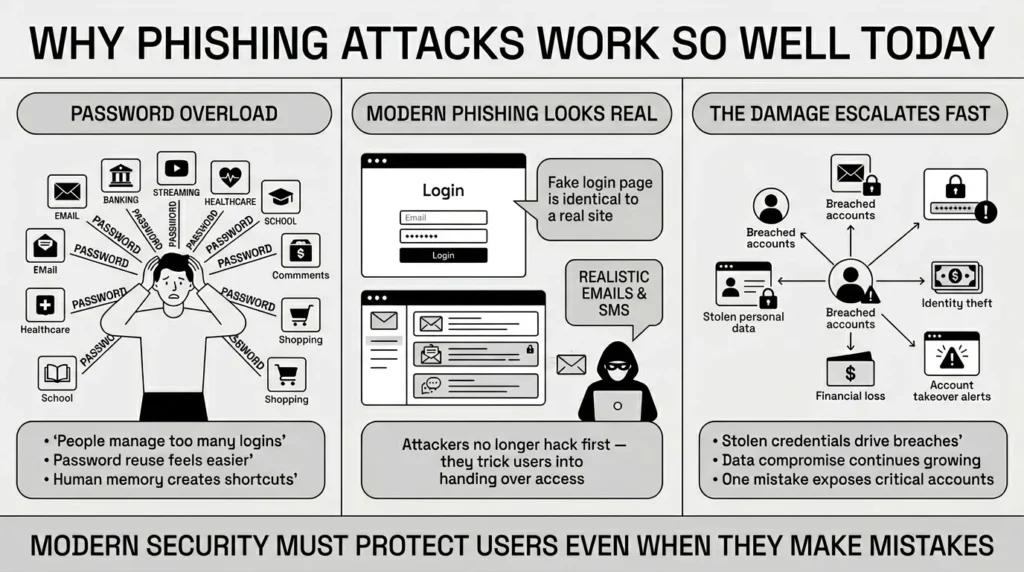
This human instinct to simplify is universal. Recent 2026 cybersecurity research shows that 69% of Americans feel overwhelmed by the number of passwords they have to manage. When we feel overwhelmed, we take shortcuts. The same study of over 19 billion leaked credentials found that a staggering 94% of passwords were reused or duplicated across multiple accounts.
In the modern cybersecurity landscape, experts are pushing for phishing resistant passwords because human error is simply too common to avoid completely. Threat actors no longer need to spend weeks trying to hack into a secure database. Instead, they just ask you for the keys to the front door. They build websites that look exactly like your bank, your email provider, or your company portal. When you type your credentials into these fake sites, the attackers capture them instantly.
The data highlights how common this has become. According to the 2025 Verizon Data Breach Investigations Report, stolen credentials are the primary access vector for cyberattacks, kicking off 22% of all confirmed data breaches globally. Once attackers have those credentials, the financial damage scales rapidly. IBM’s 2025 Cost of a Data Breach Report noted that the average cost of a data breach in the United States reached an all-time high of $10.22 million, with customer personally identifiable information (PII) compromised in 53% of those incidents.
This issue impacts everyone, not just large corporations. A parent managing school forms, health insurance cards, and family passwords is just as much of a target. A retiree organizing medical records or a student trying to access university logins can easily be caught off guard. And the threat pool is growing. The Identity Theft Resource Center (ITRC) confirmed a record 3,322 data compromises in 2025, a 79% jump over the past five years. We need systems that protect us even when we make a mistake. We need a way to log in that cannot be stolen, even if we are tricked into handing it over.
What Usually Goes Wrong
When we talk about digital identity and credential theft prevention, it helps to understand what fails in our daily routines. The most common pitfall is the hyper-realistic phishing message. You might receive a text message that looks exactly like a real delivery alert, claiming a package is delayed and asking you to log in to confirm your address. Because we are all busy and expecting packages, clicking that link feels like a natural reflex.
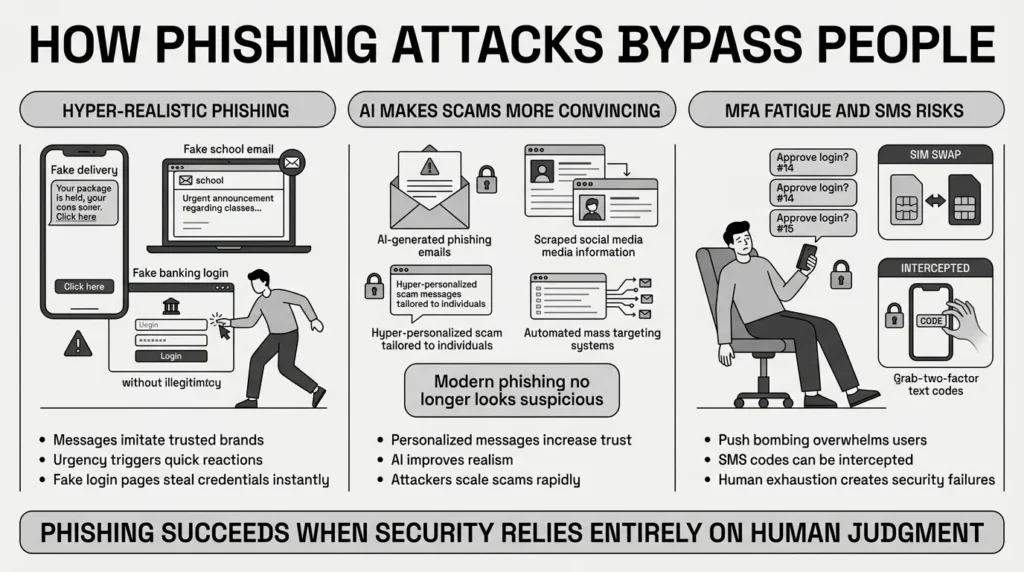
These scams are remarkably effective and financially devastating. In 2025, account takeover (ATO) losses exceeded $15 billion, making it the costliest fraud type of the year. Similarly, the Federal Trade Commission (FTC) reported that consumers lost a staggering $12.5 billion to fraud, driven heavily by scams starting with simple text messages and emails. The FBI’s Internet Crime Complaint Center (IC3) mirrored this grim reality, documenting total cybercrime losses of $20.9 billion in 2025.
What has made these attacks so much worse in 2026 is the introduction of artificial intelligence. Attackers are no longer sending emails with poor grammar and weird formatting. Generative AI tools allow scammers to scrape LinkedIn or corporate websites and generate thousands of hyper-personalized, context-perfect emails in minutes. Security researchers have found that AI-generated phishing emails achieve a 54% click-through rate, compared to just 12% for traditional phishing attempts.
Another major failure point is relying on basic text-message codes or standard push notifications for multi-factor authentication (MFA). While better than a password alone, scammers have found easy ways to circumvent these methods. They intercept texts through SIM swapping, where they convince your mobile carrier to move your phone number to their device.
Additionally, attackers use a tactic called “MFA fatigue” or “push bombing.” If they have your password, they will trigger dozens of login approval notifications to your phone in the middle of the night. Tired and annoyed, many people simply hit “Approve” just to make their phone stop buzzing. Because of this exact tactic, cybersecurity firm Obsidian reported that identity-based attacks rose 32% in early 2025.
A freelancer juggling client portals might accidentally hand over a login on a fake page that looks identical to the real one, and then blindly approve the push notification thinking it is just a system glitch. Upgrading to phishing resistant passwords eliminates this risk entirely by removing human decision-making from the authentication process. If the underlying security cannot be intercepted, the trick fails.
The Safer Way to Handle It
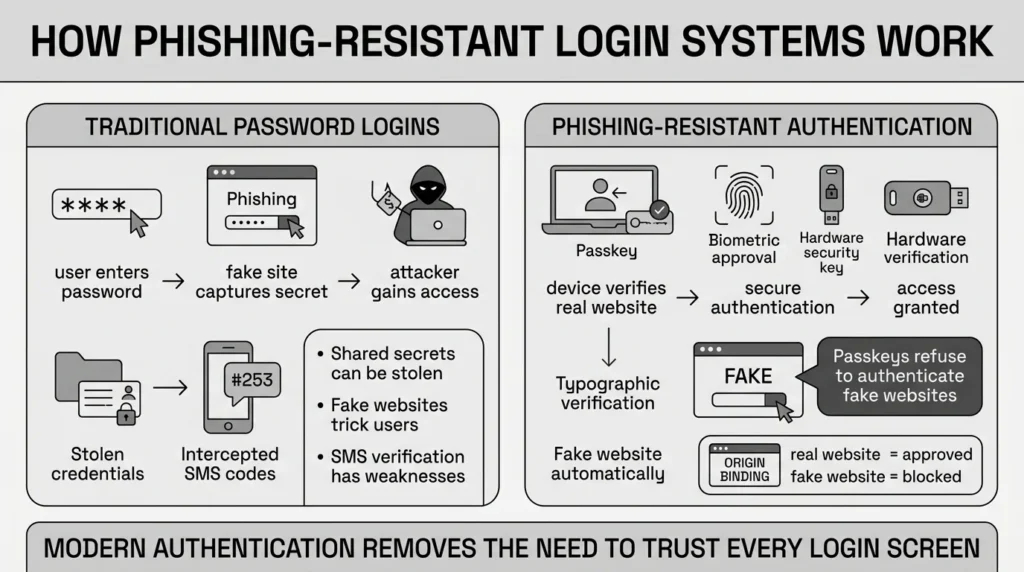
The safest way to manage your accounts is to move away from secrets you have to type and toward credentials that prove who you are cryptographically. The technology behind phishing resistant passwords relies on cryptographic keys rather than words you have to memorize.
The National Institute of Standards and Technology (NIST) recently updated its core digital identity guidelines, NIST SP 800-63-4, cementing passkeys and hardware security keys as the highest standard for authentication protocols. The U.S. Cybersecurity and Infrastructure Security Agency (CISA) echoes this, strongly urging organizations and everyday users to adopt phishing-resistant methods to prevent credential theft.
But what does this actually look like for you?
Instead of typing a password and waiting for a text code, you use one of two primary methods:
1) Passkeys A passkey is a digital credential tied to your device, like your smartphone or laptop. When you log in, your device uses biometric authentication (like your fingerprint or face scan) or a local PIN to unlock the passkey. The key then silently proves to the website that you are authorized. The industry is rapidly adopting this standard; by early 2026, the fintech sector reached nearly 60% active passkey usage, with e-commerce trailing slightly behind at 35%.
2) Hardware Security Keys These are small physical devices, often resembling a USB thumb drive, that you plug into your computer or tap against your phone using NFC (Near Field Communication). When a site asks for your second factor, you physically touch the gold contact on the key.
These methods are highly secure because they use “origin binding.” This means the passkey or security key checks the hidden, mathematical background details of the website you are visiting. If a scammer sends you a link to login-microsoft.fake.com, your passkey recognizes that the address does not match the real site. It will simply refuse to pass the login token. Even if you are completely fooled by the fake site, your technology is not. The authentication fails before you can accidentally give away your access.
Step-by-Step: What To Do Next
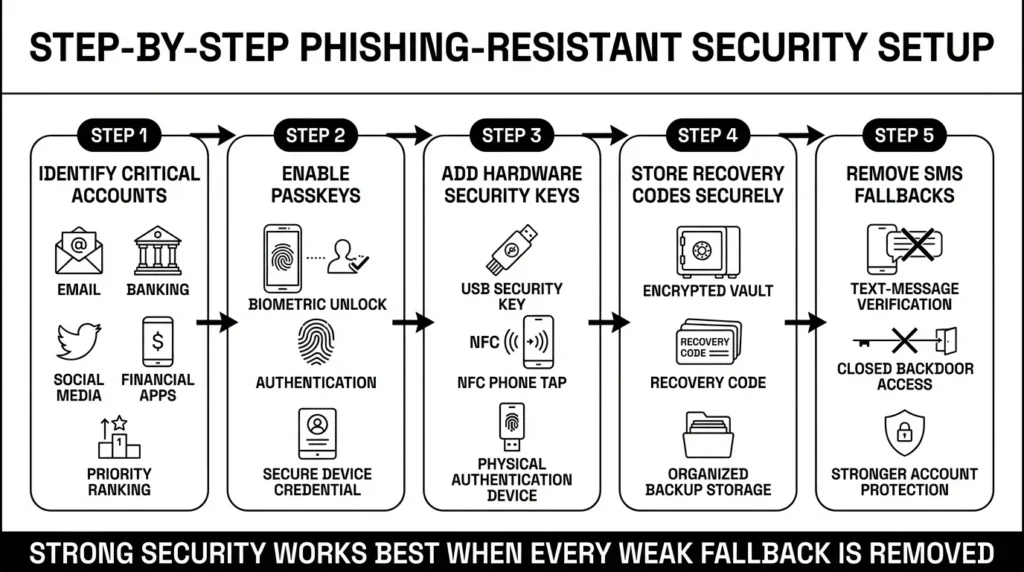
When you are ready to act, do not try to change everything at once. Transitioning to phishing resistant passwords should be a calm, methodical process. Here is a manageable, step-by-step approach to locking down your digital life.
Step 1: Identify Your Critical Accounts
Start with the accounts that matter most. Your primary email account (like Gmail or Outlook) is the master key to your digital life. If someone accesses it, they can reset passwords for almost everything else. Next, focus on your banking, financial accounts, and primary social media.
Step 2: Set Up Passkeys Where Available
Go to the security settings of your primary email and look for the option to “Create a Passkey” or “Add a Security Key.” Follow the prompts on your screen. Your device will usually ask you to use your fingerprint or face scan to create the credential. Once this is set, logging in will be as simple as unlocking your phone.
Step 3: Consider a Physical Security Key for High-Risk Accounts
For ultimate privacy protection, purchase a reputable hardware security key (like a YubiKey or Google Titan key). Register it to your most sensitive accounts, like your cryptocurrency wallet or primary bank. Keep one key on your keychain for daily use and store a backup key in a safe place at home.
Step 4: Secure Your Recovery Codes
\When you set up strong multi-factor authentication, services will often give you a list of backup recovery codes. These are long strings of numbers to use if you lose your phone or your security key. You must store these securely. Do not leave them in an unencrypted notes app, in an email draft, or as a loose document on your desktop.
Step 5: Turn Off SMS Fallbacks
Once you have passkeys or hardware keys set up, go back into your account settings and remove your phone number as a backup login method. If you leave SMS text codes turned on, hackers can still bypass your strong security by pretending they lost their passkey and asking the system to text them a code instead. You must close the backdoor to keep the front door secure.
How WhiteVault Helps Keep This Manageable
Upgrading your security introduces a new challenge: managing the backup plans. What if you lose the phone that holds your passkeys? What if you are traveling, your laptop crashes, and you need the recovery code you saved six months ago?
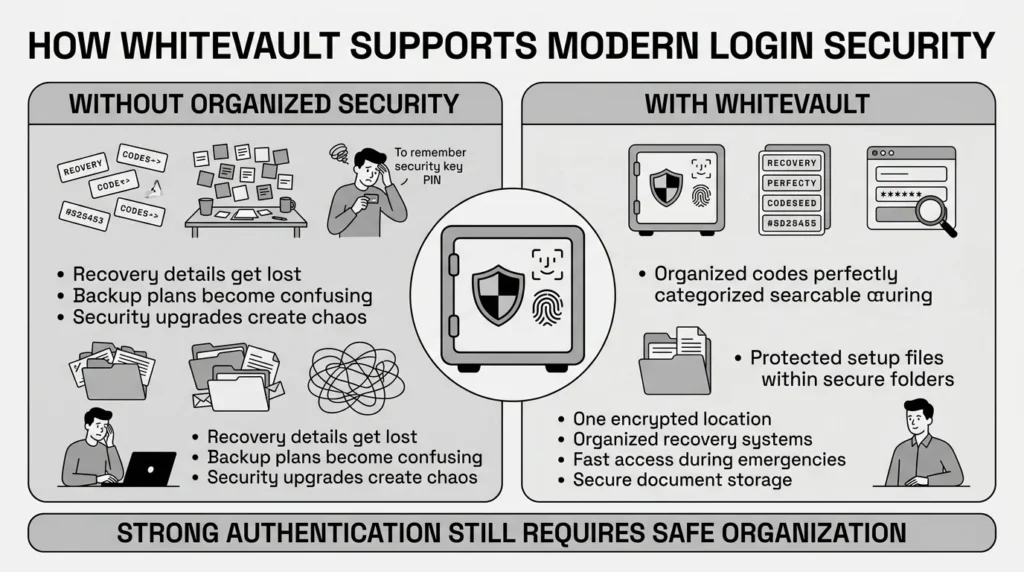
This is where organization becomes just as vital as the security technology itself.
Versus trying to remember everything: Store credentials, recovery details, and important information securely in one encrypted place.
Versus sticky notes and browser storage: Use stronger protection with easy access when you need it.
Versus scattered recovery details: Save backup codes, recovery keys, and security answers where you can find them later.
Versus document chaos: Keep important files organized, searchable, and available.
WhiteVault is a secure personal vault designed to handle exactly this kind of modern account overload. When you upgrade your security, you need a safe place to put the pieces that keep you from getting locked out. By storing your backup codes, hardware key PINs, and important setup files in WhiteVault, you guarantee you will not be stranded during a family emergency, travel day, or unexpected tech failure. It provides simple security for everyday life.
Habits That Keep You Safer Over Time
Building habits around phishing resistant passwords does not require you to be a tech expert. It just requires a steady, calm approach to password management and digital hygiene.
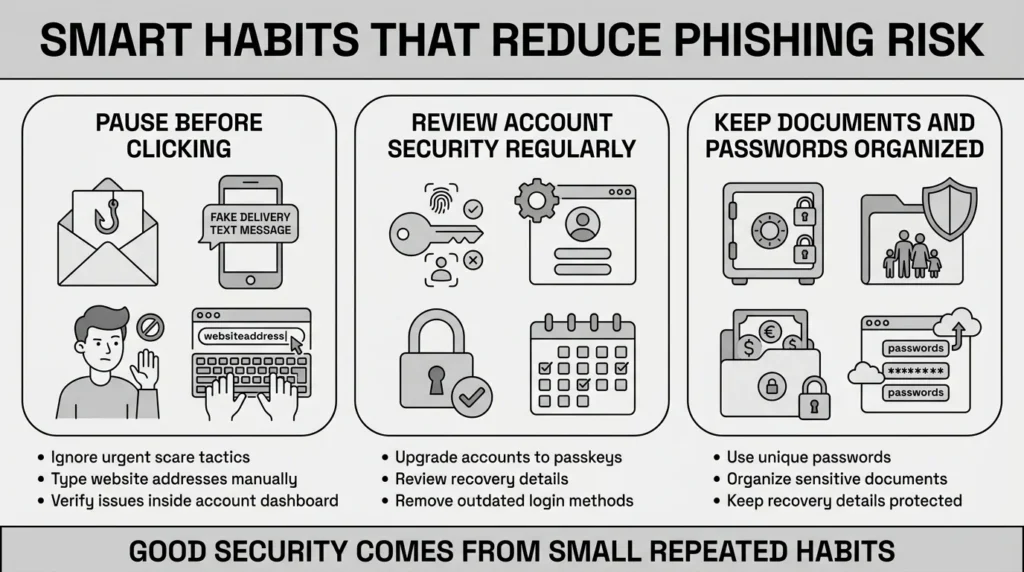
First, practice the habit of pausing. When you receive an urgent text or email claiming your account is locked, your payment failed, or a package is lost, stop. Do not click the link in the message. Instead, open your web browser, manually enter the company’s website address and log in securely. If there is a real issue, you will see it in your account dashboard.
Second, dedicate time for digital spring cleaning. Once every few months, review your high-value accounts. Check if they have recently added support for passkeys and upgrade your secure login if they have. Ensure that your recovery codes are still accurate and safely stored away from your primary device. This proactive step saves massive headaches later. According to Javelin Strategy and Research, identity theft victims in 2025 spent an average of 10 hours resolving the fraud, a heavy burden on top of the financial stress.
Finally, stop reusing passwords for the accounts that still require them. Research from Rapid7 found that 56% of account compromises stem from stolen credentials with no MFA enabled. Use a secure password management strategy to generate and hold unique passwords for every site. We have all reused passwords because it is human to want something familiar, but letting software handle the memory work takes the burden off your shoulders.
Additionally, treat your personal documents with the same care as your passwords. A lost passport scan, an exposed Social Security card, or a misplaced tax record can be just as dangerous as a leaked password. Keep your most vital family documents, insurance papers, and financial records encrypted and organized rather than scattered across random desktop folders.
Conclusion
Better security rarely comes from one dramatic change or buying a single expensive tool. It usually comes from a few simple habits repeated consistently: adopting unique credentials, moving toward phishing resistant passwords wherever possible, maintaining safer recovery details, and finding a secure place to keep what matters.
Security should feel practical, calm, and manageable. You do not need to be a cybersecurity engineer to protect your family or your business. WhiteVault was built for exactly that. Save, remember, and protect what matters, all in your secure personal vault.
Frequently Asked Questions (FAQ)
1) What exactly are phishing resistant passwords?
They are modern authentication methods, like passkeys and physical hardware security keys, that replace traditional typed passwords. They are designed to cryptographically verify that you are logging into a legitimate website, meaning even if a scammer tricks you into clicking a fake link, your credential cannot be stolen or intercepted.
2) How do I know if my current login is safe enough?
If your login only requires a password you typed from memory, or a password followed by a text message (SMS) code, it is vulnerable to modern phishing and SIM swapping. You will know you have reached a safer tier of security when your account lets you log in using a biometric prompt on your device (a passkey) or by physically tapping a security key.
3) How long does it take to set up these new security methods?
Setting up a passkey or security key on one account usually takes less than three minutes. You simply navigate to the security settings of your account, select the option to add a passkey or security key, and follow the on-screen prompts. It is advisable to upgrade one important account at a time rather than trying to do them all in one day.
4) Passkeys versus passwords: what is the difference?
A password is a shared secret; you know it, and the website’s server knows it. If a hacker breaches the server or tricks you, they get the secret. A passkey uses public-key cryptography. Your device holds a private key that never leaves your phone or computer, and it solves a math puzzle to prove who you are to the website. There is no secret for a hacker to steal.
5) As a beginner, what is the safest thing I can do today?
The most impactful step you can take today is to set up a passkey or hardware key on your primary email account (such as Gmail or Outlook) and turn off SMS text message recovery. Because almost all password resets go to your email inbox, locking the front door to your email drastically reduces your risk of identity theft.
6) Does upgrading my login methods compromise my privacy protection?
No. When you use biometric authentication (like Apple Face ID or Windows Hello) to unlock a passkey, your fingerprint or face scan never leaves your device. The website only receives a cryptographic confirmation that the authorized user unlocked the device. Your physical biometric data is never shared with the website or stored on their servers.
7) Where should I store my backup recovery codes once I upgrade?
When you turn on advanced secure login methods, you will be given backup recovery codes in case you lose your device. You should never store these in your email inbox, as a simple text file on your desktop, or in a physical notebook that could be easily lost. They should be placed in a dedicated, encrypted digital vault.
8) How does WhiteVault help me manage all these new security methods?
WhiteVault acts as your secure personal vault for the critical backup information that comes with strong security. It gives you a safe, organized place to store your recovery codes, backup passwords, and emergency access instructions. Instead of losing a code in a random folder or relying on sticky notes, WhiteVault ensures your safety nets are protected but accessible exactly when you need them.


