We have all been there. You sit down at your computer or pull out your phone, ready to jump into a voice channel with friends or check an important community update, only to be stopped cold by a login error. You try one combination, then another, but nothing works. The realization hits: you have lost track of your credentials. In our modern, connected life, managing dozens of accounts makes this a common frustration.
If you are currently staring at the login screen searching for the Discord forgot password link, take a deep breath. You are not alone. With the average internet user managing over 100 different accounts, keeping every unique combination straight is nearly impossible without help. It is not a failing of memory; it is a symptom of having too much to track.
This guide will walk you through the recovery process, step by step. We will cover how to regain access on both desktop and mobile devices, what to do if the standard recovery email does not arrive, and how to protect your account against future lockouts.
At WhiteVault, we believe security should not be scary or complicated. It should be simple. Whether you are a parent managing a family computer or a daily gamer, this tutorial will help you get back to your chats quickly and safely.
When You Need a Discord Password Reset
Recognizing why you are locked out is the first move in fixing the problem. Sometimes it is a simple memory slip; other times, it could indicate a security concern.
Signs You No Longer Have Account Access
The most obvious sign is the “Invalid Email or Password” message shaking red on your screen. However, there are other indicators that a reset is necessary:
- Unexpected Logouts: You open the app and find yourself logged out, even though you did not choose to sign out.
- Email Notifications: You receive an email stating your password was changed when you did not initiate the change.
- Two-Factor Authentication (2FA) Errors: Your standard codes are rejected repeatedly.
Difference Between a Wrong Password and a Locked Account
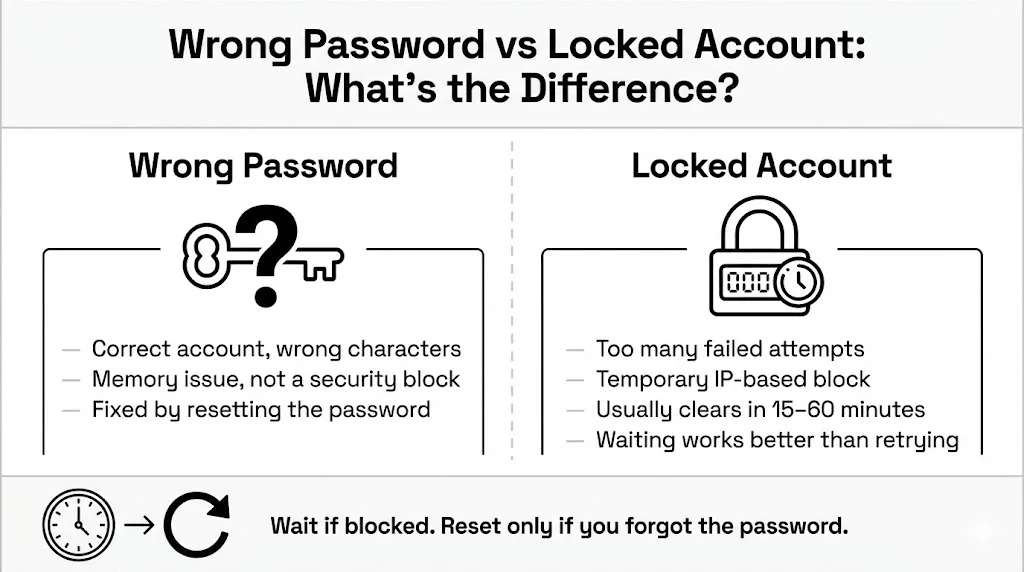
It is helpful to distinguish between forgetting your credentials and having a disabled account. If you type the wrong string of characters too many times, Discord may temporarily block your IP address to prevent brute-force attacks. This usually clears up after a short wait (typically 15 to 60 minutes). A password reset is for when you simply are unable to recall the correct string of characters.
Typical Login Issues Users Face
- Caps Lock: The most frequent culprit. Since passcodes are case-sensitive, one accidental button press changes everything.
- Old Credentials: Users often instinctively type an old passcode they used months ago.
- Browser Auto-fill Errors: Sometimes your browser saves the wrong information or updates an existing entry with incorrect data.
Why Quick Action Matters
If you suspect you simply forgot the information, there is no rush. However, if you see signs of unauthorized access—like messages sent from your account that you did not write—speed is critical. The faster you initiate the Discord forgot password process, the sooner you can lock out anyone else who might have access.
Things to Check Before Resetting Your Password
Before you start the recovery process, run through this quick checklist. It might save you the trouble of changing your credentials across all your devices.
1) Make Sure the Email Address is Correct
This sounds basic, but it happens constantly. Do you have multiple email addresses? Did you use your school email, a work email, or a personal Gmail account? If you enter an email address that is not linked to a Discord account, the system often will not tell you for security reasons—it just will not send the recovery link. Make sure you are typing the address associated with your specific profile.
2) Check Spam and Junk Folders
Discord’s automated messages are generally reliable, but aggressive email filters can sometimes sweep them away. Search your inbox for “Discord” to see if you missed any recent security alerts.
3) Confirm You Still Have Access to That Email Inbox
The recovery method relies entirely on you being able to open an email sent to the registered address. If you have lost access to that email account (e.g., an old university email that was deactivated), the standard reset process will not work.
4) Internet Connection and Browser Basics
Make sure you have a stable connection. If your internet is spotting in and out, the request might not reach the server. Also, try refreshing the page or restarting the app. Sometimes a cached error causes the login screen to glitch even if you are typing the right characters.
Discord Forgot Password: Step-by-Step Tutorial (Desktop & Mobile)
If you have checked the basics and still can’t get in, it is time to reset. Discord has made this process fairly straightforward.
Resetting Password on Desktop (Browser or App)
- Open the Discord Login Screen: Launch the application on your computer or go to the Discord website in your browser.
- Locate the Link: Under the password input field, you will see a small link that says “Forgot your password?”. Click it.
- Enter Your Email: A pop-up will ask for your registered email address. Type it in carefully.
- Submit the Request: Click the “Forgot Password” button.
- Check Your Inbox: The system will confirm that instructions have been sent. Now, switch over to your email client.
Resetting Password on Mobile (Android and iOS)
The interface on mobile devices is slightly different but follows the same logic.
- Open the App: Tap the Discord icon on your phone or tablet.
- Find the Option: On the login screen, right below the password field, tap “Forgot Password?”.
- Input Details: Enter the email address (or phone number, if you registered with one) associated with the account.
- Send: Tap the “Forgot Password” button to submit.
- Follow Instructions: You will receive a notification to check your email or texts.

Team WhiteVault Tip:
While you are going through this, take a moment to breathe. It is a standard procedure. Once you are back in, we can discuss how to avoid this stress in the future.
Using the Email Link to Reset Your Password
Once you have requested the Discord forgot password email, the clock starts ticking.
How Long the Email Usually Takes
Typically, the email arrives within seconds. However, during high-traffic times, it might take a few minutes. If it has not appeared after 5 minutes, something might be wrong (see the troubleshooting section below).
Opening the Reset Email
You will see an email from Discord with the subject line usually reading “Password Reset Request.”
Clicking the Link Safely
Inside, there will be a button labeled “Reset Password.”
- Security Check: Before clicking, hover your mouse over the button (or long-press on mobile) to inspect the URL. It should start with https://discord.com/ or https://discordapp.com/. If it looks strange or directs you to a different domain, do not click it. Phishing scams often mimic these emails.
Creating a Strong New Credential
When the page loads, you will be asked to create a new secret code.
- Length: Make it at least 12 characters long.
- Complexity: Mix uppercase letters, lowercase letters, numbers, and symbols.
- Uniqueness: This is vital. Do not use the same string of characters you use for your bank or social media. NIST (National Institute of Standards and Technology) guidelines suggest using a long passphrase—a sentence that is easy for you to recall but hard for computers to guess, like Purple-Elephant-Dance-Sunset-24!.
What to Do if the Link Expired
For security, these links do not last forever. If you get a message saying the token has expired, you will need to go back to the login screen and request a fresh one.
Troubleshooting Password Reset Problems
Technology is great until it isn’t. Here is what to do when the Discord forgot password flow gets stuck.
Didn’t Receive the Reset Email
This is the most frequent hurdle.
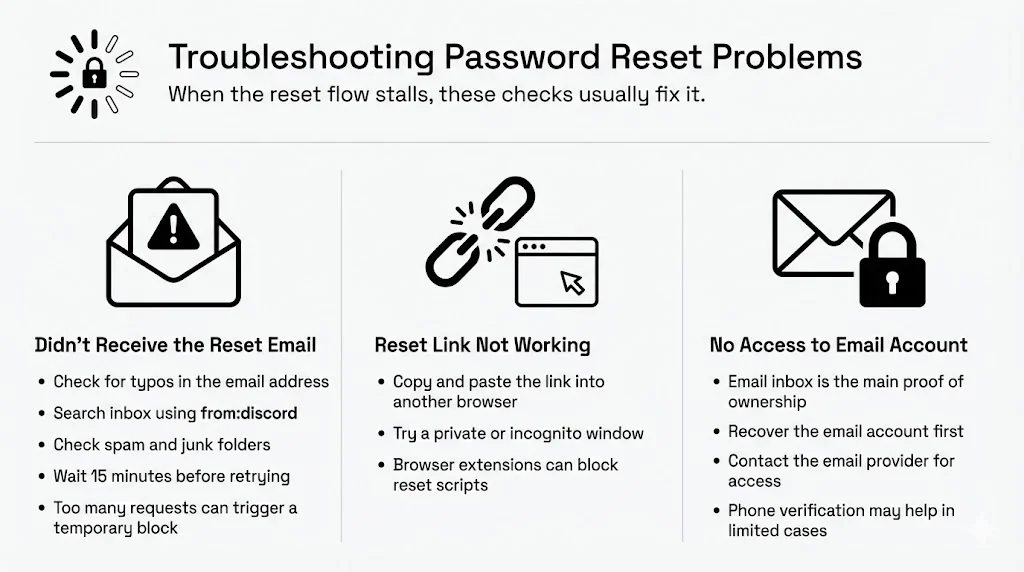
- Double-Check the Address: Did you make a typo? Gmal.com instead of Gmail.com?
- Search for Messages: Use your email search bar and type from:discord to find it.
- Wait and Retry: Wait at least 15 minutes before trying again. Spamming the request button can cause Discord to block your email temporarily as a spam prevention measure.
Reset Link Not Working
- Browser Issues: If clicking the link does nothing, try copying the URL and pasting it into a different browser (like Chrome instead of Safari, or Firefox instead of Edge).
- Incognito Mode: Try opening the link in an Incognito or Private window. This prevents browser extensions from interfering with the script.
Lost Access to Your Email Account
This is the hardest scenario. Discord uses your email as the primary proof of ownership. If you can’t access the email inbox, you can’t verify that you are the owner.
- Try to Recover the Email First: Contact your email provider (Google, Outlook, Yahoo) to recover that account first. That is your best route.
- Phone Verification: If you added a phone number to your Discord account, you might be able to use SMS verification to log in, depending on your settings, though a password reset usually still demands email confirmation.
Account Recovery Through Discord Support
If the automated tools fail, human support is the next step. However, manage your expectations—security protocols are strict for a reason.
When to Contact Discord Support
Reach out if you suspect your account was stolen, if the reset system is technically broken, or if you have 2FA backup codes but still can’t get in.
Information You May Need
When you file a ticket with Discord Trust & Safety, provide:
- The email address associated with the account.
- Your username (e.g., User#1234 or your unique handle).
- A clear description of the error.
What Support Can and Cannot Do
- They CAN: Help fix technical bugs or address hacked accounts if you can prove ownership.
- They CAN’T: Give you the password. They can’t see it. Nor can they change the email on the account if you can’t log in to verify the request. This protects users from social engineering attacks where hackers pretend to be the owner to steal accounts.
Expected Response Time
Response times vary. It might take anywhere from 24 hours to a week depending on ticket volume. Patience is required here.
Securing Your Account After Reset
Once you are back in, do not just go back to gaming. Take five minutes to lock the door behind you.
Updating Security Settings
Go to User Settings > My Account. Here you can review your details. If your password was weak, consider changing your email password as well, just to be safe.
Turning on Two-Factor Authentication (2FA)
This is the single most effective way to secure your account.
- Go to User Settings.
- Click Enable Two-Factor Auth.
- Download an authenticator app (like Authy, Google Authenticator, or 1Password).
- Scan the QR code.
- Vital Step: Download your Backup Codes. If you lose your phone, these codes are the only way back in.
WhiteVault Solution:
Where do you put those backup codes? Writing them on a sticky note is risky. Saving them in a generic text file on your desktop is unsafe if your computer gets a virus. A secure personal vault like WhiteVault is the perfect place to store these static codes. You can save them alongside your passport scans and other critical documents, ensuring you always have a “break glass in case of emergency” option.
Reviewing Connected Devices and Sessions
In the Devices section of your settings, you can see everywhere your account is currently logged in. If you see a device you do not recognize (like a Windows PC in a country you do not live in), click the “X” to log it out immediately.
Best Practices for Protecting Discord Login Details
The goal is to never have to search for “Discord forgot password” again.
1) Choosing a Strong and Unique Credential
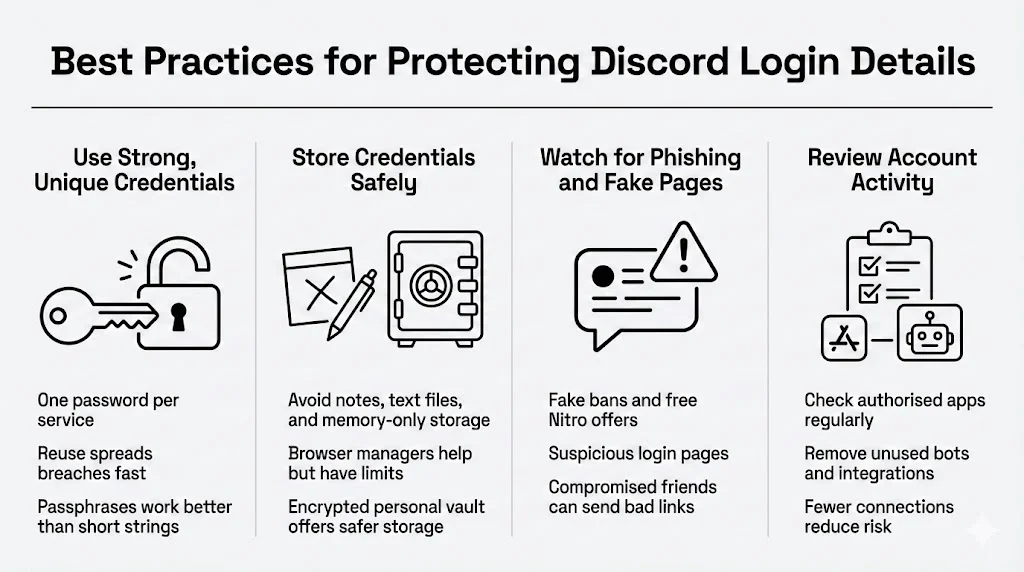
We mentioned passphrases earlier. The most important rule is uniqueness. Research shows that 84% of people reuse passwords across platforms. This is a critical mistake. If you use the same secret code for Discord, Facebook, and your email, a breach at one site puts them all at risk. In 2024, credential stuffing—where hackers use leaked data from one site to unlock accounts on another—remains a top threat, causing a significant percentage of data breaches.
2) Safe Ways to Store Credentials
Stop relying on your brain to hold complex strings of data. It is not built for that.
- Bad: Sticky notes, “Passwords.txt” on your desktop, using “Password123”.
- Better: Browser-based managers (convenient, but tied to the browser).
- Best: A dedicated, encrypted vault.
This is where a service like WhiteVault shines. We help you save, recall, and protect your most important information. By storing your credentials in a secure, centralized location, you free up mental space. You no longer need to panic about forgetting; you just need to open your vault.
3) Avoiding Phishing Emails and Fake Pages
Hackers love Discord because high-value accounts often have credit cards attached for Nitro subscriptions. Be wary of:
- Emails claiming you have been banned (check the app first).
- “Free Nitro” offers that require you to log in on a weird website.
- Messages from friends sending strange links (they might be hacked).
4) Regularly Checking Account Activity
Make a habit of checking your authorized apps list every few months. Remove any bots or integrations you no longer use.
Conclusion
Getting locked out of your account is a hassle, but following the Discord forgot password process is usually a quick fix. The real lesson comes after you regain access. Security is not about being a tech genius; it is about having a system.
By setting up Two-Factor Authentication, using unique credentials, and storing your backup codes in a secure place like WhiteVault, you turn a potential crisis into a non-issue. You are taking control of your virtual life.
Start with this one fix today. Secure your Discord, save your backup codes, and enjoy the peace of mind that comes with knowing your account is safe.
Frequently Asked Questions (FAQ)
1) How long does the Discord password reset email take to arrive?
Usually, it arrives instantly or within a few minutes. If it takes longer than 15 minutes, check your spam folder or verify you entered the correct address.
2) What should I do if I forgot both my password and email?
If you forgot the email, try searching your different email inboxes for “Discord” messages to see which one received the welcome email. If you attached a phone number, try logging in with that. Without the email or phone number, account recovery is extremely difficult.
3) Can I reset my Discord password without email verification?
Generally, no. Email is the primary way Discord verifies identity. If you have phone verification enabled, you may have options via SMS, but email is standard.
4) Why does Discord say my verification code is invalid?
Codes expire quickly. If you waited too long to click the link or type the code, it won’t work. Request a new one and use it immediately. Also, ensure your device’s time settings are set to “Automatic,” as 2FA codes rely on accurate time syncing.
5) How often can I request a password reset?
There is a limit to prevent spam. If you request it too many times in a short window, Discord will block requests for a period (usually nearly an hour).
6) Is it safe to reset my password on public Wi-Fi?
It is risky. Public networks can be snooped on. If you must do it at a coffee shop, use a VPN or switch to your mobile data connection for the process.
7) Will resetting my password log me out of other devices?
Yes, typically changing your credentials will invalidate the session tokens on other devices, forcing you to log in again. This is a good security feature if you think you were hacked.


