You are standing at a checkout counter, or perhaps you are about to board a flight. You need to pull up a document or approve a payment on your iPhone, but the screen prompts you for credentials you haven’t typed in six months. You try your usual variation of a childhood pet’s name and your birth year. It shakes no. You try again with a capital letter. No. Suddenly, a timer appears. You are shut out.
We have all been there. In 2026, the average person manages nearly 100 web-based accounts. Keeping track of unique, strong credentials for every single one is a task that human brains simply were not designed to handle. When that account is your Apple ID, the stakes feel higher because it connects so much of your virtual existence—from your photos and messages to your banking information.
If you are currently staring at a locked screen, take a deep breath. Losing access does not mean your data is gone forever. It just means you need to verify who you are. This guide will walk you through exactly how to reset Apple ID password credentials safely, explain why security standards have tightened in recent years, and show you how to organize your vital information so this panic never happens again.
At WhiteVault, we believe that security should not be scary. It should be simple. Let us get you back into your account.
Why Apple ID Access Matters More Than Ever in 2026
Before we dive into the technical steps, it helps to understand the “why.” In the past, an Apple ID was just a username for buying songs or downloading apps. Today, it acts as the central identity for your entire technological ecosystem.
According to recent data from privacy advocates and cybersecurity researchers, the integration of biometric data, health records, and financial wallets into mobile operating systems has made personal accounts a high-value target for cybercriminals. The 2025 Identity Fraud Study highlighted that account takeovers increased by 13% year-over-year, largely due to weak or reused credentials.
Because of this risk, Apple—along with other major tech giants—has implemented stricter verification protocols. This includes mandatory two-factor authentication (2FA) for almost all users and recovery waiting periods that can last days. These hurdles can feel frustrating when you are just trying to check your email, but they exist to make sure that the person requesting access is actually you, not a bad actor halfway across the world attempting a brute-force attack.
Common Situations That Trigger Password Resets
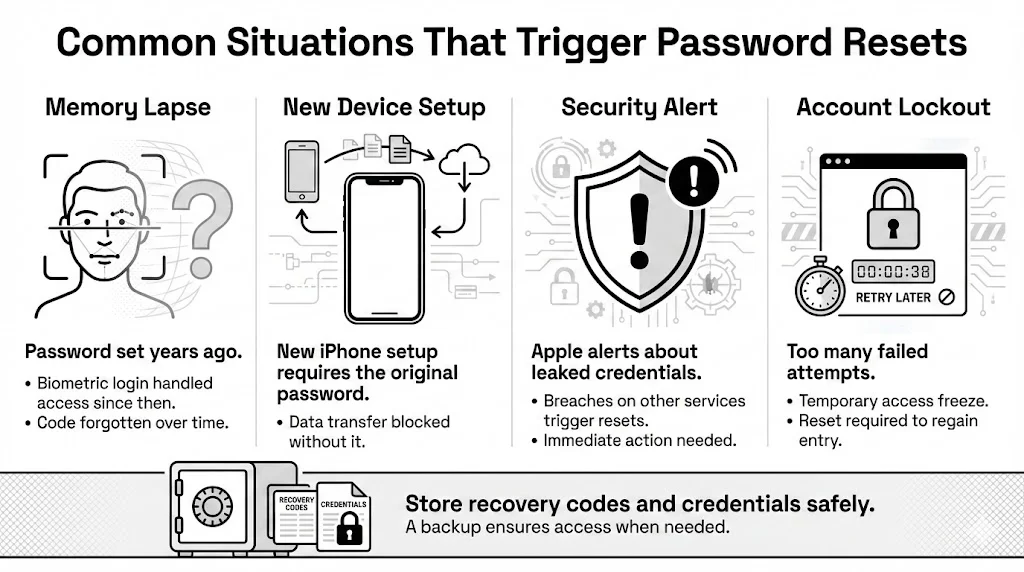
You might need to learn how to reset Apple ID password details for several reasons:
- Memory Lapse: You set the code years ago and Face ID handled everything since then.
- Device Upgrade: You bought the new iPhone 17 and cannot transfer data without the master code.
- Security Alert: Apple notified you that your credentials appeared in a data breach from another service.
- Account Lockout: Too many incorrect attempts triggered a temporary freeze.
By the end of this guide, you will not only regain access but also understand how to use tools like WhiteVault to store your recovery codes and credentials securely, guaranteeing you always have a safety net.
Understanding Your Apple ID and Account Security
Think of your Apple ID as the primary pass to your house. If you lose the pass to the front door (your Apple ID), you cannot get into the kitchen (iCloud Photos), the bedroom (Health data), or the home office (iCloud Drive documents).
What an Apple ID Controls
In 2026, this single login connects:
- Personal Communication: iMessage, FaceTime, and Mail.
- Content and Media: Apple Music, Apple TV+, and App Store purchases.
- Physical World Interactions: Apple Pay, transit cards, and even car credentials stored in Wallet.
- Device Location: The “Find My” network, which tracks your devices and shared items.
The Shift in Account Security
Over the last few years, the philosophy behind account protection has shifted from “memorization” to “verification.” Organizations like the National Institute of Standards and Technology (NIST) now advise focusing on length and unpredictability for passwords rather than complex character substitution (like swapping ‘a’ for ‘@’).
In addition, the reliance on “trusted devices” has become absolute. Your phone is no longer just a communication tool; it is a hardware token that proves your identity. This is why resetting your credentials is significantly easier if you have access to a device that is already signed in.
Why Strong Credentials Matter
We often hear, “I have nothing to hide.” However, privacy is not about hiding; it is about protecting. Your account holds metadata that paints a full picture of your life. Protecting this with a strong, unique password is the first line of defense against identity theft. A strong password should be:
- Long: At least 12-14 characters.
- Unique: Never used on any other website.
- Random: Devoid of common words or personal dates.
This sounds like a lot to manage, and it is. This is where a secure personal vault comes in. Instead of trying to recall complex strings of characters, you store them in a secure environment like WhiteVault, leaving you to focus on living your life rather than managing it.
Common Reasons People Need to Reset an Apple ID Password
Understanding why you lost access can help speed up the recovery process. Here are the most frequent scenarios we see at Team WhiteVault.
1. The “Set It and Forget It” Effect
Biometrics like Face ID and Touch ID are convenient, but they cause a specific type of amnesia. When you never type your password, the neural pathways in your brain that hold that information weaken. You might know your PIN code by heart, but the alphanumeric string for your ID fades away.
2. The Device Handoff
You hand your old iPad to a child or a parent. To set it up for them, you need to sign out. Suddenly, you are prompted for a password you haven’t thought about in three years.
3. Compromised Credentials
You might receive an email stating, “Your Apple ID was used to sign in to a device in Singapore.” If you are in Chicago, this is a red flag. In this case, learning how to reset Apple ID password credentials immediately is a defensive maneuver to kick the intruder out.
4. Locked Accounts
If you or someone else tries to guess your password too many times, Apple will display a message saying, “This Apple ID has been locked for security reasons.” You must reset your password to regain entry.
Things to Prepare Before Starting the Password Reset Process
Before you start clicking “Forgot Password,” take a moment to gather your resources. Verification in 2026 is rigorous. Having the right items ready will make the process smoother.
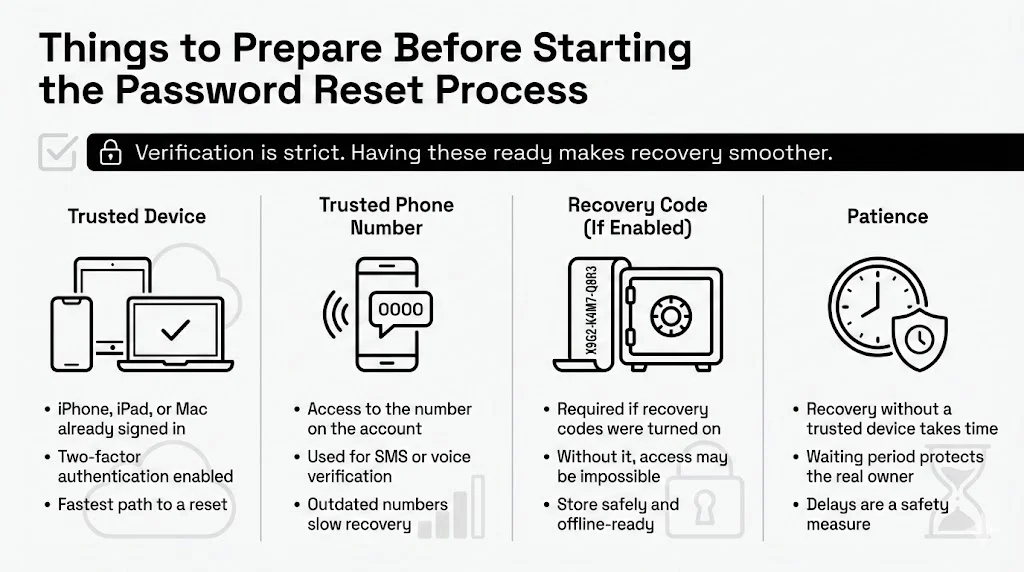
Access to a Trusted Device
A “trusted device” is an iPhone, iPad, or Mac that you have already signed into with 2FA enabled. Apple knows this device belongs to you. Using one of these is the golden path to a fast reset.
Trusted Phone Number
You will need access to the phone number associated with your account. Apple will send SMS codes or call this number to verify identity. If you changed your number recently and didn’t update it in your account settings, the process becomes more complex.
Recovery Code (If Enabled)
Some users enable a 28-character Recovery Code for extra security. If you did this, you must have that code. Without it, even Apple support cannot help you regain access. This is exactly the type of document—a static, crucial string of text—that belongs in your WhiteVault, encrypted and safe, yet accessible when disaster strikes.
Patience
If you do not have a trusted device, account recovery can take several days. This waiting period is a security feature, not a bug. It gives the original owner time to stop a malicious request.
How to Reset Apple ID Password Using an iPhone or iPad
This is the fastest method. If you have an iPhone or iPad that is currently signed in, you can use the device’s passcode (the numbers you use to open the screen) to reset the Apple ID password.
Step-by-Step Instructions:
- Open Settings: Look for the gray gear icon on your home screen.
- Select Your Name: Tap the banner at the very top of the Settings menu with your name and photo.
- Go to Sign-In & Security: Look for the option labeled “Sign-In & Security.”
- Select Change Password: You will see a blue option to change your password.
- Enter Device Passcode: Your iPhone will ask for the passcode you use to open the phone. This acts as the verification step.
- Create New Credentials: Enter your new password twice.
- Pro Tip: Do not use “Apple123!” or your street name. Let a password generator create a chaotic string of characters for you, and immediately save it in your WhiteVault.
- Confirm: Once entered, the system updates your credentials across Apple’s servers.
What Happens Next? You might be asked if you want to sign out of other devices. If you suspect unauthorized access, choose “Sign out other devices.” If you just forgot the code, you can usually stay signed in.
How to Reset Apple ID Password on a Mac
If you prefer using a computer, or if your phone is the device that is locked, your Mac is the next best option.
Reset Steps Through System Settings:
- Open System Settings: Click the Apple logo in the top-left corner of your screen and select “System Settings” (formerly System Preferences).
- Click Your Name: Select your Apple ID profile at the top of the sidebar.
- Choose Sign-In & Security: Click this tab to view your login details.
- Click Change Password: A prompt will appear.
- Authenticate: You will be asked to enter the password you use to open your Mac computer. This is separate from your Apple ID password.
- Enter New Details: Type your new secure password and verify it.

Tips to Avoid Sign-In Issues:
After changing the password on your Mac, your iPhone and iPad might pop up with a notification asking for the new credentials. Enter them promptly to make sure services like iCloud backup and Photos syncing continue without interruption.
How to Reset Apple ID Password Through the Web
If you lost your phone and cannot access your Mac, you must use the web. This method is slightly slower because Apple cannot use the hardware in your hand to verify you.
Using Apple’s Account Recovery Site:
- Visit the Portal: Open a browser on a friend’s computer or a library machine and go to iforgot.apple.com.
- Enter Apple ID: Type in the email address associated with your account.
- Confirm Phone Number: You will likely be asked to confirm the phone number linked to the account. You must type the full number.
- Check for Notifications: The site will try to send a notification to your trusted devices. If you do not have them, look for “I don’t have access to my devices.”
- Select Options: You may be able to reset the password using a verification code sent to your trusted phone number via SMS or phone call.
Wait Times: If you cannot verify your identity immediately (e.g., you lost your phone and don’t have the SIM card), you will enter “Account Recovery.” The system will state: “We will contact you when your account is ready for recovery.” This can take 24 hours to several weeks.
What to Do If You Forgot Apple ID Credentials
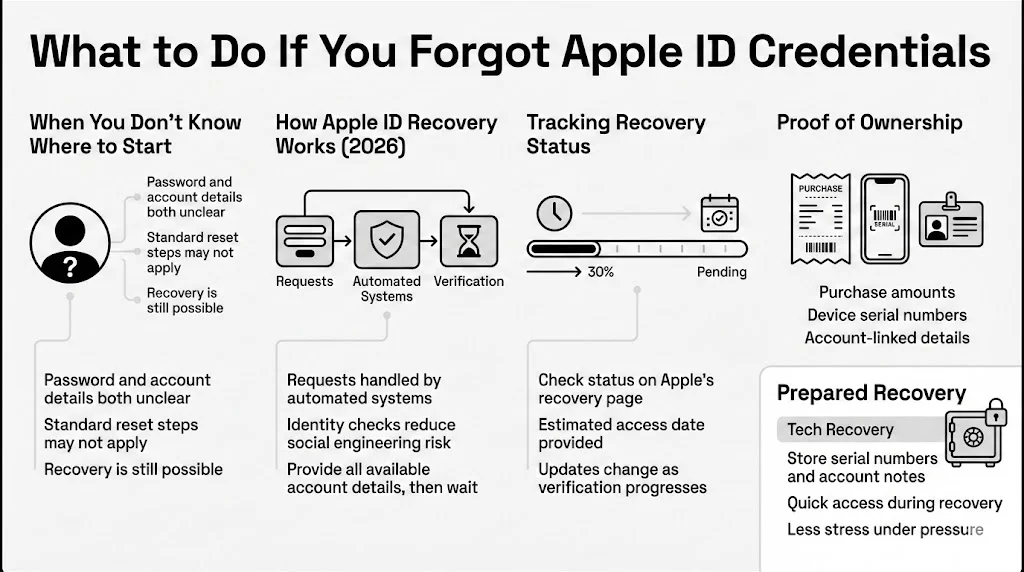
Sometimes the problem isn’t that you want to change the password, but that you don’t even know where to start.
How Apple ID Recovery Works in 2026
Automated systems now handle recovery requests to remove human bias and social engineering risks. You initiate the request, verify as much info as possible (credit card on file, email address, phone number), and then wait.
Tracking Recovery Status
You can check the status of your request at iforgot.apple.com. The system usually provides a date when you can expect to regain access.
The Importance of Documentation
During recovery, Apple might ask for specific details to prove you are the owner, such as the amount of your last Apple purchase or the serial number of a device linked to the account.

WhiteVault Scenario:
Imagine having a secure folder in your WhiteVault named “Tech Recovery” where you store a photo of your device serial numbers and a note of your account details. Instead of scrambling through old bank statements, you verify your identity in seconds.
Resetting an Apple ID Password With Two-Factor Authentication
Two-Factor Authentication (2FA) is the standard now. It means a password alone is never enough; you need a second piece of evidence.
How 2FA Works
When you enter your password on a new device, Apple sends a six-digit code to your other active devices. You must type this code to proceed.
What if Codes Are Not Received?
- Resend Code: Click “Didn’t get a verification code?”
- Text/Call: Choose to have the code sent as a text or phone call to your trusted number.
- Settings Menu: If you have a device that is offline (no Wi-Fi) but trusted, you can generate a code locally. Go to Settings > Sign-In & Security > Two-Factor Authentication > Get Verification Code.
Using Apple Security Questions (If Still Enabled)
For older accounts that never upgraded to 2FA (rare in 2026, but possible), security questions act as the verification gatekeeper.
When They Apply
These appear if you do not have trusted devices or 2FA set up. You will be asked questions like “What was the name of your first pet?” or “Where did your parents meet?”
Answering Strategy
Answers must be exact. “St. Louis” is different from “Saint Louis.”
- The Problem: People forget what they wrote ten years ago. Or, the information is public (anyone can find your mother’s maiden name on social media).
- The Solution: If you still use security questions, do not answer truthfully. Treat the answer like a password.
- Question: What is your favorite car?
- Answer: Purple-Pizza-1999.
- Storage: You must store this fake answer in your secure vault. You will never recall it otherwise.
Fixing Apple ID Sign-In Issues After a Password Reset
Congratulations, you successfully learned how to reset Apple ID password data and created a new one. But you aren’t done yet.
Sync Delays
It may take a few hours for all services to recognize the change. You might see “Update Apple ID Settings” red badges on your Settings app.
Re-authentication
You will need to sign in again on:
- Email apps (Mail, Outlook).
- Media services (Music, Podcasts).
- Third-party apps using “Sign in with Apple.”
App-Specific Passwords
If you use non-Apple apps to access iCloud data (like a generic calendar app), you might need to generate new “App-Specific Passwords” via the Apple ID website. The old ones usually remain active, but sometimes a reset revokes them.
Best Practices for Apple ID Account Management
Now that you have regained control, let us make sure you never lose it again. Security is about habits, not just technology.
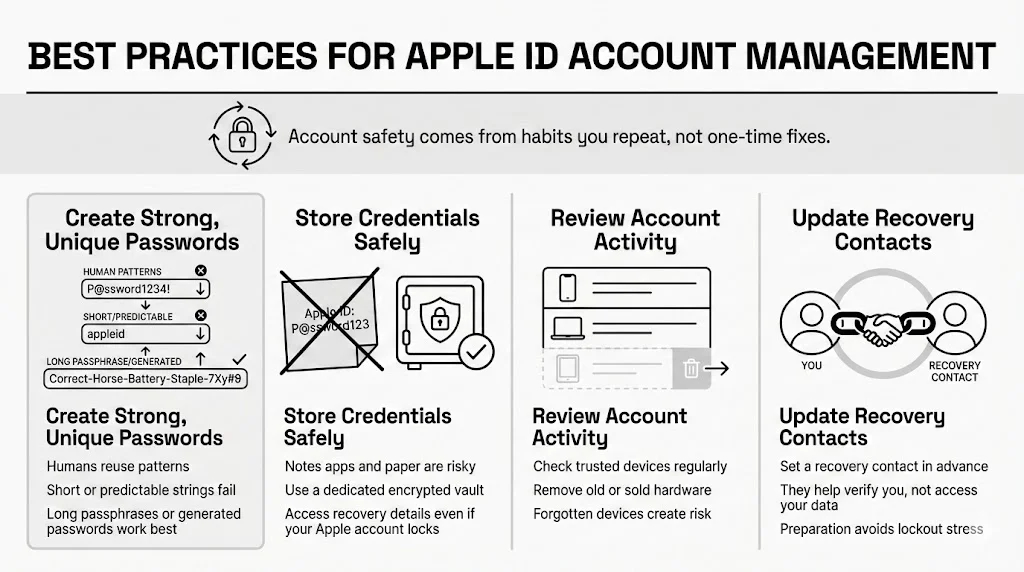
1. Creating Strong, Unique Passwords
We cannot stress this enough: Human brains are terrible at randomness. We pick patterns. Hackers know these patterns.
- Bad: P@ssword123!
- Good: Correct-Horse-Battery-Staple (A passphrase).
- Best: 8x#mP9$vK2!qL (Generated by a secure tool).
2. Storing Credentials Safely
The sticky note under the keyboard is a liability. The “Notes” app on your phone is not encrypted to the same standard as a dedicated vault, and if you are locked out of your phone, you are locked out of your notes. WhiteVault offers a secure personal vault designed for exactly this. It is independent of your operating system. If your Apple account locks up, your WhiteVault is still accessible via other means, allowing you to retrieve your recovery codes and backup codes.
3. Reviewing Account Activity
Every few months, go to Settings and look at the device list. Do you see the “iPhone 8” you sold three years ago? Remove it. Old trusted devices can be used to hijack accounts.
4. Updating Recovery Contacts
Apple allows you to set a “Account Recovery Contact”—a friend or family member who can verify your identity if you get locked out. They cannot access your data, but they can give you a code to get back in. Set this up before a crisis occurs.
The Psychology of Forgetting: Why We Lose Passwords
It is easy to blame ourselves when we forget a password, but it is actually a byproduct of good brain function. Our brains are designed to prune information we do not use regularly to make room for new data.
If you have Face ID enabled, you stop “using” the password neural pathway. Within six months, that memory degrades. This is why relying on memory for critical security is a flawed strategy. We need external, secure storage.
The Role of Stress
Often, we need passwords in high-stress moments—at the bank, at the airport, or during a medical emergency. Stress floods the brain with cortisol, which inhibits memory recall. You might actually know the password, but your brain cannot access it at that moment. Having a backup plan—a written recovery sheet stored in a fireproof box, or a secure virtual vault accessible from a partner’s device—bypasses the panic.
Passkeys vs. Passwords: The Future is Here
You may have noticed prompts to set up a “Passkey.” In 2026, this technology is becoming dominant. A passkey replaces the typed password with a cryptographic token stored on your device. To sign in, you just use Face ID or Touch ID. There is nothing to phish and nothing to forget. However, even with passkeys, knowing how to reset Apple ID password credentials remains vital as a fallback mechanism. We are in a transition period, and having a traditional password as a backup is still standard practice.
Conclusion
Losing access to your Apple ID can feel like losing access to your life. The photos of your children, the documents for your mortgage, the emails from your boss—they all live behind that login screen.
We hope this guide on how to reset Apple ID password information has helped you regain access. Whether you use a trusted iPhone, a Mac, or the web recovery flow, the process is designed to protect you, even if it feels cumbersome at the moment.
Real security isn’t about having a photographic memory. It is about having a system. It is about acknowledging that you possess vital information that needs to be guarded. By setting up Recovery Contacts, keeping your trusted number updated, and using a secure tool to manage your credentials, you move from a state of vulnerability to a state of control.
Start today. Review your settings. Generate a strong, new password. And then, put that password somewhere safe, where you can always find it. Store, recall, and guard what matters most.
Frequently Asked Questions (FAQ)
1) How long does Apple ID recovery take in 2026?
If you lack a trusted device, recovery takes time. It typically involves an initial 24-hour waiting period, followed by a span of several days to a few weeks. Apple does this to ensure no one is trying to steal your account. They will send automated status updates to your email or phone number during this time.
2) Can I reset my Apple ID password without a trusted device?
Yes, but it is harder. You must use the “Account Recovery” process on the web. You will need to confirm your phone number and potentially verify credit card details linked to the account. Without a trusted device, you cannot perform an instant reset.
3) What happens if I fail Apple ID verification?
If you cannot verify your identity (e.g., you don’t know the phone number, don’t have the card info, and don’t have a recovery code), you may permanently lose access to the account. Apple Support cannot override this security protocol. This is why keeping your information organized in a secure vault is vital.
4) Does changing my Apple ID password sign me out of all devices?
You will be given a choice. When you reset the credentials, a prompt asks if you want to “Sign out other devices.” We advise selecting “Yes” if you suspect unauthorized access. You will then need to sign back in on your active devices.
5) Is two-factor authentication required for Apple ID resets?
For most modern accounts, yes. 2FA is the primary verification method. If you created your account recently, 2FA is mandatory. Only very old, legacy accounts might still rely solely on email or security questions.
6) How often should I change my Apple ID password?
Contrary to old advice, you do not need to change it every 90 days. NIST guidelines suggest changing it only if you suspect a breach or if you reused the password elsewhere. A strong, unique password can stay unchanged for years as long as it remains secret.
7) Can I use a friend’s iPhone to reset my password?
Yes. Open the “Apple Support” app on their phone (download it from the App Store if missing). Scroll down to “Support Tools” and tap “Reset Password.” Select “A different Apple ID.” This allows you to reset your credentials on their hardware without storing your data on their phone.


