
You are locked out of your Netflix account during movie night, and the password you were sure you knew suddenly does not work. Or perhaps you are trying to log in to pay a utility bill, and your mind simply goes blank. We have all had that moment of digital frustration. It is human nature to look for password tips that actually work, especially when every single website requires a different combination of symbols, numbers, and capital letters. At WhiteVault, we help people save, remember, and protect what matters, so dealing with secure logins feels manageable instead of overwhelming. Let us look at practical, stress-free ways to handle your digital security.
How to Remember Complex Passwords: Quick Answer
The safest way to remember complex passwords without writing them on paper is using a secure password manager. You only need to memorize one strong master passphrase, and your encrypted vault securely stores, organizes, and autofills the rest across your devices.
Why This Topic Matters for Everyday Security
Modern life requires an astonishing number of accounts, and managing them has become an unpaid part-time job. Between your bank, email, healthcare provider, streaming services, and online shopping, the average person is juggling dozens of logins. Keeping track of all these credentials is a genuine source of daily stress. When searching for remember passwords tips, most people just want to stop hitting the “forgot password” button every time they try to get something simple done online.
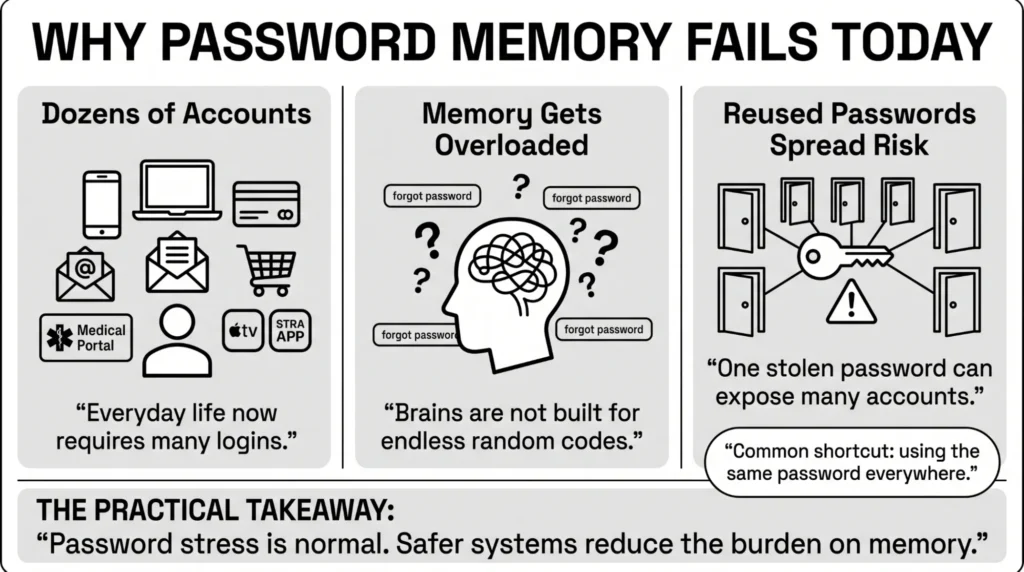
The sheer volume of accounts means relying purely on your memory is no longer a viable option for personal credential management. Our brains simply were not built to memorize eighty different strings of random characters. According to 2026 consumer security research from NordPass, the average internet user now manages roughly 120 personal accounts. This leads to massive cognitive overload. Because of this overwhelming burden, people naturally look for shortcuts, which unfortunately lead to poor personal security choices.
The Cybersecurity and Infrastructure Security Agency (CISA) consistently highlights that weak or reused passwords are one of the primary ways everyday people experience stressful account takeovers. Furthermore, the 2025 Verizon Data Breach Investigations Report (DBIR) confirmed that stolen credentials drove 22% of all confirmed data breaches globally. If you reuse your passwords across different platforms, a breach on an unimportant website suddenly becomes a massive threat to your private information and primary bank accounts. This risk is growing exponentially, especially with credential theft surging 160% throughout 2025.
What Usually Goes Wrong
It is important to acknowledge that nobody consciously decides to have bad security habits. We make risky choices because we are busy or overwhelmed. We have all reused passwords—it is human nature to want something memorable when in a rush. But with the average person managing over 100 accounts, reusing passwords is like using the exact same key for your home, car, office, and gym. If someone steals that one key, everything is exposed. This is why nearly 78% of people globally admit to recycling passwords across platforms. There is a better way to manage this without relying on flawless memory.
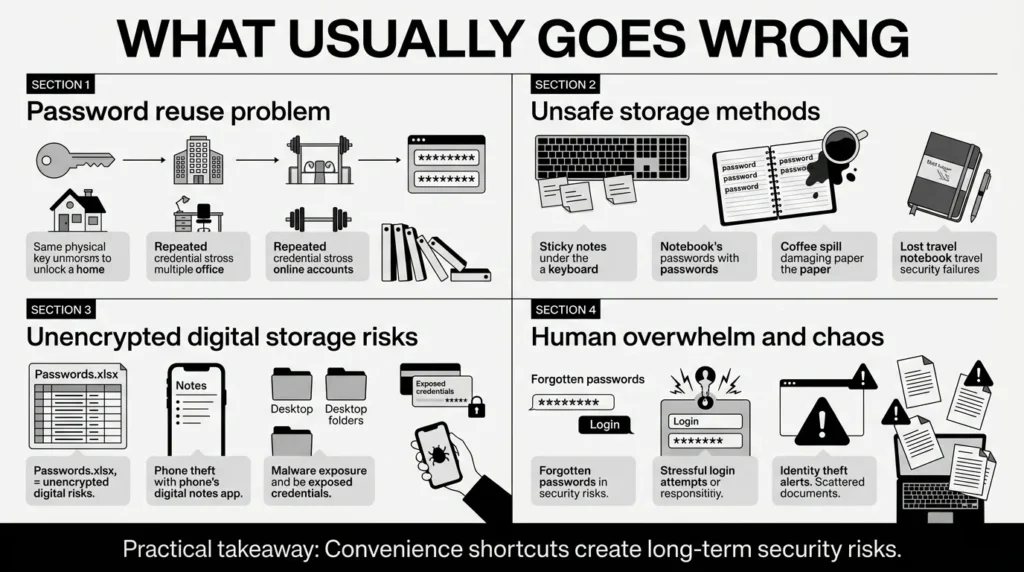
Many remember password tips online still suggest keeping a physical notebook. You might have a sticky note hidden under your keyboard. But what happens when your laptop crashes and you cannot remember your tax portal login? Physical paper is vulnerable to the real world. A spilled coffee can destroy your only record of vital credentials. Losing that notebook leaves you completely locked out while traveling. This human element is critical—68% of data breaches involve a human component like misplaced documents.
Another pitfall is using the default notes app on your smartphone or a desktop spreadsheet for credential management. It feels convenient to have a file labeled “Passwords.xlsx” on your desktop. However, the Federal Trade Commission (FTC), which logged over 1.13 million identity theft reports, frequently warns about identity theft stemming from unencrypted files. Relying on unencrypted formats contributes directly to identity fraud losses of $27.3 billion in 2025. If your phone is lost, stolen, or handed to a child, your most sensitive data is sitting there, exposed.
The Illusion of Convenience: Browser-Saved Logins vs. Dedicated Vaults
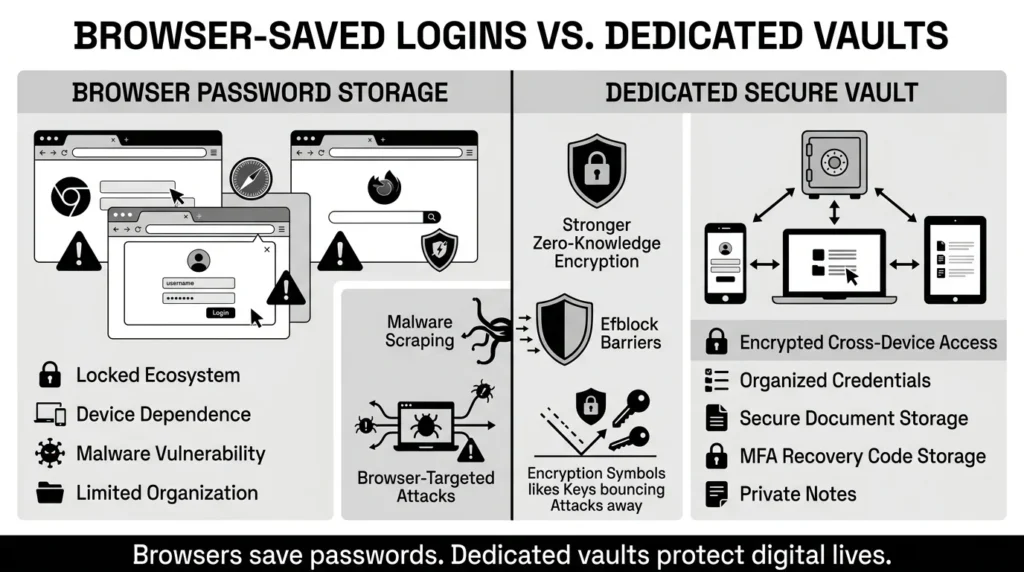
When people realize sticky notes and unencrypted spreadsheets are dangerous, their next logical step is to rely on their web browser. Chrome, Safari, and Firefox all offer built-in prompts asking, “Would you like to save this password?” While browser-based password savers are definitely a step up from reusing the same password everywhere, they come with significant hidden drawbacks everyday users rarely anticipate.
- First, browser-saved passwords often trap you within a specific ecosystem. If you save all your passwords in Safari on an Apple computer, you will quickly find yourself struggling to log into accounts if you ever need to use a Windows computer at work or an Android tablet at home. A secure digital life requires flexibility. You need credentials to seamlessly follow you across all your devices, regardless of the brand or operating system you are using.
- Second, browser-based password managers rarely offer the comprehensive digital organization modern life demands. They are designed strictly to fill in username and password fields on websites. They cannot securely store a scanned PDF of your passport, family health insurance cards, or PIN codes for your home alarm system. They also lack a secure way to store recovery codes and fake security answers required for robust account protection.
- Finally, security experts often point out that if malicious software infects your computer, web browsers are usually the very first target. Attackers design specific malware to silently scrape saved passwords directly out of browser storage. A dedicated secure personal vault utilizes robust, zero-knowledge encryption that operates independently of your web browser’s vulnerabilities, providing a much thicker, more resilient wall of defense around your digital identity.
The Safer Way to Handle It: Passphrases
If we cannot reuse passwords, we cannot write them on sticky notes, and we should not rely solely on web browsers, what exactly are we supposed to do? One of the most effective remember password tips endorsed by leading security experts is to stop trying to memorize random strings of characters and start using passphrases. A passphrase is a sequence of random, unrelated words strung together to create a password that is incredibly long, yet surprisingly easy for a human brain to visualize and recall.
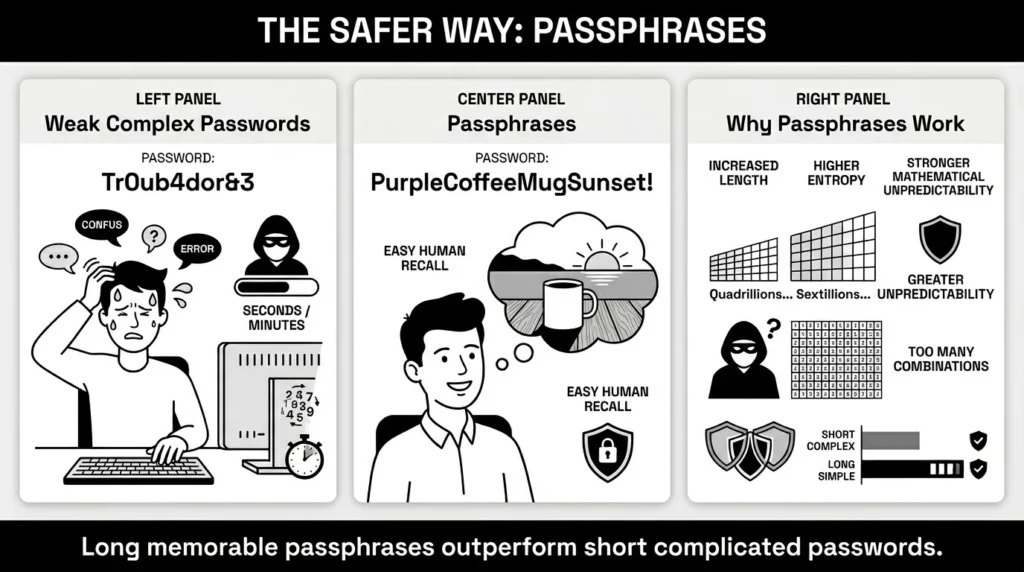
The National Institute of Standards and Technology (NIST) updated their digital identity guidelines specifically to reflect how humans actually interact with security systems in the real world. NIST guidance now heavily favors long passphrases over short, highly complex passwords that require special characters. A password like “Tr0ub4dor&3” is incredibly frustrating for a human to type on a mobile phone keyboard, but mathematically quite easy for an automated computer program to crack because it is relatively short.
Conversely, a passphrase like “PurpleCoffeeMugSunset!” is much longer. The sheer length of this phrase introduces massive mathematical unpredictability, making it devastatingly difficult and time-consuming for a computer to guess. However, your brain can easily picture a purple coffee mug sitting on a wooden table during a beautiful sunset. You can remember that phrase vividly without ever needing to write it down. This method gives you enterprise-grade identity protection without the daily cognitive strain.
Step-by-Step: What To Do Next
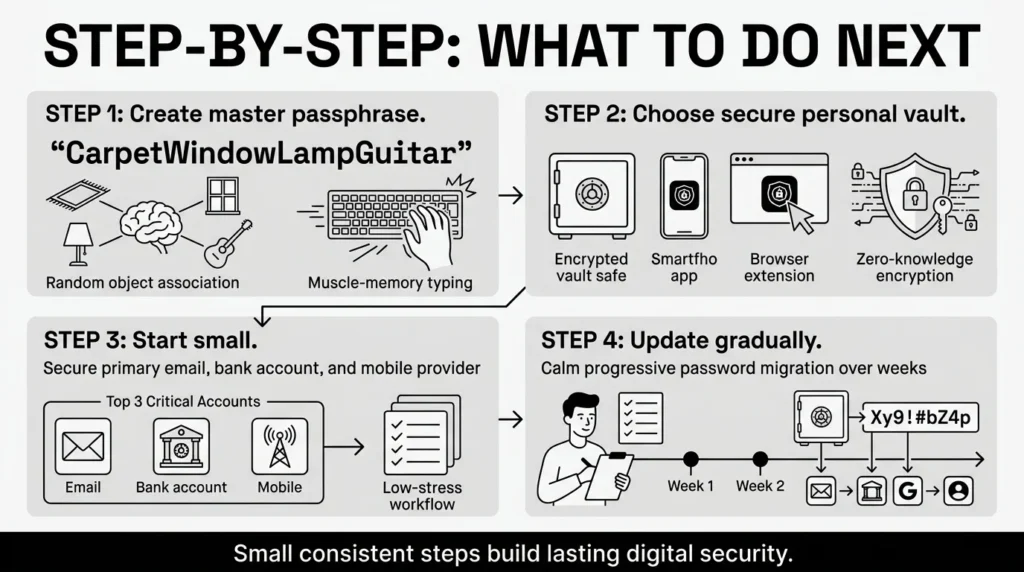
If you are exhausted from relying on your brain to remember dozens of logins, the best of all remember password tips is to outsource the heavy lifting to an encrypted digital vault. Using a digital memory aid removes the burden of memorization entirely. You only ever have to remember one single thing: your strong master passphrase. Here is the step-by-step process for taking control of your secure logins today.
Step 1: Create Your Master Passphrase.
Create a brand new, unique passphrase containing at least four random words. Do not use common sayings or song lyrics, as attackers have automated dictionaries full of these. Look around the room, pick four completely unrelated objects, and string them together (e.g., “CarpetWindowLampGuitar”). This phrase must never be used anywhere else. It is exclusively for unlocking your vault. Practice typing it a few times until the physical muscle memory sets in.
Step 2: Choose a Secure Personal Vault.
Choose a dedicated, encrypted digital vault. A dedicated tool encrypts your data locally on your device before it ever travels over the internet. This zero-knowledge architecture means only you hold the keys to decrypt your information. Even the company hosting the vault cannot see your passwords. Download the application to your phone and computer browser so your vault is always accessible.
Step 3: Start Small and Move Slowly.
Do not try to organize your entire digital life and 120 accounts in one single afternoon. That is a recipe for frustration. Start with your top three critical accounts: primary email, bank account, and mobile provider. Log into those sites, let your new vault generate a long, random password for each, and save it. The vault will remember and autofill it next time.
Step 4: Update As You Go.
Over the next few weeks, simply go about your normal routine. Whenever you naturally need to log into an older account, take two extra minutes to change the password to a newly generated, random one, and save it in your vault. By adopting this gradual approach, you will eventually replace all weak passwords without causing any disruption to your life.
Organizing Your Digital Life Beyond Passwords
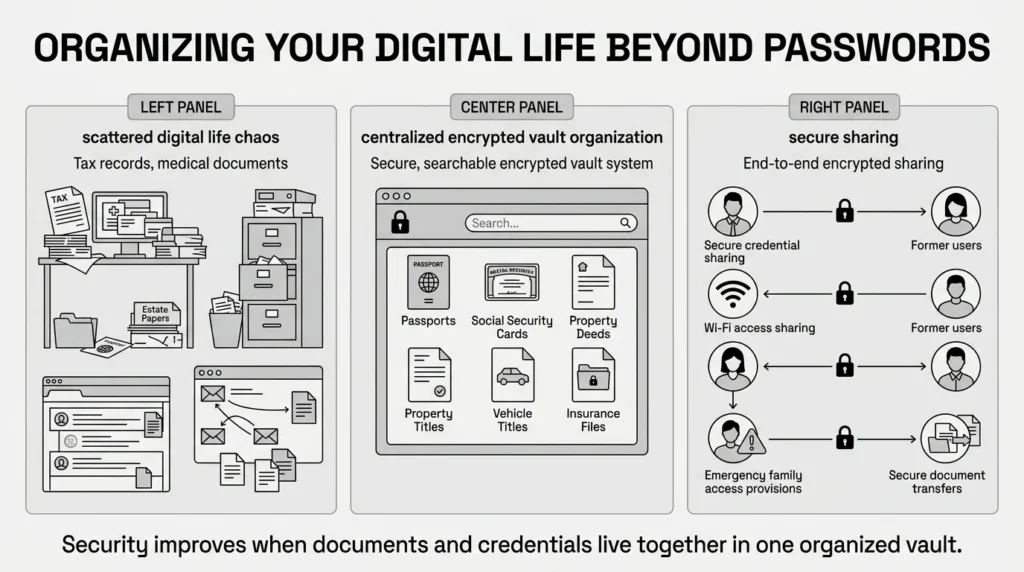
A secure personal vault is about much more than just logging into websites; it is about bringing total organization to your private life. Think about a typical retiree managing complex medical records, Medicare logins, and important family estate papers. Or consider a busy freelance professional who has to juggle tax documents, client NDAs, and banking details. Keeping these critical files scattered across an unorganized computer desktop, physical filing cabinets, and old email threads is a significant security risk.
By securely uploading scans of your passport, Social Security card, property deeds, and vehicle titles to your vault, you ensure they are permanently protected from physical disasters like fires or floods, while remaining instantly accessible from your smartphone if you are standing at an airport check-in desk.
Furthermore, a vault allows for secure sharing. If you need to share a Wi-Fi password with a houseguest, or grant a family member emergency access to a joint bank account, texting the password is highly insecure. Text messages are often unencrypted and can be intercepted. A high-quality vault allows you to securely share specific credentials or documents directly with another person, ensuring the information remains encrypted from end to end.
How WhiteVault Helps Keep This Manageable
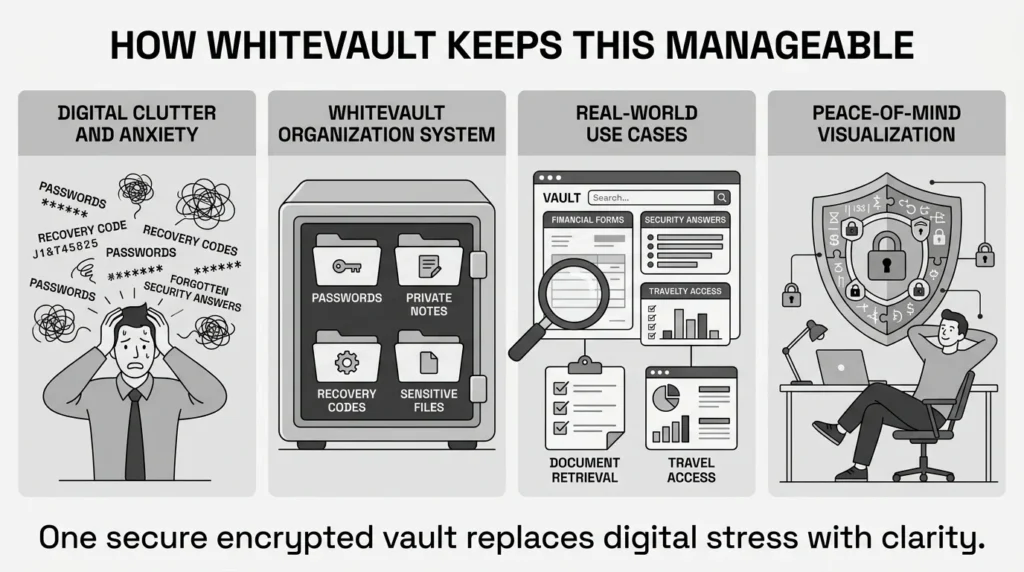
We built WhiteVault because managing private information should not require a degree in computer science, nor should it feel like a constant chore. You do not need a dozen different remember password tips when you have WhiteVault working quietly in the background as your secure personal vault. We wanted to create a digital space that feels inherently calm, beautifully organized, and deeply secure for everyday people.
When you use WhiteVault, you are not just solving the immediate password problem—you are solving the overarching problem of digital clutter and anxiety. Imagine you are filling out a complex financial form and cannot recall your mother’s maiden name security answer from 8 years ago. With WhiteVault, you can store those obscure security answers as private notes right next to your password entry. Our platform goes far beyond just logging you into websites; it is engineered to bring total peace of mind to your entire digital footprint.
By keeping your credentials, recovery codes, private notes, and sensitive files perfectly organized in one secure place, you eliminate the daily friction of modern cybersecurity. You have peace of mind knowing exactly where your most important information lives, and you sleep soundly knowing that it is protected by strong encryption that only you can unlock.
Habits That Keep You Safer Over Time
Better security rarely comes from one dramatic change. It usually comes from simple, manageable habits repeated consistently over time. The most sustainable remember password tips are those that fit seamlessly into daily life without causing extra stress. Once your secure storage vault is set up, take a few extra steps to solidify your digital defenses.
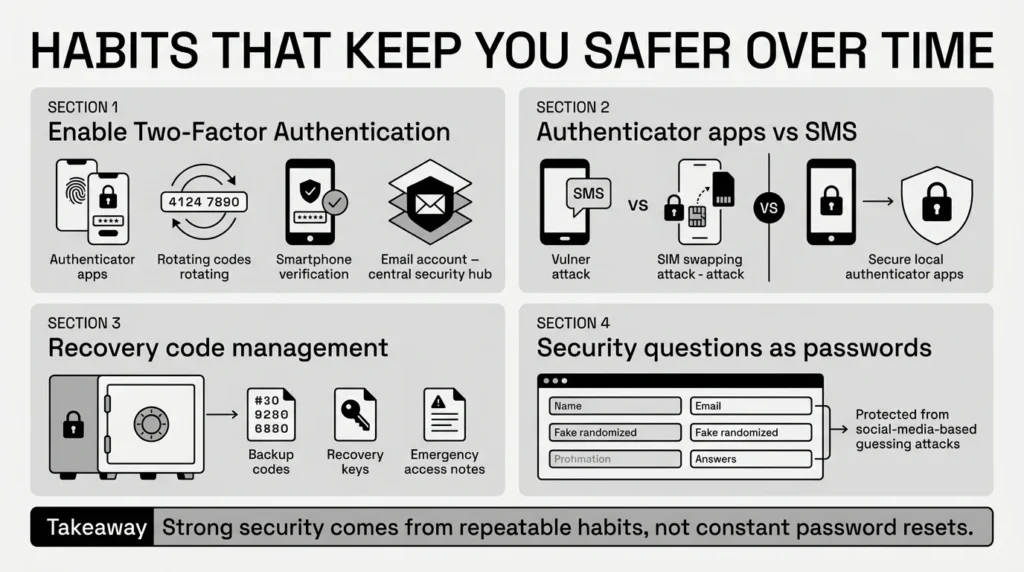
First, enable Two-Factor Authentication (2FA) on your most important accounts. Your primary email address is the most critical account you own, acting as the central hub for all password resets. Phishing—which often targets these central emails—remains the most common entry point for data breaches, accounting for 16% of incidents according to IBM’s 2025 Cost of a Data Breach Report. Turn on 2FA for your email, bank, and password vault. This means even if a hacker steals your password, they are blocked without the rotating code from your physical phone.
When setting up 2FA, choose a dedicated authenticator app over receiving a text message (SMS). While an SMS is better than nothing, sophisticated attackers using SIM-swapping techniques can intercept text messages. An authenticator app generates codes locally on your physical device, making it significantly harder for remote hackers to compromise your accounts.
Second, be deliberate about your account recovery options. Websites often provide static “backup codes” when you set up 2FA in case you lose your phone. People often print these out and lose them, or save them on their unencrypted computer desktop. Take those recovery codes and immediately store them securely inside your digital vault as a private, encrypted note.
Third, fundamentally rethink website security questions. The Open Worldwide Application Security Project (OWASP) strongly advises against using honest, factual answers. If a banking website asks for your mother’s maiden name or the street you grew up on, an attacker can easily find that exact information by browsing public social media profiles or public records. Instead, treat the answer box like a secondary password field. Generate a random word in your vault and paste it into the answer box. Your high school mascot is now “BlueberryHelicopter,” and your vault remembers it for you.
Finally, only change your passwords when absolutely necessary. Current NIST guidelines explicitly advise against the outdated practice of 90-day password rotations, as forcing people to change passwords constantly leads to weaker credentials. If you use a strong, unique password generated in a vault, only change it if directly notified of a data breach involving that website, or if you suspect your device is compromised.
Conclusion
Managing your digital life does not have to feel like a heavy, constant burden. You absolutely do not have to rely on a perfect photographic memory, and you do not have to resort to hiding physical sticky notes under your desk calendar. By shifting away from rote memorization and moving toward a trusted digital memory aid, you can radically secure your accounts while actually making your daily life significantly easier. Ultimately, the best remember passwords tips are about working smarter, not harder.
Better personal security is just about taking one small, proactive step at a time. Create a strong, memorable master passphrase today, set up your personal vault, and start storing your credentials securely as you naturally browse the web. WhiteVault was built for exactly this purpose—to bridge the gap between strong cybersecurity and everyday usability. We want to help you save, remember, and protect what matters, all seamlessly organized in your secure personal vault. Take control of your digital peace of mind today, and confidently leave the memorization to us.
Frequently Asked Questions (FAQ)
1) What is the safest way to store passwords?
When looking for password tips, people often wonder if writing them down in a physical book is safe. The safest, most reliable method is using an encrypted digital password manager. It acts as a secure personal vault that locks all your complex passwords behind one exceptionally strong master passphrase. This utilizes zero-knowledge encryption, ensuring you never have to memorize or write down your individual logins on vulnerable pieces of paper. Furthermore, unlike physical paper, a digital vault is automatically backed up, meaning you will never lose access to your accounts even if your physical computer is destroyed or stolen.
2) How do I know if my password is strong enough?
A strong password is defined by two primary characteristics: it is long, and it is entirely unique to that specific account. If you are creating a master passphrase for your vault, it should be at least four random words strung together (like “AppleDeskTrainCloud”). This provides massive mathematical entropy. If you are using a password manager to generate logins for your individual accounts (like your bank or email), you should let the vault automatically generate a string of at least 16 to 20 random letters, numbers, and symbols. If a computer program generated the password and it looks like complete gibberish, it is strong enough.
3) How often should I change my passwords?
According to current security standards from organizations like NIST, you do not need to change your passwords every few months if they are strong, complex, and unique. The old advice of 90-day password rotations is obsolete and often leads to weaker security habits. You should only proactively change a password if the service or website experiences a verified data breach, if you notice suspicious activity indicating your account was compromised, or if you accidentally shared the password with someone else over an insecure channel like a text message.
4) Are browser-saved passwords as safe as a dedicated password manager?
While browser-based password savers (like those built into Chrome or Safari) are certainly better than reusing the same weak password everywhere, a dedicated vault offers vastly stronger password safety and flexibility. Dedicated password managers use robust, zero-knowledge encryption that operates independently of browser vulnerabilities. Additionally, dedicated vaults are universally easier to sync across entirely different ecosystems (like an Apple iPhone and a Windows desktop computer), and they offer secure, organized storage for critical things beyond just passwords, such as identity documents, tax files, and two-factor recovery codes.
5) I am not good with computers. Is using a vault difficult?
Not at all. While there is a brief learning curve of a few days as you get used to the vault’s interface and how it automatically autofills your credentials, it quickly becomes second nature. Once the vault is set up and running in the background, it actually makes using computers and smartphones much easier. You will never have to waste 15 minutes navigating frustrating password reset emails again. Modern vaults are designed specifically with user-friendly interfaces aimed at everyday people, not just technical experts. The interface is intuitively designed, removing the overwhelming clutter often associated with advanced enterprise cybersecurity tools.
6) What happens if someone learns my master password?
If a malicious actor learns your master passphrase, they could potentially access your entire vault and all the sensitive data within it. This is why it is absolutely critical to make your master passphrase unique, memorable only to you, and to never share it with anyone. However, to fully protect against this worst-case scenario, you should always enable Two-Factor Authentication (2FA) on your vault itself. With 2FA enabled, even if an attacker has your master passphrase, they remain locked out because they do not have physical possession of your smartphone to receive the secondary login code.
7) How should I handle recovery codes and security answers?
You should treat recovery codes and security question answers with the exact same level of care and secrecy as your most important passwords. Never leave recovery codes sitting in an unencrypted notes app on your phone, and never save them in a plain text file on your computer desktop. You should store your backup codes, recovery keys, and fake, randomized answers to website security questions securely inside your vault as private, encrypted notes. This keeps them safe from prying eyes while ensuring they are easily searchable when you need them.
8) How does WhiteVault help me manage all these credentials?
WhiteVault acts as your central, comprehensive, and highly secure personal vault for your entire digital life. Instead of scattering weak passwords across various web browsers, keeping scans of your IDs in messy, unencrypted desktop folders, and losing vital recovery codes in old email archives, WhiteVault brings order to the chaos. It allows you to seamlessly save, remember, and protect what matters most in one beautifully simple, strongly encrypted location. It bridges the gap between enterprise-grade security and the convenience everyday people need to navigate the modern digital world.


