We have all been there. You decide to manage your scrolling habits or set limits on a child’s tablet. You set up restrictions, confident that you will recall the four-digit PIN later. Fast forward a few months, and you need to change a setting. You type in the code. The screen shakes—incorrect. You try a variation. Incorrect again. Suddenly, a helpful tool has become a barrier.
Screen Time is a fantastic feature for managing how we interact with our devices, but it becomes a major source of stress when that specific combination of numbers slips your mind. Unlike your main device entry code, which you likely use dozens of times a day, this specific restriction code is rarely used, making it incredibly easy to forget.
If you are reading this because you forgot screen time passcode details and are staring at a “Try again in 60 minutes” message, take a deep breath. You are not permanently shut out, and you do not necessarily need to wipe your phone to fix this.
This guide covers safe, official methods to resolve the issue without compromising your data. At WhiteVault, we believe that security should reduce stress, not create it. We will walk you through exactly what to do, how to protect your data during the process, and how to store these credentials so this never happens again.
What Happens When You Lose That Passcode
It helps to understand exactly what this code controls and why it behaves differently than the code you use to access your iPhone or iPad.
The Difference Between Device Passcode and Screen Time Passcode
Your device passcode is the guardian of the entire phone. It encrypts your data and allows Face ID or Touch ID to function. The Screen Time passcode, however, is a separate layer of security designed specifically to enforce boundaries. It prevents changes to:
- Downtime schedules: When apps become unavailable.
- App Limits: How long specific categories (like Games or Social Media) can be used.
- Content & Privacy Restrictions: Preventing adult content, blocking purchases, or stopping account changes.
Because these are often used for parental controls, the system is designed to be difficult to bypass. If it were easy to remove, children would find a way around it in minutes.
The “Failed Attempt” Penalty
One reason this situation causes high anxiety is the lockout timer.
- Attempts 1–5: No penalty.
- Attempt 6: 1 minute lockout.
- Attempt 7: 5 minutes lockout.
- Attempt 8: 15 minutes lockout.
- Attempt 9: 60 minutes lockout.
If you forgot screen time passcode numbers and keep guessing, you aren’t just wasting time; you are actively delaying your ability to fix the problem. The system interprets repeated wrong guesses as a brute-force attack—someone trying to break in—rather than a forgetful owner.

Team WhiteVault Tip:
If you have failed three times, stop guessing. The odds of randomly hitting the correct four-digit combination (1 in 10,000) are low, and the cost of being locked out for an hour is high.
Before You Reset Anything: Important Checks
Before jumping into the reset process, we need to clarify a few variables. Rushing into a fix without checking your settings can lead to confusion or accidental data loss.
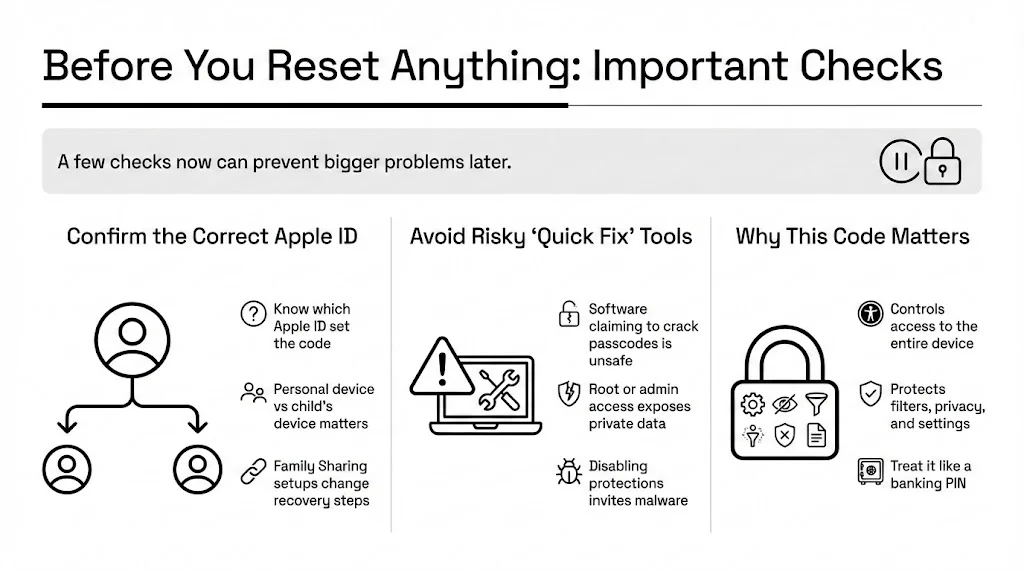
Confirm the Apple ID
Security relies on identity. To reset this code, you must know which Apple ID was used to set it up.
- Personal Device: If this is your phone, it is likely your personal Apple ID.
- Child’s Device: This is where it gets tricky. Did you set it up directly on their device using their Apple ID, or did you use Family Sharing from your phone? The recovery method differs depending on this setup.
The Risk of “Quick Fixes”
A quick search on the web might lead you to software claiming to “crack” or “read” your passcode from the device backup. Please be extremely cautious. Security researchers and organizations like the FTC warn against granting unknown software “root” or administrative access to your personal devices. These tools often require you to disable security features to work, potentially exposing your photos, messages, and banking apps to malware.
Using official Apple methods is always the safest path. It protects your privacy and ensures your warranty remains valid.
Why Protecting This Data Matters
Regaining access is the immediate goal, but the broader goal is protecting your authority over the device. This code stands between a secure device and one where safety filters can be disabled. Handling this credential with the same care as a banking PIN is vital.
Official Apple Method: Reset Using Apple ID
The good news is that Apple introduced a dedicated recovery flow in recent iOS updates. If you associate your Apple ID with the passcode during setup (a step many people skip, but shouldn’t), you can reset it in under two minutes.
Requirements for This Method
To use this method, three things must be true:
- Updated iOS: Your device must be running iOS 13.4 or iPadOS 13.4 or later.
- Apple ID Credentials: You must know the email and password for the Apple ID used to set the passcode.
- Internet Access: The device needs an active Wi-Fi or cellular connection to verify your credentials with Apple’s servers.
Step-by-Step Reset Process
Here is the standard procedure if you forgot screen time passcode information on your own device:
- Go to Settings: Open the main Settings app on your iPhone or iPad.
- Select Screen Time: Tap the Screen Time icon (the hourglass).
- Initiate Change: Scroll down and tap “Change Screen Time Passcode.”
- Select Change Again: A menu will pop up asking if you want to Change or Turn Off the passcode. Tap “Change Screen Time Passcode.”
- The “Forgot” Option: The device will ask you to enter the old passcode. Obviously, you do not have this. Look closely above the number pad. You should see a blue text that says “Forgot Passcode?” Tap it.
- Authenticate: A screen will appear asking for your Apple ID and password. Enter them.
- Tip: This must be the Apple ID you provided when you first set up the Screen Time passcode.
- Create New Code: Once verified, the system allows you to enter a new four-digit code. Enter it twice to confirm.
Common Errors and How to Handle Them
“I don’t see the ‘Forgot Passcode’ option.” This usually means the device is running an older version of iOS, or an Apple ID was never provided as a recovery method during the initial setup. If this is the case, skip to Section 6.
“Apple ID or Password Incorrect.” If you have multiple Apple IDs (e.g., one for iCloud, one for Media), you might be entering the wrong one. Try your alternate email addresses. If you can’t recall your Apple ID password, you will need to resolve that through Apple’s iforgot portal before fixing Screen Time.
Resetting Screen Time on Child and Family Devices
If you are a parent managing a child’s device via Family Sharing, the process happens on your phone, not theirs. This prevents children from easily resetting the code themselves.
The Family Sharing Difference
When Family Sharing is active, the “controller” is the organizer’s device. The child’s device merely receives the commands. Therefore, you can’t reset the code using the “Forgot Passcode” button on the child’s iPad if the restrictions were applied via Family Sharing.
Steps for Family Organizers
- Open Settings on Your Device: Use the family organizer’s iPhone or iPad.
- Find the Family Group: Scroll down to “Screen Time.”
- Select the Child: Under the “Family” section, tap the name of the child whose device is locked.
- Change Passcode: Scroll down and tap “Change Screen Time Passcode.”
- Authenticate: You may be asked to authenticate with your Face ID, Touch ID, or device passcode (not the Screen Time code).
- Enter New Code: Because you are the verified parent, the system allows you to overwrite the old code with a new one immediately.

Crucial Check:
After changing it, give the child’s device a moment to sync over the internet. Do not try to enter the new code on their device immediately if it is offline (in Airplane mode, for instance). Connect it to Wi-Fi first.
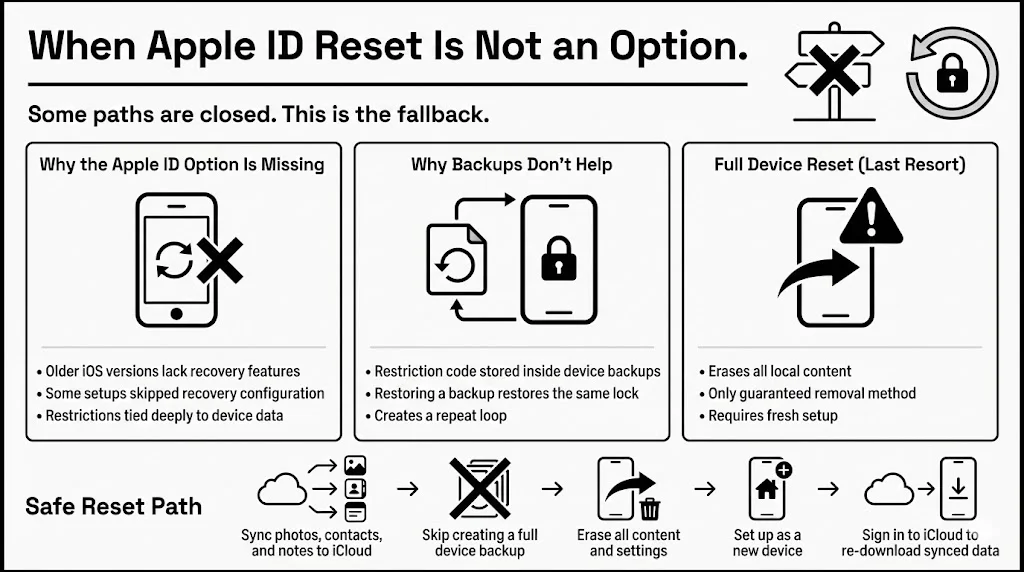
When Apple ID Reset Is Not an Option
Sometimes, the easy road is closed. Perhaps you skipped the “Set up Apple ID Recovery” step when you first created the code. Or perhaps the device is an older model that cannot update to iOS 13.4.
If you forgot screen time passcode data and the Apple ID recovery option is missing, the situation requires more drastic measures.
Older iOS Versions and Limitations
On older software, the code is baked into the device backups. This creates a difficult loop: if you restore from a backup, you restore the problem. The restriction code returns alongside your photos and apps.
Full Device Reset as a Last Resort
If you can’t verify via Apple ID, the official Apple stance is to erase the device and set it up as new.
Warning: This erases all data on the device.
The Process:
- Backup Essentials: Ensure your photos, contacts, and notes are synced to iCloud. You can check this in Settings > Your Name > iCloud. Ensure the toggles are green.
- Do NOT make a standard Backup: Do not create a full iTunes or iCloud backup now. If you restore from it, the Screen Time passcode will come back.
- Erase All Content: Go to Settings > General > Transfer or Reset iPhone > Erase All Content and Settings.
- Setup as New: When the device restarts, follow the setup prompts. When asked about Apps & Data, choose “Don’t Transfer Apps & Data” (or set up as a new iPhone).
- Re-sync: Once you sign into iCloud, your contacts, photos, and notes will download from the cloud (because those are synced, not part of the device backup file).
This is a hassle, we know. Re-downloading apps and rearranging your home screen takes time. But it is the only 100% guaranteed way to remove the restriction without the code or Apple ID.
Third-Party Tools: What to Know Before Using Them
In your search for a solution, you will likely see ads for software claiming to “Remove Screen Time Passcode No Data Loss!”
At WhiteVault, we advocate for strict security hygiene. Here is why you should approach these tools with extreme skepticism.
How They Claim to Work
These tools typically rely on exploits—unpatched vulnerabilities in the Apple software—to force their way into the system files. They attempt to locate the file where the passcode is stored (usually hashed or encrypted) and delete it.
The Risks
- Malware Injection: To work, these tools require you to connect your active phone to a computer and “Trust” the connection. This creates a bridge. Malicious software can travel across that bridge, scraping your contacts, messages, or saved browser passwords.
- Privacy Exposure: You are often handing your device’s serial number and unique identifier (UDID) to an unknown company.
- OS Corruption: Forcing a change in system files can lead to instability. Your phone might freeze, restart randomly, or fail to update in the future.
- Voided Support: If you take a device to the Apple Store because it is glitching, and they see evidence of unauthorized modification, they may deny service.
Our Stance:
It is rarely worth the risk. The time you save avoiding a factory reset is lost if you have to deal with identity theft or a corrupted phone later. Stick to the official reset paths.
How to Avoid This Problem in the Future
The pain of a reset is the best teacher. Once you resolve this, let’s ensure you never face the “forgot screen time passcode” panic again.
The human brain is not built to store dozens of unique, complex codes that we rarely use. We try to use birthdays (unsafe) or reuse bank PINs (unsafe, as nearly 68% of people are forced to change passwords after breaches due to reuse). The solution is not to try harder to recall; it is to have a better system.
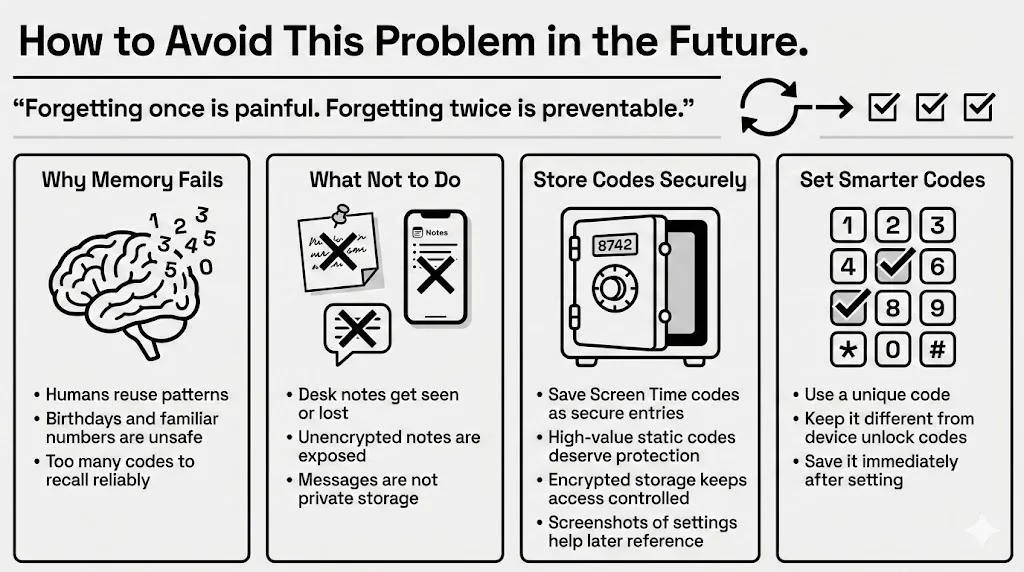
Secure Storage is Essential
This is where a tool like WhiteVault proves its worth. We often think of “important documents” as birth certificates or wills. But in 2025, a four-digit code that controls your child’s internet access or your own productivity is a critical asset.
Do not store the code:
- In a sticky note on your desk (easily lost or seen).
- In your unencrypted Notes app (accessible to anyone who gets into your phone).
- In a text message to your spouse (insecure transmission).
Do store the code:
- In a Password Manager: If you use one for web logins, create a “Secure Entry” labeled “Screen Time Passcode.”
- In Your WhiteVault: This is the ideal location for high-value static information. By placing the code in your secure personal vault, you ensure it is encrypted and accessible only to you. You can even upload a screenshot of the settings configuration so you know exactly what restrictions you set.
Balancing Convenience and Security
When you set the new code, consider this:
- Make it unique: Do not use 1234 or 0000.
- Make it distinct: Do not use your device access code. If your child sees you type your phone code, you do not want them to automatically have the Screen Time code too.
- Document it immediately: The moment you type it in, save it to your secure storage. Do not tell yourself, “I’ll write it down later.” You won’t.
Conclusion
Getting shut out of your own device settings is frustrating. It creates friction in your daily life and can make you feel powerless over your own technology. But as we have outlined, it is a solvable problem.
If you forgot screen time passcode details, start with the official “Forgot Passcode?” flow in Settings. It is fast, safe, and works for most modern users. If you are managing a family group, use your organizer device to push the change. And if you are forced to do a full reset, view it as a fresh start—a chance to clean up unused apps and re-sync your cloud data.
Most importantly, treat this experience as a reminder that our memory is fallible. Security does not mean keeping everything in your head; it means keeping everything in a safe place. Whether you use a dedicated password manager or a complete solution like WhiteVault, taking a moment to secure that four-digit number today saves you hours of stress tomorrow.
You have regained access. Now, protect it.
Frequently Asked Questions (FAQ)
Q1. Can I reset Screen Time without an Apple ID?
Strictly speaking, no. The Apple ID is the verification method used to prove you are the owner authorized to remove the restriction. Without the passcode and without the associated Apple ID, the device can’t distinguish between you (the owner) and a stranger. In this scenario, your only option is a full device erase and setup as new.
Q2. Will resetting Screen Time delete my apps or files?
If you use the standard “Change Screen Time Passcode” method (Section 4), absolutely no data is lost. It only changes the four-digit code. However, if you are forced to do a “Factory Reset” (Section 6) because you can’t verify your identity, that will erase apps and files. This is why checking for the “Forgot Passcode” button first is so important.
Q3. Why does my child’s device need approval from my phone?
This is a feature of Apple’s Family Sharing. It prevents a tech-savvy child from using the “Forgot Passcode” button on their own device to reset the restriction. By requiring the parent (organizer) to initiate the change, Apple ensures the parents maintain control over the usage limits.
Q4. Are third-party Screen Time access recovery tools safe?
We advise against them. While some may work, the industry is filled with “snake oil” software that may contain malware or compromise your data privacy. The risks of granting unknown software deep access to your operating system generally outweigh the convenience.
Q5. What if I forgot both my Screen Time passcode and Apple ID password?
You must solve the Apple ID issue first. Go to Apple’s iforgot website to recover your account access. Once you have reset your Apple ID password and can sign in, you can then return to the Screen Time settings and use the “Forgot Passcode” flow described in Section 4.


