It starts with a sinking feeling. You open your laptop, ready to work or stream a movie, and your mind goes blank. You try one variation of your usual code. Then another. The screen shakes “no” at you. You are locked out.
It happens to everyone. In 2024, identity theft and fraud losses reached a staggering $12.7 billion according to the FTC. A major contributor to this chaos is “password fatigue.” The average person now manages dozens of unique logins, and recent surveys show that 55% of people rely solely on memory to manage them.
When you can’t recall your Mac login, the panic sets in quickly. Your photos, tax returns, and work projects are all behind that lock screen. But don’t worry. Getting back in is possible, and you often don’t need your Apple credentials to do it.
This guide explains how to reset Macbook password protocols, the specific steps to regain entry, and how to protect your files so you never face this stress again. We will walk you through safe, proven methods to get you back to your desktop.
Understanding MacBook Login and User Accounts
Before trying to break past the lock screen, it helps to understand what is actually blocking you. macOS security is strong, but it is designed to let the owner back in if things go wrong.
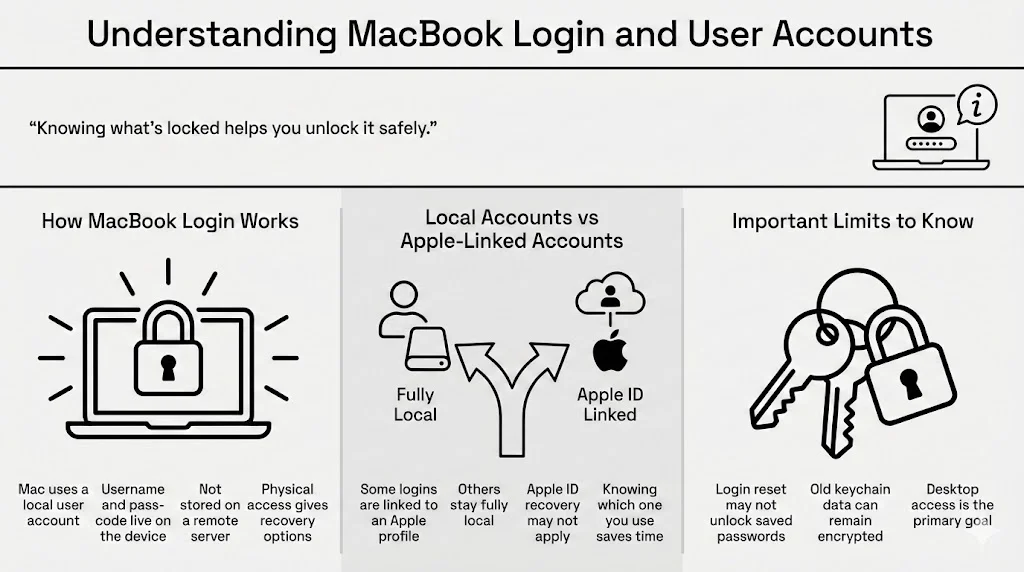
How MacBook Login Works
At a basic level, your Mac uses a local account to verify who you are. This is different from the account you use for the App Store or iCloud. When you first set up your machine, you created a username and a local pass-code. This information lives on the hard drive itself, not on a server in California.
Because this data is stored locally on your machine, you have physical control over it. This is why password recovery works even without Apple credentials in many cases. You are proving to the machine that you have physical access to it, which grants you certain rights to change the locks.
Local User Accounts vs. Apple-Linked Accounts
In recent versions of macOS, you have the option to link your login to your Apple profile. If you did this, you might be able to use your cloud credentials to get in. However, many people choose to keep these separate for privacy or simply forget to link them.
If your account is strictly local, resetting your Apple credentials won’t help you get past the login screen. You need to target the local database on the computer. This distinction is crucial because wasting time trying to recover an iCloud account won’t help if your computer doesn’t look to the cloud for verification.
Limits You Should Be Aware Of
While we can bypass the login prompt, there is a catch. The “Keychain”—the built-in Mac tool that holds your saved web logins and Wi-Fi codes—is locked with your old code. When we force a reset, the system can grant you entry to the computer, but it likely won’t be able to decrypt that old Keychain. We will cover how to handle this later, but know that getting back to your desktop is the main goal right now.
Before You Reset Your MacBook Password
Rushing into a reset can sometimes cause more problems than it solves. Take a breath and check a few things first.
Check FileVault Status
FileVault is Apple’s disk encryption technology. If it is turned off, resetting your credentials is straightforward. If it is turned on, your actual hard drive data is scrambled and requires a code to become readable.
If you have FileVault active, you might have been given a specific Recovery String (a long code of letters and numbers) when you first set it up. Finding this code can save you a lot of time. Check your physical files, notebooks, or anywhere you might have jotted down important setup information.
What FileVault Means for Access
When FileVault is on, the login screen you see is actually a pre-boot screen. The operating system hasn’t even loaded yet. You are unlocking the disk first. This makes some simple reset tricks harder because the tools we need are encrypted on the disk we can’t open yet. Don’t worry—we have methods for this, but it explains why some “easy fixes” you see on the web might not work for you.
Back Up What You Can
If you have another user account that can still log in, or if you can access the machine via Target Disk Mode (connecting it to another Mac with a cable), copy your critical files now. It is rare for a password reset to delete data, but when dealing with encryption and system permissions, safety comes first.
Method 1: Reset Mac Password Using Recovery Mode
This is the standard, Apple-approved way to fix the problem. It uses a hidden partition on your hard drive designed specifically for emergencies.
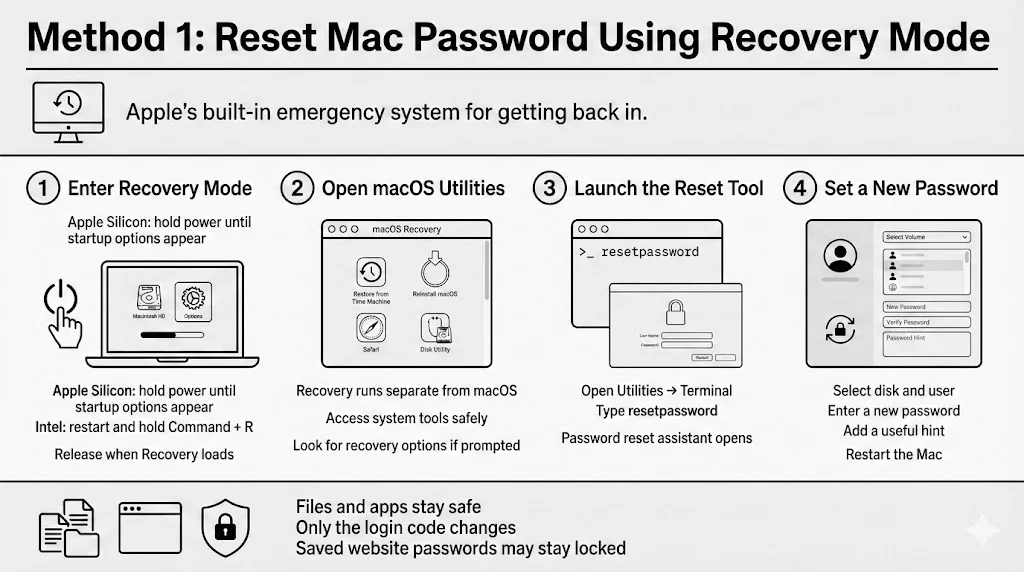
What is Recovery Mode?
Recovery Mode is a mini operating system that sits separate from your main macOS installation. Because it runs independently, it has the power to modify the main system—including the user database.
Step-by-Step Process
1. Entering Recovery Mode The way you start this mode depends on your processor (Intel or Apple Silicon).
- For Apple Silicon (M1, M2, M3 chips): Shut down the Mac completely. Press and hold the power button. Keep holding it until you see “Loading startup options.” Select “Options” and continue.
- For Intel Macs: Restart the Mac and immediately hold down Command + R. Keep holding them until you see the Apple logo or a spinning globe.
2. Opening macOS Utilities Once the system loads, you will see a window titled “macOS Utilities” or “Recovery.” You might be asked to select a user you know the credentials for. If you don’t know any, look for a button that says “Forgot all passwords?” or simply move to the menu bar at the top of the screen.
3. Using the Reset Tool This is the hidden trick. You won’t find a “Reset Password” button in the main window.
- Go to the menu bar at the top (where the Apple logo is).
- Click Utilities > Terminal.
- A text window will open. Type resetpassword (all one word, lowercase) and hit Enter.
- The actual Reset Password assistant application will launch.
4. Creating the New Code The assistant will ask you to select the volume (usually “Macintosh HD”) and the user account you are locked out of.
- Enter your new choice of credentials.
- Add a hint that will actually help you later—something only you would understand.
- Click Next and then Restart.
What Happens to Files?
Your documents, photos, and apps remain untouched. The operating system simply updates the “lock” on the front door. However, as mentioned, your saved credentials for websites (stored in the local Keychain) might remain inaccessible. This is a small price to pay for getting your files back.
Method 2: Reset macOS Password via Terminal in Recovery Mode
Sometimes the fancy graphical assistant fails. It might freeze, or it might not list your user account correctly. When that happens, we go straight to the command line. This looks technical, but it is just typing a few sentences.
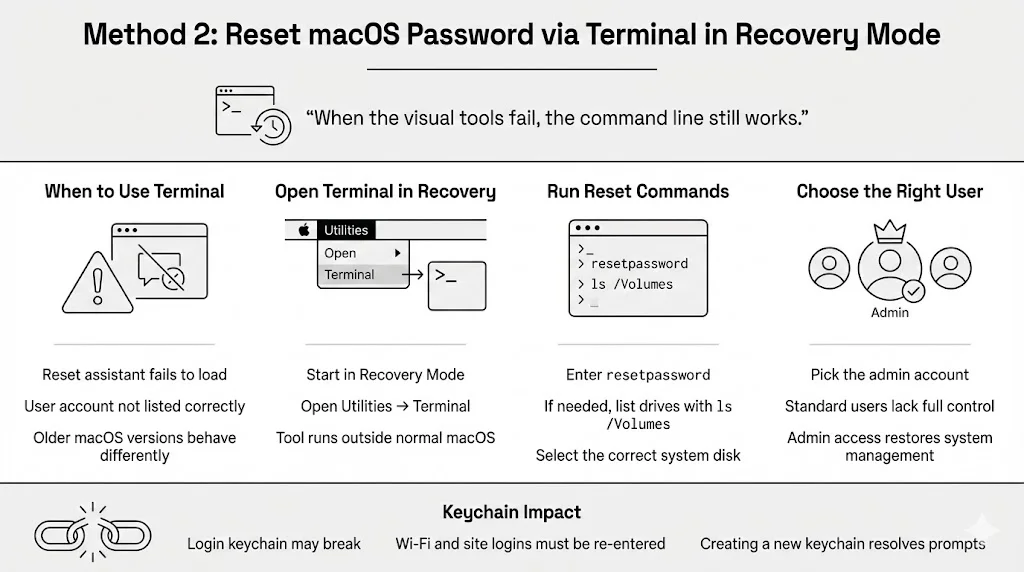
When Terminal is Useful
This method is best if the standard tool hangs or if you are running an older version of macOS where the interface is different. It interacts directly with the system directory.
Step-by-Step Walkthrough
1. Launching Terminal Follow the same steps as Method 1 to get into Recovery Mode. Once there, open Utilities > Terminal from the top menu bar.
2. Running the Reset Command Instead of the assistant, we can sometimes use a more direct command if you are comfortable. However, for most users, triggering the standard tool via text is safer.
- Type: resetpassword
- Press Enter. If that fails to launch the window, check if your drive is mounted.
- Type: ls /Volumes
- Press Enter. You should see “Macintosh HD” or whatever you named your drive.
3. Selecting the Correct User If you have multiple accounts (like a “Work” and “Home” login), ensure you select the admin account. Resetting a “Standard” user won’t help you manage the computer later. You need the account with the power to change settings.
Impact on Keychain Access
This warning bears repeating: changing your credentials this way breaks the link to your Login Keychain. When you log back in, the Mac might bombard you with messages saying “accounts want to use the login keychain.”
- The Fix: You will likely need to start a fresh keychain. This means you will have to re-enter your Wi-Fi codes and web logins once. It is annoying, but necessary.
Method 3: Creating a New Admin Account
If the original account is stubbornly locked—perhaps due to corruption in the user profile itself—you can create a brand new administrator account from the outside. This acts like a “backdoor” to let you into the computer.
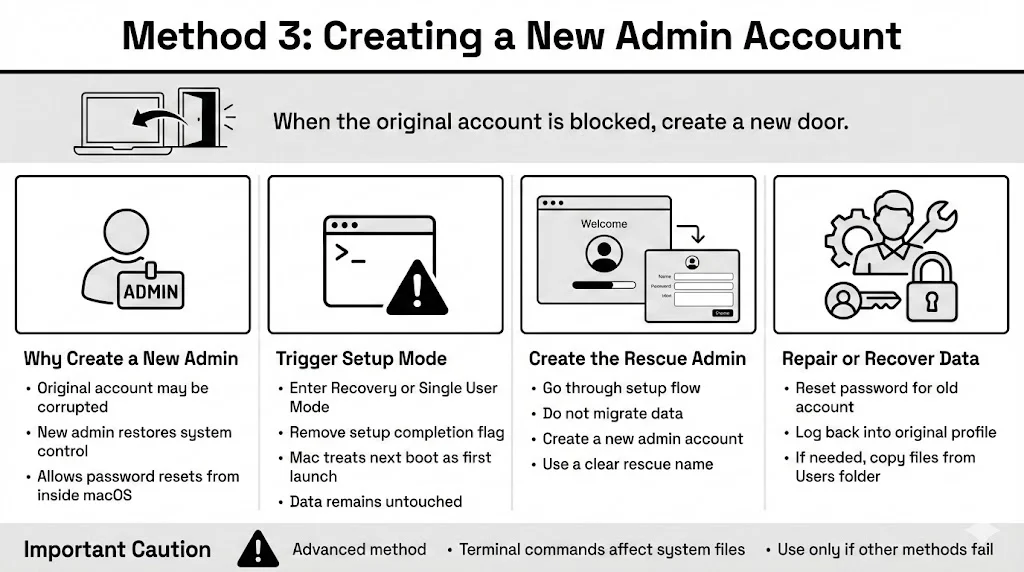
How a New Admin Account Helps
Once you are logged in as a new admin, you can open System Preferences (or System Settings) and change the credentials for the old account from there. It is a two-step process, but very effective.
Steps to Create a New Admin User
1. Boot into Single User Mode (Intel only) or Recovery Terminal.
- In the Recovery Terminal, you need to delete a specific setup file that tells the Mac “Setup is complete.” By removing this, the Mac thinks it is brand new.
- The Command: You must be very careful here. You need to mount the drive as writeable.
- mount -uw /
- rm /var/db/.AppleSetupDone
- reboot
2. The “New Mac” Experience Your Mac will restart and play the welcome video or show the “Hello” screen. Do not panic—your data is still there.
- Go through the setup steps (Language, Wi-Fi).
- Crucial: When asked to migrate data, select “Don’t transfer any information now.”
- Create a NEW account with a NEW name (e.g., “RescueAdmin”).
3. Fixing the Old Account
- Log in to the new “RescueAdmin” account.
- Open System Settings > Users & Groups.
- Click the “i” or lock icon next to your old locked account.
- Click “Reset Password.”
- Set a new code for your old account.
- Log out and log back into your original account.
Moving Files
If resetting the old account still doesn’t work, you can use the “RescueAdmin” account to browse the hard drive, go to the “Users” folder, and copy your documents from the old folder to a safe place.
Method 4: Reset Mac Password Through System Preferences
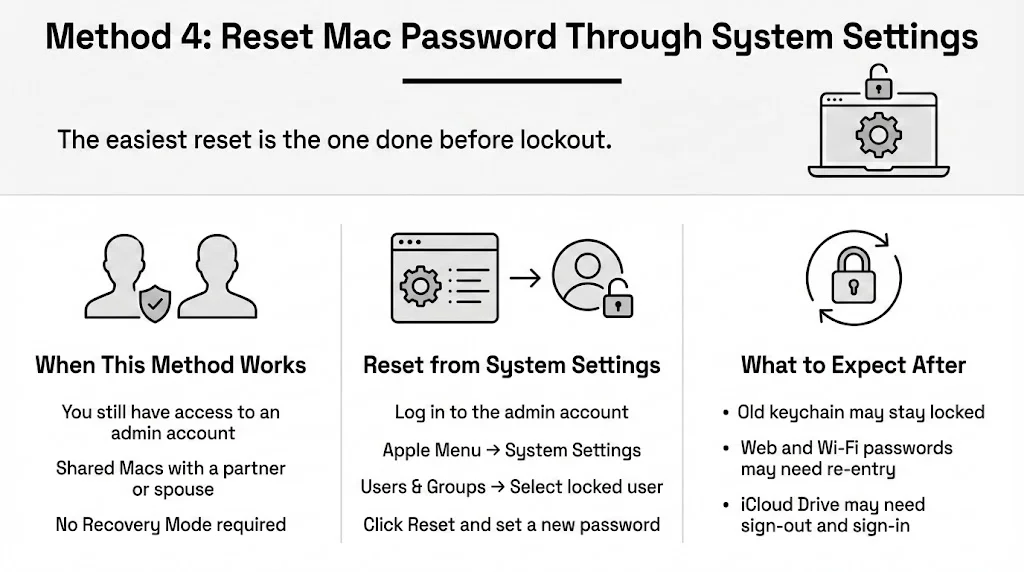
This option applies if you are not totally locked out but maybe just want to change the code before you forget it, or if you have a secondary admin account you can still access. This is the preventative method.
When This Option is Available
If you share the Mac with a spouse or partner and their account is an Administrator, they can reset your code for you. You do not need to reboot or use Recovery Mode.
How to Reset from Settings
- Log in to the working admin account.
- Click the Apple Menu > System Settings (or System Preferences).
- Go to Users & Groups.
- Click the “i” next to the locked account.
- Click Reset…
- Enter the NEW credentials.
Sync Issues
Using this method bypasses the need for the old code, so you will face the same Keychain issues. Also, if you use iCloud Drive, you may need to sign out and sign back in to get your files syncing correctly again.
After the Password Reset: What Changes
You are back in. The desktop wallpaper loads, and you can see your files. But the system might behave a little differently at first. Knowing how to reset Macbook password protocols affects your system saves you from post-recovery confusion.
Why Old Keychain Access Stays Locked
Your Keychain is encrypted using your old login code. The Mac does not store that code in plain text, so when you reset the login from Recovery Mode, the system cannot update the Keychain because it doesn’t know the old code to unlock it first. You are left with a mismatch: Your login uses Code B, but your Keychain still demands Code A.
Creating a New Login Keychain
When the Mac asks for the “login keychain password,” and your new code doesn’t work:
- Open Keychain Access (in the Utilities folder).
- Go to Settings (or Preferences).
- Click Reset My Default Keychain. This archives the old, locked database and starts a fresh, empty one. You will have to re-save your web logins, but the annoying pop-ups will stop.
How FileVault Affects Password Recovery
We touched on this earlier, but FileVault is the biggest variable in this process. It is the steel door in front of the wooden door.
Decryption vs. Login
Without FileVault, your hard drive is like a file cabinet—locked, but you can pick the lock. With FileVault, the data is shredded into nonsense. The only way to make it readable is with the correct mathematical string. When you type your login on a FileVault-enabled Mac, you are actually doing two things at once: decrypting the drive and logging into the user session.
Missing Recovery Strings
If you lose your login code and your FileVault Recovery String, the data on that drive is mathematically inaccessible. There is no backdoor. Apple Support cannot open it. This is why preserving that recovery string is vital. If you are in this boat, you may have to erase the Mac and reinstall macOS, losing your data but regaining use of the hardware.
Protecting Personal Information After Regaining Access
Once the adrenaline fades and you are back in control, it is time to ensure this never happens again. We often treat security as a “set it and forget it” task, but as you have seen, forgetting is the problem.
Steps to Secure Credentials
The human brain is terrible at storing complex, random strings of characters. We try to be clever, using birthdays or pet names, but that makes us vulnerable to hackers. Or we use complex strings and lock ourselves out.
1. Stop using your brain as storage. The latest NIST password guidelines (2025) strongly recommend using password managers rather than relying on complexity rules that are hard to remember. You need an external brain. A secure place to keep these critical access codes is essential.
2. Update stored credentials. Go through your most critical accounts—email, banking, medical portals—and ensure the new computer login didn’t break any auto-fill settings. Update them manually if needed. A Cybernews study reveals that 94% of leaked passwords are reused, so ensure your new Mac login is unique.

WhiteVault: Your Secure Personal Vault
This is where a tool like WhiteVault becomes indispensable. We specialize in helping you save, recall, and protect what matters. Instead of writing your recovery strings on a sticky note that gets thrown away, or burying them in a random notebook, you store them in your secure personal vault.
With WhiteVault, you can store your FileVault Recovery String, your MacBook login code, and even images of critical documents (like your passport or insurance policy) in one encrypted location. It is designed for everyday people, not IT wizards. We provide simple security for everyday life. If you had stored your FileVault code in WhiteVault, you could have retrieved it in seconds from your phone and skipped the panic entirely.
Avoiding Future Lockouts
- Write it down (Securely): Do not put it under the keyboard. Store it in a fireproof box or a secure service like WhiteVault.
- Create a Hint: macOS allows for a password hint. Make it obscure enough that a stranger won’t guess it, but clear enough to jog your memory.
- Add a Spare Admin: Create a second admin account on your Mac solely for emergencies. If your main account breaks, the spare one can save you.
Common Mistakes During MacBook Password Recovery
Even with a guide, things can go sideways. Avoid these pitfalls to keep your data safe.
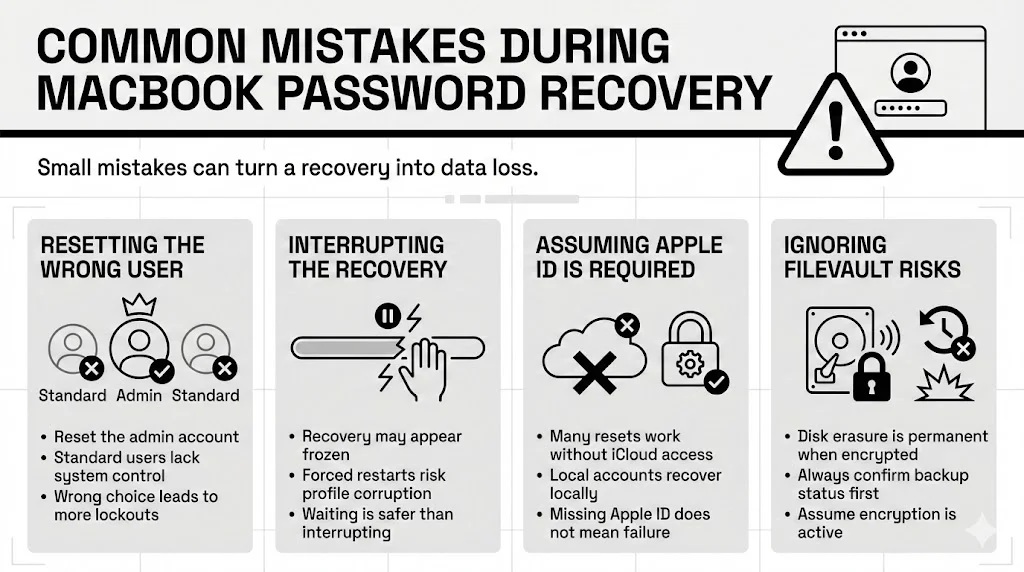
- Choosing the Wrong User: In Recovery Mode, ensure you are resetting the Admin user. Resetting a “Standard” user (like a guest account) won’t give you the power to install updates or change settings later.
- Interrupting the Process: If the progress bar seems stuck, wait. Force-restarting the Mac while it is rewriting user directory permissions can corrupt your profile permanently.
- Assuming Apple ID is Required: Many people give up because they don’t have their Apple credentials handy. As we discussed, local resets often bypass this need entirely. Don’t stop just because you can’t log into iCloud.
- Ignoring FileVault: If you erase your disk without checking for a FileVault backup, there is no “undo” button. Always assume encryption is on until proven otherwise.
Conclusion
Getting locked out of your own computer feels like a betrayal by your own technology. But these security measures exist to keep thieves out, not you. By understanding how to reset Macbook password functions—whether through Recovery Mode, Terminal, or a new admin profile—you can reclaim your digital life without losing your files.
The most vital takeaway isn’t just about the reset; it’s about preparation. Security is about making smart choices, not achieving perfection. By taking simple steps—like keeping your recovery codes in a secure personal vault like WhiteVault—you turn a potential disaster into a minor inconvenience. You have the tools to fix this. Now, you also have the knowledge to prevent it.
FAQ: MacBook Password Reset
1) How to reset Macbook password if Recovery mode does not open?
If Command + R isn’t working, check your keyboard connection. If you have a wireless keyboard, plug it in with a Lightning cable. For Apple Silicon Macs, ensure you are holding the power button long enough. If the recovery partition is corrupted, you may need to use “Internet Recovery” by holding Option + Command + R at startup, which downloads the recovery tools from the web.
2) Will resetting my Mac password delete my files?
No. The standard reset methods described here only change the authentication required to enter the account. They do not touch your Documents, Photos, or Desktop folders. However, if you are forced to erase the disk because of missing FileVault keys, that will delete files.
3) Why does my Keychain access stop working after a password reset?
Your Keychain is a separate encrypted container. It was locked with your old code. Since you changed the login code from “outside” the account (via Recovery Mode), the Keychain didn’t get the memo. You cannot open it without the old code. You usually have to create a new, empty Keychain.
4) Is Apple ID reset ever required to unlock a MacBook?
Only if you explicitly linked your local user account to your Apple ID during setup and checked the box allowing Apple ID to reset your password. If you did this, you can click the question mark in the password field and choose “Reset using Apple ID.” If you didn’t link them, Apple ID is irrelevant to your local login.
5) What if FileVault decryption fails during password recovery?
If the disk won’t decrypt even with the correct credentials, the drive directory might be damaged. In Recovery Mode, open “Disk Utility” and run “First Aid” on your drive. If that passes and it still won’t unlock, you may be looking at a hardware issue or severe data corruption requiring professional data recovery services.
6) Can I reset macOS password on an older MacBook model?
Yes. The method is very similar back to macOS 10.7 (Lion). For very old Macs (pre-2011) that came with installation DVDs, you might need to insert the “Install DVD” and boot from that to access the Reset Password utility.
7) How can I avoid getting locked out again?
The best defense is organization. Use a secure personal vault like WhiteVault to store your credentials and recovery codes. Also, enable “Allow users to reset password using Apple ID” in your System Settings if you want an easier backup method in the future.


