Picture this: You just bought the latest iPhone. You are excited to transfer your photos, messages, and that paper with your grandmother’s cookie recipe. But when the screen asks for your Apple ID credentials, your mind goes blank. You try your usual password. Incorrect. You try the one you use for banking. Incorrect. Panic sets in.
You are not alone. In 2026, the average person will manage over 120 electronic accounts. Retaining unique, complex codes for every single one is nearly impossible without help. Yet, losing access to your Apple account feels heavier than losing a streaming login. It is the gateway to your photos, your wallet, your health data, and your communication.
When you are unable to access your account, it feels like the door to your own life has slammed shut.
This guide explains exactly how to handle an iCloud password reset in the current security environment. We will walk you through the why, the how, and—most importantly—the steps to ensure you never face this stress again.
Understanding iCloud and Apple Credentials
To fix the problem, it helps to understand what is actually happening behind the scenes. People often use terms like “iCloud,” “Apple ID,” and “iTunes account” interchangeably. In reality, they all have the same identity.
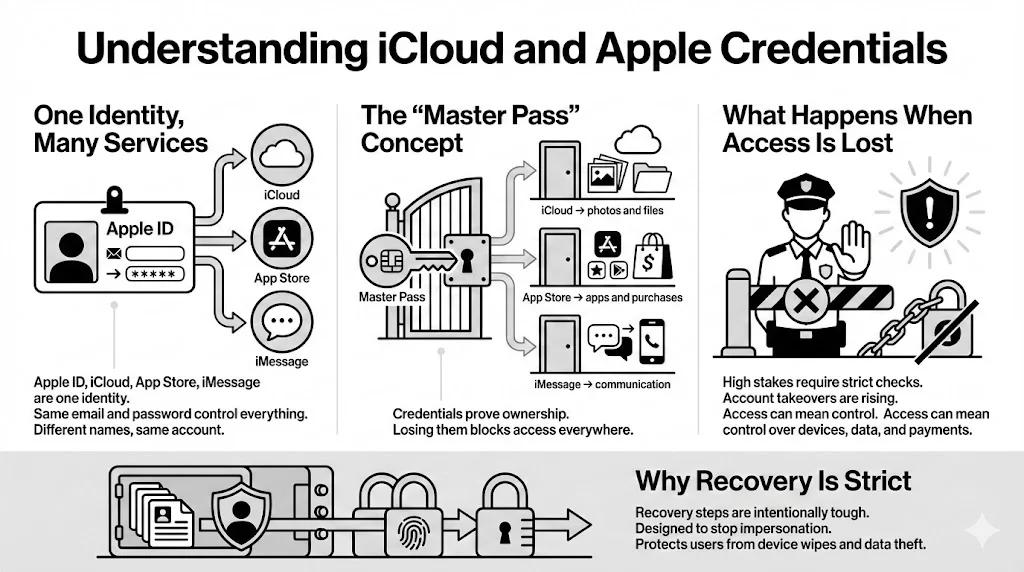
The “Master Pass” Concept
Think of your Apple ID as the master pass for a building.
- iCloud is the storage room where your photos and files live.
- App Store is the shop where you buy software.
- iMessage is the communication hub.
Your email address and password constitute the credentials that verify you are the owner of that master pass. If you lose those credentials, Apple’s security protocols act like a guard refusing entry because they are unable to confirm it is really you.
The Risks of Losing Access
Why is the system so strict? Because the stakes are high. According to the Identity Theft Resource Center (ITRC), account takeovers rose by 73% between 2024 and 2025. If a bad actor gains access to your iCloud, they don’t just see your emails; they can potentially wipe your devices remotely or access sensitive financial data.
The recovery steps we will outline are strict by design. They protect your user data from being stolen by someone pretending to be you.
Common Situations That Trigger a Reset
You might be reading this because you are currently staring at a login screen that won’t budge. Here are the most common scenarios that lead to a necessary iCloud password reset.
1. The Forgotten Code
This is the most frequent cause. We rely so heavily on biometrics—FaceID and TouchID—that our muscle memory for typing out passwords fades. When a device restarts or requires a manual entry for security verification, the specific character combination is gone from memory.
2. The Device Upgrade
You buy a new iPad or MacBook. During setup, it demands your password to download your backup. If you are unable to provide it, that new device becomes a beautiful, expensive paperweight until the issue is resolved.
3. Suspicious Activity Flags
Apple’s security systems are always watching for anomalies. If someone tries to log into your account from a country you have never visited, or if there are multiple failed attempts in rapid succession, Apple locks the account. This is a safety feature, not a bug, but it requires you to prove your identity to lift the freeze.
4. Changes to Security Settings
Sometimes, well-meaning users change a trusted phone number or update an email address but fail to verify it immediately. This can leave the account in a state of limbo where standard recovery messages have nowhere to go.
Primary Password Reset Methods in 2026
There is no single button that fixes everything instantly. The method you choose depends on what devices you still have access to and how your security was set up previously.
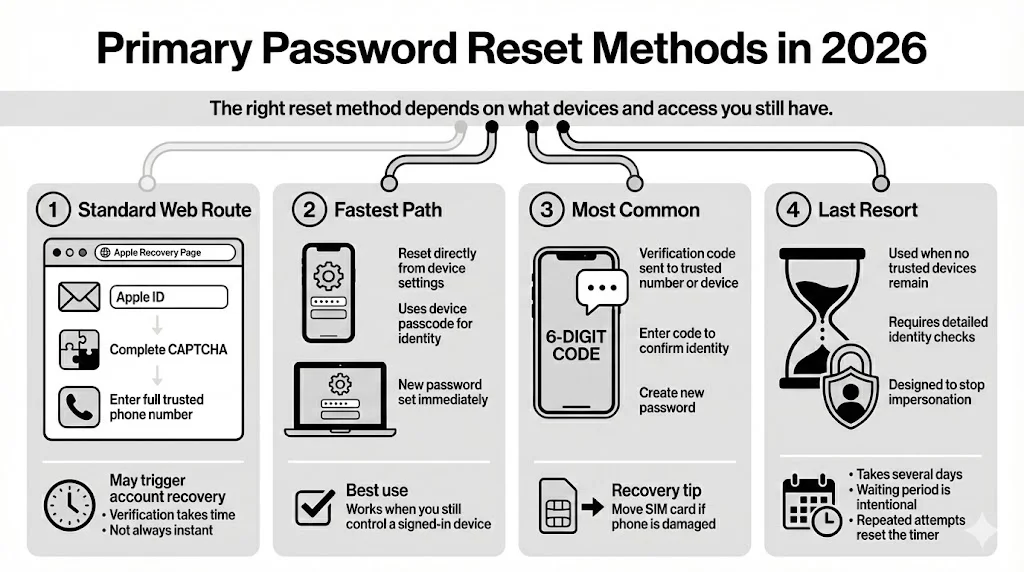
Here are the four most effective ways to regain entry.
1. Resetting via Apple’s Account Page (The Standard Web Route)
If you do not have access to an Apple device, the web portal is your starting point.
The Process:
- Go to iforgot.apple.com.
- Enter your Apple ID email address.
- Enter the CAPTCHA characters to prove you are human.
- Enter the phone number associated with your account. Crucial Detail: You must know the full number, even though the screen only shows the last two digits.
What Happens Next: If you have access to a trusted device (like a spouse’s iPad that is linked to your Family Sharing), Apple will send a notification there. If not, you will enter the automated account recovery flow.
Timeframe: This is rarely instant. Identity verification can take anywhere from 24 hours to several days depending on how much information you can provide.
2. Using a Trusted Apple Device (The Fastest Path)
This is the “Gold Standard” method. If you are signed in on any other Apple device—perhaps an old iPad or a Mac you use for work—you can reset the password directly from the settings menu without jumping through web hoops.
Steps for iPhone/iPad:
- Open Settings.
- Tap your Name at the top.
- Select Sign-In & Security.
- Tap Change Password.
Because the device is already “trusted” (meaning you have signed in before and it has a passcode), Apple assumes you are the owner. You will enter the device’s passcode (the 4 or 6-digit number used to open the screen), and then you can type in a new Apple ID password immediately.
When this works best: This is the ideal solution when you have forgotten the password but still have full access to at least one piece of hardware linked to your account.
3. Recovery with Two-Factor Authentication (2FA)
In 2026, Two-Factor Authentication is mandatory for almost all accounts. It is the primary defense against the types of credential stuffing attacks monitored by OWASP (Open Web Application Security Project).
How it helps: When you initiate an iCloud password reset, Apple sends a six-digit code to your trusted phone number or a trusted device.
- You enter this code on the screen.
- You verify your identity.
- You create a new password.

If the trusted device is broken:
This is a common pain point. You dropped your phone, the screen is smashed, and you are unable to read the 2FA code. In this case, move the SIM card to a different phone. As long as you can receive the SMS text message on that phone number, you can verify your identity.
4. Account Recovery Without a Trusted Device
This is the “nuclear option.” If you have lost your phone, are unable to access your trusted number, and have no other Apple devices, you must enter Account Recovery.
The Reality of Recovery: This process is slow by design. Apple states clearly that this can take several days.
- You initiate the request via the web.
- You provide as much info as possible (credit card on file, old email addresses).
- The Wait: Apple places the request in a holding period. This delay allows the real owner to stop the process if the request is fraudulent.
- The Alert: When the wait is over, Apple contacts you (usually via a secondary email or different phone number you provided) with instructions to regain access.
Avoiding Delays: Do not repeatedly try to verify during the waiting period. Each new attempt can restart the timer. Patience is your only tool here.
Apple Security Questions: Do They Still Matter?
Long-time users often ask security questions—”What was the name of your first pet?” or “What street did you grow up on?”
The Current Status: For most modern accounts protected by 2FA, security questions are obsolete. Apple retired them for new accounts years ago in favor of device-based verification. However, if you have a legacy account that has not been updated in a decade, you might still encounter these.
The Problem with Questions: The Federal Trade Commission (FTC) has warned that answers to security questions are often easily found on social media profiles. Because of this vulnerability, Apple deprioritized them.
If you are prompted for these and are unable to recall the answers (did you write “Road” or “Rd.”?), the system will likely funnel you toward the Account Recovery process mentioned above.
The Account Verification Process Explained
Why does Apple make an iCloud password reset so difficult? It is not to annoy you; it is to protect you.
In the world of cybersecurity, “verification” is the process of proving you are who you say you are. Since Apple does not scan your driver’s license for a standard reset, they rely on a “trust score” based on data points:
- Location of the request.
- Device used.
- Knowledge of personal information (phone numbers, credit cards).
Why Requests get Denied: If the system detects inconsistencies—like a request coming from a VPN server in a different continent combined with a wrong credit card CVV—it halts the process. This prevents hackers from brute-forcing their way into your life.
Preparation: Before starting verification, gather your real-world documents. Know which credit card pays for your Apple Music subscription. Know the phone number of the aunt you listed as a trusted contact. Having this info ready speeds up the approval.
Advanced Password Recovery Options
For those who want to be prepared (or are currently stuck), Apple introduced features in recent operating systems (iOS 18 and later) that offer lifelines.
Recovery Contacts
This is a game-changer. You can designate a friend or family member as a “Recovery Contact.”
- If you get locked out, you call them.
- They generate a code on their device.
- You enter that code into your device.
- Access is restored immediately.
- Requirement: You must set this up before you get locked out.
The Recovery Key
For the extremely security-conscious, Apple offers a 28-character code called a Recovery Key.
- The Power: It gives you instant authority to reset credentials.
- The Danger: If you enable this feature, Apple Support generally cannot help you recover your account if you lose the code. You are solely responsible for it.

Where WhiteVault Fits In:
A 28-character code is impossible to memorize and easy to lose on a scrap of paper. This is exactly the type of vital data that should be stored in your WhiteVault. By keeping your Recovery Key in your secure personal vault, you ensure that even if your house burns down or you lose your phone, you have the ability to restore your identity from any browser.
Protecting iCloud Access After Reset
Once you have successfully completed your iCloud password reset, the relief is immense. But do not stop there. You need to secure the perimeter so this does not happen again.
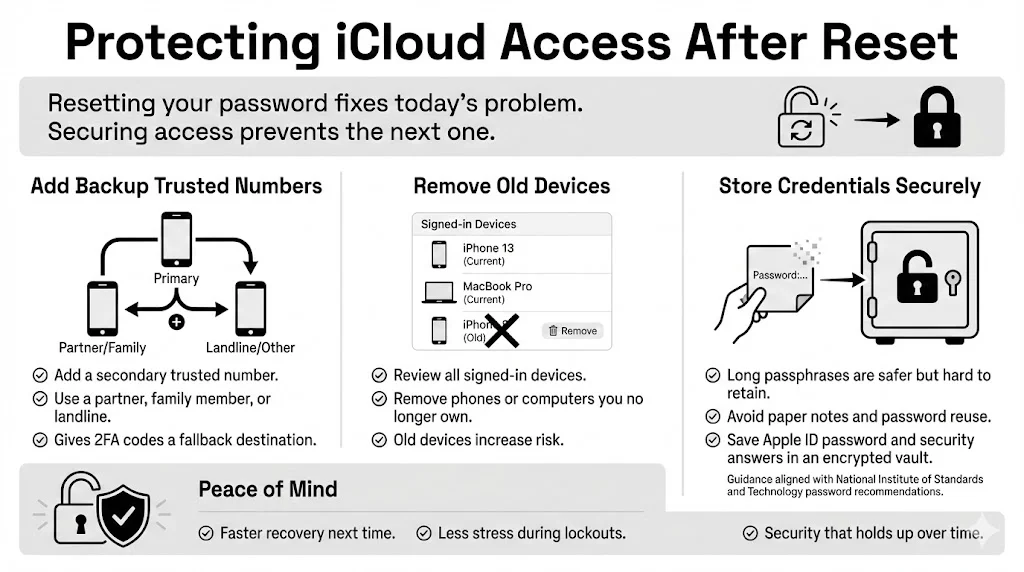
1. Update Trusted Numbers
Go into your settings and add a secondary phone number—a spouse, a partner, or a landline (if they still exist in your world). This gives the 2FA code a second place to land if you lose your mobile.
2. Sign Out of Old Devices
In your settings, review the list of devices signed into your account. See an iPhone 13 you sold three years ago? Remove it. It is a security risk.
3. Store Credentials Safely
The National Institute of Standards and Technology (NIST) advises using long, complex passphrases rather than single words. But complex passwords are hard to retain.
- Don’t: Write the new password on a sticky note.
- Don’t: Reuse the password from your email account.
- Do: Save your new Apple ID password and your answers to security questions in a dedicated, encrypted manager like WhiteVault.
When you store your credentials in WhiteVault, you are not just saving a password; you are saving your future time and sanity. You turn a potential crisis into a five-minute fix.
Common Mistakes to Avoid During Reset
The stress of being locked out leads to errors. Avoid these pitfalls to keep the process moving.
1. Entering Incorrect Details Repeatedly When you are panicked, you might guess wildly. “Was the phone number ending in 88 or 89?” Stop. Too many wrong guesses can disable the recovery flow entirely for 24 hours. Take a breath and verify the info before typing.
2. Ignoring Recovery Emails During the account recovery wait period, Apple will email you updates. These often go to spam folders or secondary email addresses you rarely check. Monitor every inbox you provided.
3. Using Unsecured Networks Do not perform an iCloud password reset while connected to public Wi-Fi at a coffee shop without a VPN. You are transmitting sensitive data; do it from a secure home network or cellular data.
4. Skipping Security Setup Once you get back in, it is tempting to skip the “Review Security” prompts just to get to your apps. Do not do this. Set up the Recovery Contact now while you are thinking about it.
Conclusion: Security is a Habit, Not a Task
In 2026, the strictness of Apple’s recovery system is a reflection of the world we live in. Our electronic identities are valuable targets. While the recovery process can feel frustratingly slow, it is built to ensure that only you can access your life.
If you are currently locked out, follow the steps for the web reset or trusted device method. Be patient with the verification delays—they are working in your favor to keep criminals out.
If you have just recovered your account, take action today to protect it. Enable a Recovery Contact. Update your trusted numbers. And most importantly, move away from the chaotic method of sticky notes and memory games.
Store your credentials, your Recovery Key, and your vital documents in WhiteVault. It is the simple, secure way to retain what matters. When you know your information is safe and accessible, you gain something more valuable than just a password: you gain peace of mind.
Frequently Asked Questions (FAQ)
1) What is the fastest way to complete an iCloud password reset in 2026?
The fastest method is using a trusted device (iPhone, iPad, or Mac) that is already signed in. Go to Settings > Your Name > Sign-In & Security > Change Password. This bypasses the waiting periods associated with web-based recovery.
2) What should I do if I forgot my Apple ID password and no longer have my phone?
You will need to use the Account Recovery process via iforgot.apple.com. You will need to verify your identity using other data points (like credit card info or email verification) and wait for Apple to review the request.
3) How long does the Apple ID recovery process usually take?
If you are unable to verify your identity immediately via a trusted device, the automated Account Recovery process can take anywhere from 24 hours to several days. Apple uses this time to ensure the request is legitimate.
4) Can I reset Apple credentials without a verification code?
It is very difficult. If you are unable to receive a 2FA code via SMS or a trusted device, you must go through Account Recovery. However, if you previously set up a Recovery Contact, they can provide the code you need instantly.
5) Why does Apple sometimes delay account access after verification?
Delays are a security measure. If Apple’s system sees unusual activity or is unable to match your current location/device with your history, it imposes a wait time to give the original owner a chance to stop a potential hack.
6) Are Apple security questions still required?
For most modern accounts using Two-Factor Authentication, security questions are no longer used. They primarily appear on older, “legacy” accounts that have not been updated with modern security protections.
7) How can I protect my iCloud account from future lockouts?
Set up a Recovery Contact (a trusted friend or family member), generate a Recovery Key (and store it in WhiteVault), and ensure your trusted phone numbers are always up to date.

