
Staying on top of streaming accounts might seem like a small task, but those credentials are a gateway to much more than movies and series. The average person now manages over 100 online accounts, from banking and shopping to gaming and social media. That’s a lot of passwords to juggle. Many of us reuse the same passwords or write them on sticky notes, making life easier for attackers. Netflix is often one of the first targets because it’s popular and shared among family and friends. If you’ve ever been locked out during a movie night or wondered who else might be watching on your profile, you know how frustrating it can be. This guide shows how to change Netflix password without headaches and explains why updating it matters for your wider digital safety.
Why Knowing How to Change Your Netflix Password Matters
Few people think of Netflix as a high‑risk account, but it holds payment details, links to personal email addresses and often the same password you use elsewhere. Cybersecurity researchers warn that reusing passwords across services is one of the biggest risks. A Cloudflare analysis from late 2024 found that 41 percent of successful login attempts across websites used credentials from previous data breaches and that 95 percent of these attacks were automated bot attempts. When you reuse Netflix credentials elsewhere, a breach at any of those sites can hand attackers a way into your streaming account and your saved payment details.
Identity crime is more common than most people realise. According to the Identity Theft Resource Center’s 2025 Consumer Impact Report, more than 31 percent of surveyed victims experienced identity theft twice in the past year and nearly one‑quarter were victimised three times. Security.org reports that in 2024 there were more than 6.4 million reports of identity theft and fraud filed with the U.S. Federal Trade Commission. Changing your Netflix password when you spot unusual activity or if you’ve reused it elsewhere can reduce the chances of your account being hijacked.
Common Reasons to Update Your Netflix Credentials
- Shared accounts: Netflix was built for households, but sharing login details with friends, family and ex‑roommates can spiral. Over time you might forget who has access. If you’re splitting the cost with others, you also risk someone giving your details to someone else, or continuing to use your subscription after leaving your household.
- Suspicious sign‑ins: Netflix notifies you about new device sign‑ins, but it isn’t always obvious whether it was you. If your email shows unrecognised login alerts, it’s wise to change your password and sign out of all devices.
- Long‑term account use without updates: Many people set a Netflix password once and never change it. However, password reuse and occasional breaches mean that if you don’t update your credentials, your account might be an easy target for attackers.
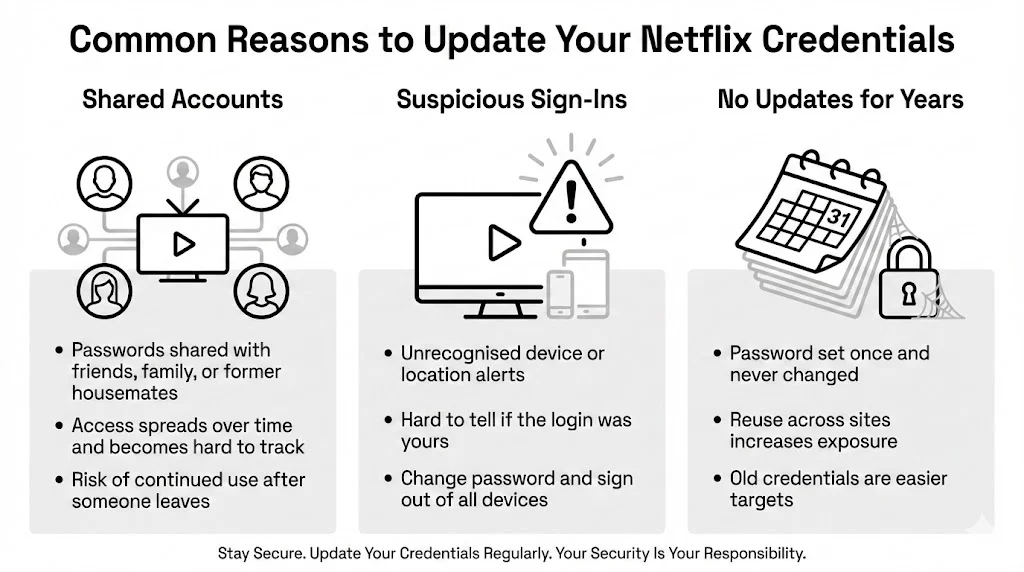
By learning how to change Netflix passwords and adopting better habits, you ensure that your streaming sessions remain secure and that other accounts remain untouched.
Understanding Netflix Account Security Basics
To understand why updating your Netflix password matters, it helps to look at how streaming services handle security. Netflix associates your account credentials with personal information such as your name, email address, payment method and viewing history. Each profile on your account is tied to a profile icon but ultimately all profiles rely on one set of login credentials. Because of this, if your main password is compromised, all profiles and saved payment methods are at risk.
Netflix encourages users to choose passwords that are at least eight characters long and include a mix of uppercase and lowercase letters, numbers and symbols. While this guidance is helpful, security organisations like the National Institute of Standards and Technology (NIST) recommend going further. NIST advises using passphrases of 15 or more characters since longer phrases are harder to guess. The organisation also notes that periodic password changes aren’t necessary unless you suspect a compromise. Instead, choose a strong, unique passphrase you can remember and use a password manager to store it securely.
How Passwords Connect to Profiles and Viewing History
When you log in, Netflix ties your password to your account and the profiles you’ve created. Each profile has its own viewing history, recommendations and parental controls. However, there is no separate password for each profile unless you set a profile PIN. That means anyone with your main login can switch to any profile and see viewing history or change settings. As part of your security routine, you might want to set profile PINs for sensitive profiles, especially those used by children or those containing viewing habits you consider private. Netflix’s help center explains how to require a PIN to add new profiles.
Security Settings and Privacy Controls on Netflix
Netflix offers a few features to help you manage security and privacy:
- Manage Access and Devices: This page shows recent devices that have logged in. You can sign out of specific devices or all devices at once. It’s useful if you suspect someone else has your credentials.
- Profile Locks: You can lock individual profiles or the entire account with a PIN. Doing so forces anyone who wants to access those profiles to enter a separate code.
- Viewing Activity and Parental Controls: Netflix allows you to hide specific titles from your viewing activity or restrict mature content for child profiles. While not directly related to password security, these settings help protect privacy within your household.
In addition to Netflix’s built-in settings, consider using multi‑factor authentication (MFA) for the email account associated with Netflix. MFA adds a second layer of verification, such as a code sent to your phone, making it harder for attackers to reset your streaming password through your email.
When You Should Change Your Netflix Password
Changing your Netflix password isn’t something you need to do weekly or monthly. In fact, forcing yourself to come up with new combinations too often can backfire. NIST warns that requiring regular password changes often leads people to reuse old passwords or make small, predictable alterations, which make them easier for attackers to guess. Instead, you should update your Netflix password when:
- You detect suspicious activity: Unrecognised devices in your Manage Access and Devices list or notifications about unfamiliar sign‑ins are signs that someone may have your credentials.
- You’ve reused the password elsewhere: If you hear about a breach at another service where you used the same password, change your Netflix password and any other accounts that share it. According to a Huntress survey, 23 percent of people reuse a password across three to four accounts and 30 percent have suffered password theft due to reuse.
- It’s been more than a year: While frequent changes are discouraged, leaving the same password indefinitely isn’t ideal either. Many companies now enforce password updates once per year, which aligns with NIST’s recommendation to change passwords only after evidence of compromise or at least every 365 days.
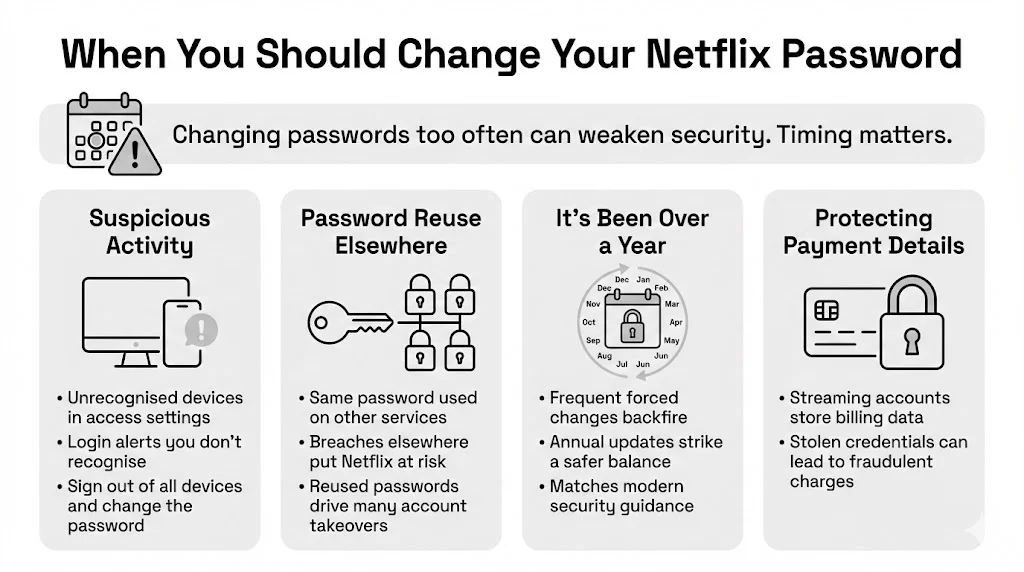
Updating your password regularly also protects your stored payment details. Remember that streaming subscriptions contain your billing information, which can be used for fraudulent purchases if stolen.
How to Change Netflix Password Step by Step
Whether you’re tidying up a shared account or reacting to a security alert, changing your Netflix password only takes a few minutes. Here’s a detailed guide on how to change Netflix password using a desktop or mobile browser.
Changing Your Password on a Desktop or Mobile Browser
Netflix’s website is the most reliable place to update your password. Follow these steps:
- Sign into Netflix: Open a browser and go to Netflix.com. Enter your current email or phone number and password. Once logged in, click your profile icon in the upper right corner and select Account from the menu.
- Find the password update option: In the Account page, locate the Security or Membership & Billing section. Click Change password.
- Enter your current and new passwords: You will be prompted to enter your current password followed by a new password twice. Choose a long passphrase with at least 15 characters, mixing letters and numbers. A passphrase like “pink‑himalayan‑sunrise 2025” is easier to remember than a random string and meets NIST recommendations.
- Require signin on all devices: There’s an option that says Require all devices to sign in again with a new password. Check this box if you suspect someone else has access. It will log out everyone using your account and force them to reenter the new credentials, clearing out anyone who shouldn’t be there.
- Save changes: Click Save or Update. Netflix will confirm that your password has been changed.
Changing Your Password Using the Netflix App
Netflix’s mobile app doesn’t directly allow you to change your password within the app itself. However, you can still make the change via your phone’s browser or by being redirected within the app. If you only use the mobile app and wonder how to change Netflix password on your phone, follow these steps:
- Open the app: Launch the Netflix app on your device and log in if you aren’t already.
- Go to Account: Tap your profile icon, then select Account. The app will open a browser page to the Netflix account settings.
- Follow the browser steps: Continue as you would on a desktop—select Change password, enter your current password and your new passphrase, check the Require sign‑in on all devices box if needed, and save.
If the account settings fail to load in the app, open a separate browser (Chrome, Safari or Firefox) and navigate to Netflix.com. Log in and follow the same steps to change your password.
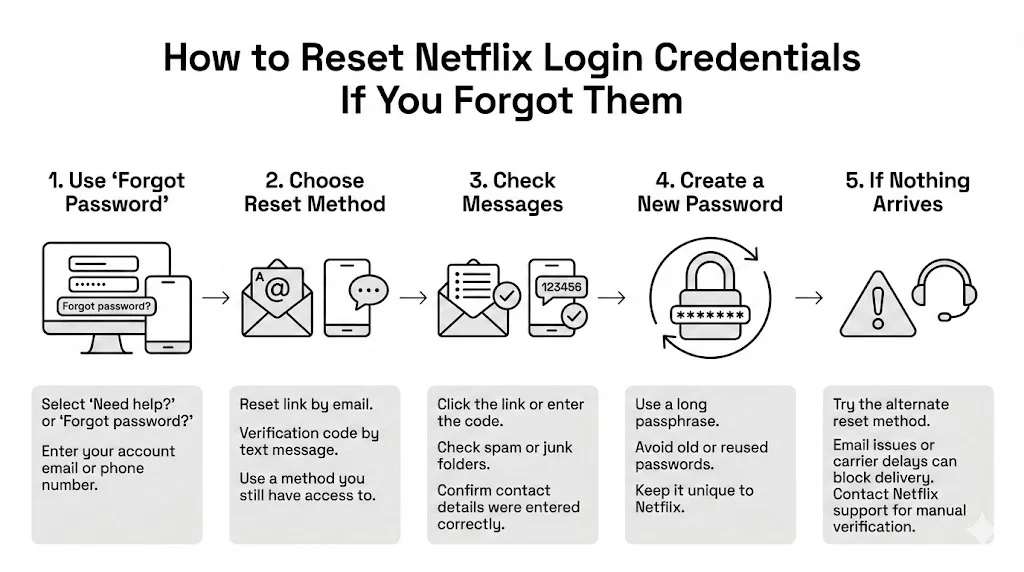
How to Reset Netflix Login Credentials If You Forgot Them
Forgetting your Netflix password happens to the best of us. Luckily, you can reset it even if you no longer have access to your account. The process below teaches you how to change Netflix password when you can’t remember your current one:
- Use the “Forgot password” link: On the Netflix login page, select Need help? or Forgot password?. You’ll be prompted to enter the email address or phone number associated with your account.
- Choose your reset method: Netflix will offer to send a reset link via email or a verification code via text message. Make sure the email isn’t in your spam folder. If you choose SMS, ensure that you still have access to the phone number.
- Check your inbox or messages: Click the reset link or enter the code in the provided field. If the link or code doesn’t arrive within a few minutes, check your spam or junk folder. Also verify that you entered the correct email address or number.
- Create a new password: Once you confirm your identity, Netflix will prompt you to create a new password. Use a long passphrase and avoid using the same password you had before or one you use on other sites.
- What to do if reset links don’t arrive: If you never receive a reset link or code, there might be an issue with your email provider or phone carrier. Try the alternative method (email if text fails, and vice versa). You can also contact Netflix’s support team. They may ask for payment verification or other details to confirm ownership before assisting.
Tips for Avoiding Future Lockouts
- Use a password manager: Storing your credentials in a secure manager ensures you don’t forget long passphrases and enables you to generate unique passwords for every service. According to Huntress, only 32 percent of users currently use password managers; adopting one puts you ahead of most people.
- Enable multi‑factor authentication (MFA) on your email: If someone can hijack your email, they can reset your Netflix password. MFA adds an extra layer of protection.
- Save passwords in WhiteVault: WhiteVault offers a secure personal vault for all your important passwords and documents. By storing your Netflix credentials, passport scans, tax documents and medical records in one encrypted place, you reduce the risk of forgetting them or leaving them exposed in plain text files or browsers. WhiteVault’s simple interface and military‑grade encryption let you access your information anytime you need it.
Managing Netflix Profile Security After a Password Change
Changing your password is only the first step. Once you’ve updated your credentials, you’ll want to tidy up your account to ensure no unauthorized users linger.
- Sign out of all devices: From the Account page, select Manage Access and Devices. This page lists devices that have recently used your account. Click Sign Out for each device that you don’t recognise or choose Sign out of all devices to remove all sessions. Note that it can take up to 48 hours for devices to appear on this list and for sign‑outs to take effect.
- Review active sessions: Check the list of devices after signing out. If new unknown devices reappear shortly after, it could mean your credentials have been compromised again. Change your password immediately and consider contacting Netflix support.
- Adjust profile management options: If you share your Netflix account with family or friends, set up Profile Lock. Navigate to Account → Profile & Parental Controls → Profile Lock and require a PIN for each profile you want to secure. This ensures that even if someone logs in, they cannot access specific profiles without the PIN.
- Use profile PINs for added control: A profile PIN can restrict unauthorised viewing or changes to your child’s profile. Netflix also offers parental control settings that limit content based on maturity levels.
By taking these steps, you ensure that only trusted people can watch from your account and that your viewing history remains private.
Netflix Account Privacy Options You Should Review
Protecting your privacy doesn’t end with passwords. Netflix has several options to control how much information you share and who can see your viewing habits:
- Check recent device access: As mentioned, the Manage Access and Devices page shows where your account has been used recently. Regularly reviewing this list helps you spot suspicious activity.
- Manage viewing activity visibility: On the Account page under Profile & Parental Controls, you can see and hide specific titles from your viewing activity. Hiding your history is useful if you don’t want recommendations based on a certain genre or if you simply value privacy within a shared account.
- Review payment and billing privacy: Ensure that your billing information (credit card details and address) is up to date and correct. Consider using a virtual card or a separate payment method for streaming services to compartmentalise financial risk.
- Understand how these settings support safety: By controlling who can see your viewing activity and which devices stay logged in, you reduce the risk of someone manipulating your account. Privacy settings also help ensure that algorithms reflect your own viewing habits rather than those of everyone who has ever borrowed your login.
Troubleshooting Common Netflix Login Issues
Even with a new password, you might encounter technical issues. Here are some common problems and their solutions:
- Incorrect password errors after updates: If Netflix keeps saying your password is wrong, double‑check that there are no spaces before or after the password. Ensure caps lock isn’t on. If you copy and paste from a password manager, confirm that you copied the entire passphrase.
- Browser or app cache problems: Sometimes the Netflix app or your browser caches old credentials. Clear your browser cache, cookies and saved passwords. On mobile apps, try force‑closing the app and clearing its cache in your phone’s settings. Reopen and enter the new password.
- Account lock messages: If Netflix temporarily locks your account due to too many failed login attempts, wait at least 30 minutes before trying again. Use the Forgot password option if you’re unsure of your password.
- When to contact Netflix support: If you suspect your account has been taken over or if you cannot reset your password because the email address has been changed, contact Netflix customer service. They may ask for payment details or other information to verify ownership.
Best Practices for Ongoing Password Safety
Changing your Netflix password is part of a broader strategy for digital safety. Once you know how to change Netflix password, here are some habits to adopt:
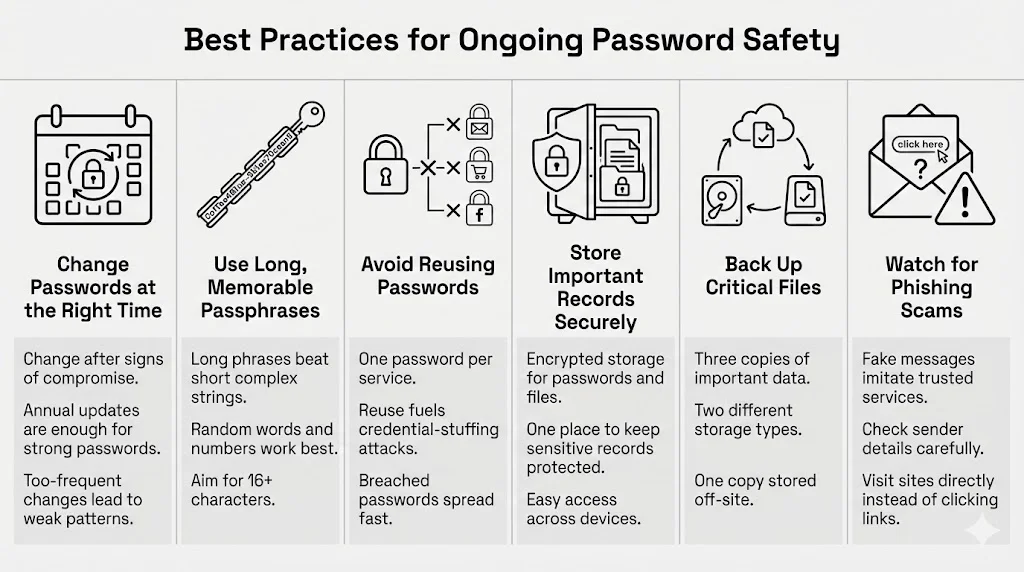
- Update passwords periodically but not excessively: NIST recommends changing passwords only after evidence of compromise or once per year. If you use a strong, unique passphrase, there’s little benefit to more frequent changes.
- Create passwords that are hard to guess but easy to remember: Use long passphrases with random words and numbers instead of short, complex strings. A phrase like “delightful‑camel‑mountain 1937” is easier to remember and more secure than “D$3a7!”. CISA suggests making them long (16+ characters), random and unique and using a password manager.
- Avoid sharing credentials across streaming services: Reusing passwords increases your risk of credential stuffing attacks. The Cloudflare study found that 41 percent of successful logins across websites used compromised passwords. Create a different password for each service.
- Keep personal records organised and protected: Store important documents and credentials in a secure personal vault such as WhiteVault. WhiteVault offers encrypted storage for passwords, passport scans, tax documents and more. Its digital vault allows you to save, remember and protect what matters most. With features like one‑click login and cross‑platform access, it’s an easy way to manage your digital life.
- Use backup strategies for important files: For documents like tax returns, medical records and family photos, follow the 3‑2‑1 backup rule: keep three copies of your data on two different media, with one copy off‑site. WhiteVault simplifies this by giving you off-site encrypted storage accessible from any device.
- Stay alert for phishing and scam tactics: Attackers often send fraudulent emails or messages posing as Netflix or other services. They might claim your account is about to expire or that you need to verify your credentials. Always check the sender address and never click links in unsolicited emails. Instead, navigate directly to the site by typing the URL into your browser.
Adopting these habits helps you protect not just your Netflix account but all of your digital accounts and sensitive documents.
Conclusion
Learning how to change Netflix password isn’t just about preventing a movie night from being ruined. It’s part of a broader strategy to safeguard your digital life. By choosing a strong passphrase, using a password manager and reviewing your account settings regularly, you reduce the risk of credential theft and identity fraud. Modern guidance from security experts like NIST and CISA emphasises long, unique passwords, multi‑factor authentication and cautious password changes. Following these principles and taking advantage of Netflix’s security options—such as signing out of all devices and setting profile PINs—keeps your streaming experience personal and private.
Digital safety isn’t about perfection; it’s about making smart, manageable choices. From storing passwords and passport scans in WhiteVault’s secure personal vault to adopting the 3‑2‑1 backup rule for important documents, each step you take builds a stronger shield around your identity. The next time you update your Netflix password or organise your digital paperwork, you’re not just ticking off a chore—you’re investing in peace of mind. Knowing how to change Netflix passwords is just one part of staying safe; applying this approach to other accounts will help you take control of your digital life.
Frequently Asked Questions (FAQ)
1) How often should I change my Netflix password?
According to NIST guidelines and other security experts, you only need to change your password if you suspect it has been compromised or at least once per year. Focus on creating a strong, unique passphrase rather than rotating it frequently.
2) Will changing my password log out other users?
Yes. When you update your password through the Account page, check the option to require all devices to sign in again. This will log out everyone currently using your account and force them to enter the new password.
3) Can I change my Netflix password if I only use the app?
The app directs you to a browser for changing your password. You can still update your credentials on a mobile device by following the Change password link in the Account section, which opens a web page within the app or in your browser.
4) What should I do if someone keeps accessing my account?
First, change your password and sign out of all devices. Then check the Manage Access and Devices page for unfamiliar devices. Set profile PINs for each user and enable parental controls if needed. If the issue persists, contact Netflix support.
5) Is it safe to save Netflix login details in a password manager?
Absolutely. Password managers encrypt your credentials and store them behind a master passphrase. Only 32 percent of people currently use password managers, but doing so dramatically reduces the risk of forgetting or reusing passwords.
6) Why does Netflix say my password is incorrect after resetting it?
Possible reasons include typing errors, cached credentials or delays in Netflix’s system recognising the change. Double‑check that caps lock isn’t on, clear your browser or app cache and try again. If the issue continues, use the Forgot password link to reset your credentials again or contact Netflix support.


