
You pick up your iPhone to download an app or check your iCloud settings, and a prompt appears asking for your password. You try the one you usually use. Incorrect. You try a variation. Incorrect. Panic starts to set in. The natural next step is to hit “Forgot Password,” but then you hit a wall: the verification email is going to an address you are unable to access anymore. Maybe it is an old work email, a student account from years ago, or an inbox that was hacked. Suddenly, you feel cut off from everything—your photos, your messages, your wallet, and your contacts.
We understand that sinking feeling. It is incredibly stressful to feel locked out of your own life. But take a deep breath. While email is the standard way to verify who you are, it is not the only way. Apple has built several other doors into your account specifically for this situation. You do not need to be a tech wizard to fix this; you just need to know which door to open.
In this guide, we will walk you through exactly how to reset Apple ID password access when your inbox is out of reach. We will explain why Apple makes it this way, how to use your trusted devices, and how to protect yourself so this never causes panic again.
Understanding Apple ID Security: It Is Strict for a Reason
When you are staring at a locked screen, Apple’s security measures can feel like an obstacle course designed to annoy you. However, looking at it from a protection standpoint changes the perspective. Your Apple ID is not just a login; it is the master pass to your personal existence. It connects your location data, financial information (via Apple Pay), health records, private messages, and the literal location of your family members through ‘Find My’.
Because this single account holds so much power, Apple utilizes “Identity Assurance” levels that align with standards from organizations like the National Institute of Standards and Technology (NIST). In 2024 and 2025, the focus in cybersecurity has shifted heavily from simple passwords to “multi-modal” verification. This means the system wants to confirm you are who you say you are using something you have (a device), something you know (a passcode), or something you are (Face ID).
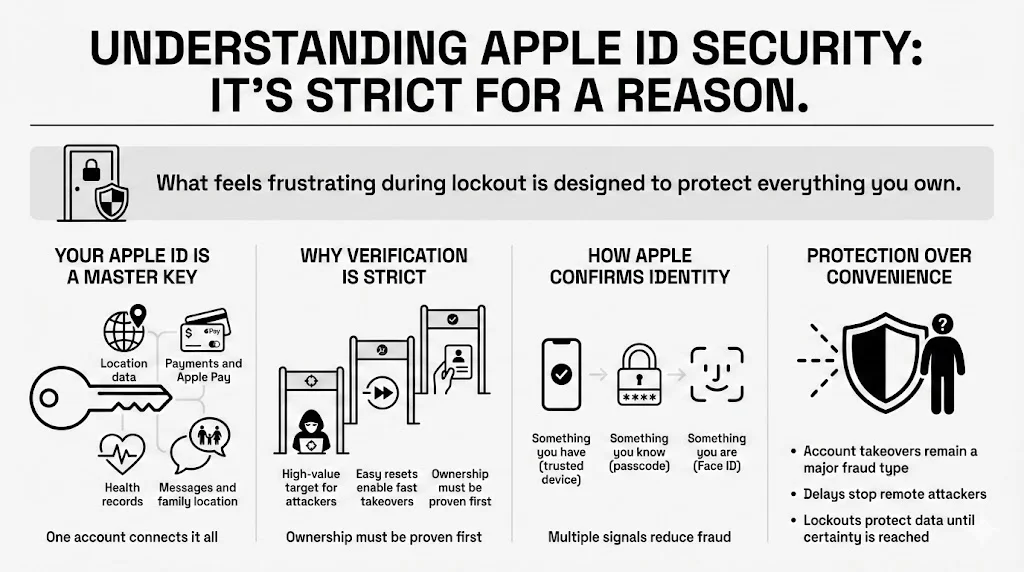
If Apple allowed a password reset too easily—without verifying ownership of the email or a trusted device—identity thieves could take over accounts in seconds. The Federal Trade Commission (FTC) reported that account takeovers remained one of the top fraud categories in 2024. Apple’s strictness is the shield that keeps remote hackers out. When the system blocks you, it is doing exactly what it was designed to do: protect your data until it is absolutely certain the person knocking at the door is you.
When Email Access Is Not Available
Why is email usually the default? Historically, an email address was the most stable identifier a person had. But in our modern internet-based lives, email addresses are surprisingly fragile.
We see this scenario constantly at WhiteVault. A user sets up their Apple ID ten years ago using a specific internet provider’s email service. When they switch providers, that inbox vanishes. Or perhaps they used a university address that was deactivated after graduation. In more severe cases, the email account itself might be compromised, and the attacker has changed the password, leaving the user with no way to retrieve the verification code Apple sends.
When these links break, the “Forgot Password” button feels useless. But this is exactly why the modern security environment relies on redundancy. Apple knows email addresses die. That is why they have shifted focus toward device-based authentication and phone numbers.
Main Ways to Reset Apple ID Password Without Email
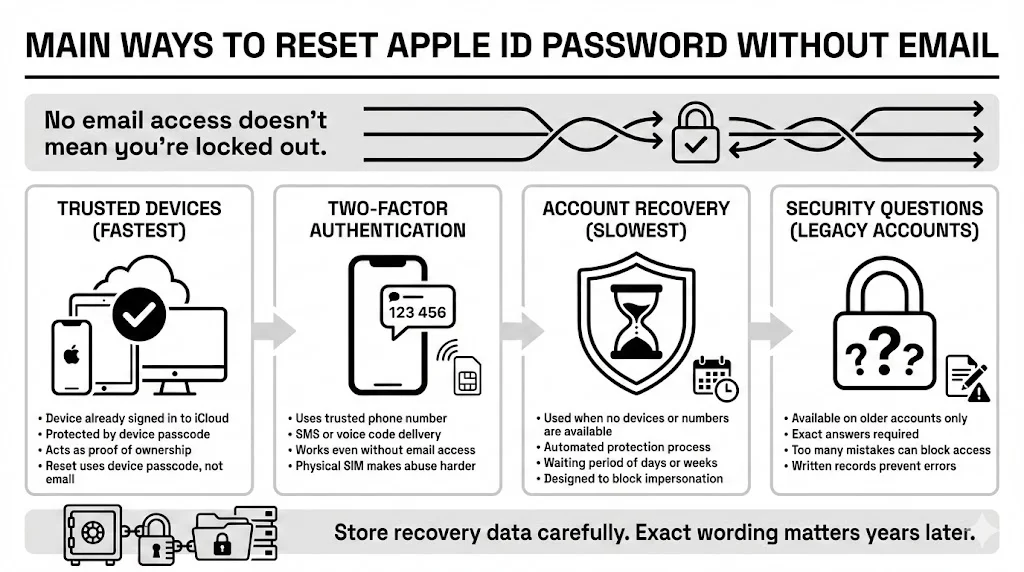
If your inbox is a dead end, do not worry. You have three or four other solid paths to regain control. We will start with the fastest methods and move to the slower ones.
1. Using Trusted Devices (Device Authentication)
This is the “Golden Path.” If you have a second Apple device—like an iPad, a Mac, or an Apple Watch—that is already signed into your iCloud account, you effectively have a physical pass to your castle.
A “Trusted Device” is one that you have previously authorized and secured with a passcode (or password on Mac). Because this hardware is in your possession and verified, Apple considers it proof of your identity. You do not need email because the device is the verification.
How to do it on an iPhone or iPad:
- Open the Settings app.
- Tap your Name/Banner at the very top.
- Select Sign-In & Security.
- Tap Change Password.
Because your device is already trusted, it will likely ask for your iPhone passcode (the distinct numbers you use to open the screen) rather than your old Apple ID password. Once you enter that device passcode, you will be taken directly to a screen to enter a new Apple ID password.
How to do it on a Mac:
- Click the Apple Menu (top left corner).
- Select System Settings (or System Preferences on older software).
- Click your Name (or Apple ID).
- Choose Password & Security.
- Click Change Password.
You will be asked for the password you use to open your Mac computer. Once entered, you can reset Apple ID password credentials immediately. This works because Apple trusts the physical security of your hardware.
2. Two-Factor Authentication (2FA) Options
If you do not have another Apple device handy, or if you are locked out of all of them, your next best friend is your phone number. Two-Factor Authentication (2FA) is designed to function even if one factor (your password or email) is missing.
When you initiate a reset request on a new device (like a friend’s phone or a library computer) or via the web, the system will ask for your trusted phone number.
The Process:
- Go to the Apple ID recovery website (iforgot.apple.com).
- Enter your Apple ID (the email address itself).
- The system will ask you to confirm your trusted phone number. You must know this number.
- Once verified, Apple sends a code to that number via SMS or voice call.
What if the phone number changed? This is a common hurdle. If you are unable to receive the text, look for an option that says, “I didn’t get a verification code” or “Cannot access this number.” If you are logged in on any device, you might be able to generate a code from the Settings menu (under Sign-In & Security > Two-Factor Authentication > Get Verification Code), even if that device is offline.
Using a trusted number is often faster than email recovery because mobile numbers are tied to SIM cards, which are physical objects that are harder to spoof remotely than an email password.
3. Account Recovery Through Apple
If you have no trusted device, no access to your email, and are unable to use your trusted phone number, you enter the territory of “Account Recovery.”
This is the method that requires the most patience. We warn you now: this is not instant. Account recovery is an automated process designed to get you back in while keeping hackers out. It can take several days or even weeks.
Why the wait? When you trigger account recovery, Apple places your request in a holding pattern. During this time, they are waiting to see if any other devices react or if anyone tries to cancel the request. This prevents a bad actor from stealing your account while you are sleeping.
Steps to start:
- Go through the reset steps on a device or the web until you hit the wall where you are unable to verify.
- Select “Start Account Recovery.”
- You will need to provide a phone number where Apple can reach you later. This does not have to be the old trusted number; it just needs to be a number you control now.
- Apple will confirm your request and give you a date when you will hear from them.

Crucial Advice:
During the waiting period, turn off other devices that might use this Apple ID. If an old iPad in a drawer pings the server using the old password, the recovery process might cancel itself because the system thinks, “They verified access, we can stop.”
4. Security Questions (If Previously Set)
For accounts created many years ago that never upgraded to modern Two-Factor Authentication, you might still have “Security Questions.”
This method is becoming rare, but it exists for legacy accounts. You might be asked:
- “What was the name of your first pet?”
- “What is the model of your first car?”
- “Where did your parents meet?”
If you answer these correctly, you may be allowed to reset Apple ID password data immediately. However, answer incorrectly too many times, and this option will lock down. This unreliability is exactly why tools like WhiteVault are essential—we help you save the exact spelling and phrasing of these answers so a typo does not lock you out five years later.
Working With Apple Support
There is a common misconception that if you call Apple Support, a friendly agent can just press a button and let you back in.
Here is the hard truth: Apple Support is unable to reset your password for you.
Strict privacy policies and technical architecture mean that even the highest-level supervisor is unable to see your password or bypass the security wall. They can, however, guide you through the Account Recovery steps we mentioned above.
What they might ask: To prove you are the owner during a support interaction (usually to help speed up verification phases), they might ask for:
- Serial numbers of devices linked to the account.
- Details about recent purchases (e.g., “Did you buy an app last week?”).
- Billing information on file (last four digits of the credit card).
What they will NOT ask:
- Your full credit card number.
- Your current password.
- Verification codes sent to your phone. (Never share these with anyone, even Apple).
If you are on the phone with someone claiming to be Apple Support and they ask for your 2FA code, hang up. That is a scam.
Common Problems and How to Avoid Them
The path to recovery is paved with good intentions but often blocked by simple mistakes.
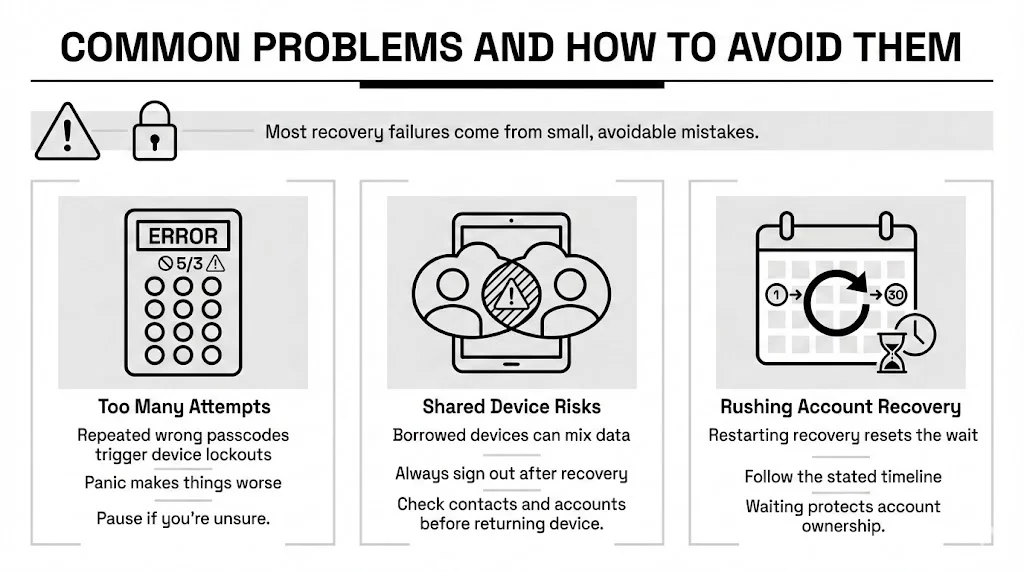
1. The “Too Many Attempts” Trap When we panic, we tend to smash buttons. Entering the wrong passcode on your iPhone too many times can disable the device entirely, adding a hardware lockout on top of your account lockout. If you are unsure, stop. Take a breath.
2. The Shared Device Risk If you borrow a friend’s iPad to trigger a recovery, ensure you sign out completely when finished. We have seen instances where users accidentally merge their contacts with a friend’s account because they remained logged in during the chaos.
3. Rushing the Process When Account Recovery says, “We will contact you in 4 days,” believe them. Trying to restart the process on day 2 to “speed it up” usually resets the clock to zero. Patience is your only option here.
Protecting Your Apple ID After Recovery
Once you finally see that green checkmark and regain access, the relief is immense. But do not just go back to business as usual. Use this scare as motivation to fortify your defenses.
Update Your Recovery Contacts Apple now allows you to set a “Recovery Contact”—a trusted friend or family member who can verify your identity if you get locked out again. They get a code, give it to you, and you are back in. Set this up immediately in Password & Security.
Generate a Recovery Key You can generate a 28-character code called a Recovery Key. This is the ultimate “break glass in case of emergency” tool. If you have this key, you can reset your password instantly, bypassing the waiting periods.
Store It Securely This is where WhiteVault shines. You cannot memorize a 28-character key, and writing it on a sticky note is risky.
- Store the Recovery Key: Save it in your WhiteVault.
- Document Your Answers: If you have security questions, store the exact answers (case sensitive) in your vault.
- Backup Codes: Keep a record of your trusted phone numbers and device serial numbers.
WhiteVault is designed to be the secure home for the things you cannot afford to lose. By keeping your recovery credentials in one encrypted place, you turn a potential multi-week lockout nightmare into a five-minute fix.
Conclusion
Losing email access does not mean you have lost your Apple ID forever. While the panic is real, the pathways back to your account—via trusted devices, phone numbers, and official recovery—are robust and tested.
The security measures that feel like barriers right now are actually there to ensure that your private data stays private. It might take time, and it might require jumping through hoops, but you will get back in.
The most important step is the one you take after you recover your account. Strengthen your security settings, set up a recovery contact, and store those critical credentials in a secure place like WhiteVault. That way, you can enjoy the convenience of technology without the fear of being locked out of it.
Frequently Asked Questions (FAQ)
1) Can I reset Apple ID password without any trusted devices?
Yes, but it is more difficult. If you have no trusted devices and no access to your email, you must rely on your trusted phone number or the official Account Recovery process. This process takes longer because Apple must manually verify your identity to ensure you are not a hacker.
2) How long does an Apple account recovery usually take?
It varies based on how much information you can provide. It typically takes a few days, but in cases where very little verification info is available, it can take up to two weeks or more. Apple provides a time estimate after you initiate the request.
3) Is it safe to reset Apple ID password on a borrowed device?
It is generally safe if you use the “Apple Support” app on their device, which is designed for guest access. Avoid signing into the main iCloud settings of a borrowed device, as this can mix your data with theirs. Always ensure you log out completely after you finish your request.
4) What if I no longer have access to my trusted phone number?
If you are unable to access your trusted number, you can still start Account Recovery. During the setup, you will be able to provide a new phone number where Apple can contact you once they have verified your identity. This adds time to the process but is the approved solution.
5) Will Apple support reset my password instantly?
No. Support agents are unable to bypass the system security. They can guide you to the correct web forms or explain the status of your request, but they do not have a “reset” button. This protocol prevents social engineering attacks where hackers try to trick agents into giving away access.
6) How can I avoid this issue in the future?
The best defense is organization. Enable “Account Recovery Contacts” in your Apple settings. Also, use a service like WhiteVault to securely store your Recovery Key, current passwords, and answers to security questions. Having these details accessible in a crisis makes recovery instant.

