We have all been there. You are ready to buy that last-minute birthday gift or restock household essentials. You head to checkout, and then it happens: the sign-in screen appears, and your mind goes blank. You try your usual password. Incorrect. You try the variation with the capital letter. Incorrect. Panic starts to set in.
Getting locked out of your account is more than just an inconvenience; it is a moment of vulnerability. According to the 2024 Annual Data Breach Report by the Identity Theft Resource Center (ITRC), credential-related incidents remain a primary driver of compromises, reminding us that our shopping accounts hold a wealth of personal data—from credit card numbers to home addresses and purchase histories.
This guide is not just about getting back into your account; it is about securing your web identity. We will walk you through the Amazon password reset process step-by-step, explain why it happens, and show you how to organize your credentials so you never have to worry about this stress again.
At WhiteVault, we believe that security should not be complicated. Whether you are a busy parent managing a household budget or a professional tracking expenses, our goal is to help you save, recall, and protect what matters most.
Understanding the Amazon Password Reset Process
When you click “Forgot Password,” you aren’t just asking a computer to send you a link. You are triggering a specific security protocol designed to verify that you are who you say you are.

What Actually Happens?
An Amazon password reset is an authentication event. Amazon’s systems immediately look for risk factors. They verify your device, your location, and your browser history. If you are resetting from your living room sofa using the same phone you have used for five years, the process is usually smooth. If you are attempting this from a new laptop in a hotel room overseas, Amazon’s security AI kicks into high gear to protect your stored payment methods.
The Role of Encryption
Behind the scenes, Amazon does not actually know your password. They store a “hash”—a scrambled cryptographic representation of your credentials. When you reset your password, you are generating a new hash. This is why customer service agents are unable to simply tell you your old password; they cannot see it. This architecture is crucial for your privacy, ensuring that even internal employees cannot access your login details.
Why Security Checks Matter
According to the National Institute of Standards and Technology (NIST) Identity Guidelines, verifying identity during a recovery attempt is the most critical step in preventing account takeovers. Amazon uses a multi-layered approach involving email verification, text message (SMS) codes, and sometimes approval from a specialized app to ensure the request is legitimate.
When You Should Reset Your Amazon Password
While the most common reason to change your credentials is a memory lapse, there are other critical moments when initiating a reset is the smartest safety move you can make.
1. Forgotten Password Scenarios
This is the classic scenario. Maybe you updated your password six months ago and your browser cache cleared, or perhaps you relied on auto-fill and switched to a new device. If you cannot recall your credentials after three attempts, stop. Continuing to guess can trigger a temporary lockout. It is safer and faster to start the reset process than to trigger a brute-force defense mechanism.
2. Suspicious Login Activity
Amazon is good at alerting users to odd behavior. If you receive an email stating, “Someone signed into your account from
$$Location$$
” And if you do not recognize the activity, do not wait. Change your password immediately. This is often the first sign that your credentials were exposed in a data breach elsewhere. The Verizon Data Breach Investigations Report (DBIR) consistently highlights that stolen credentials are a top method used by attackers in “credential stuffing” attacks—where hackers test stolen email/password combos across major sites.
3. Shared Devices or Public Access
Did you log in to check an order status on a library computer or a hotel business center PC? Even if you clicked “Sign Out,” public computers can harbor keyloggers (malware that records keystrokes). If you have accessed your account from a machine you do not own or control, performing an Amazon password reset from a secure device when you get home is a best practice.
4. Routine Updates
While NIST guidelines have shifted away from forced periodic password changes (like changing it every 90 days just because), changing your password is still wise if you know your previous one was weak. If your current password is “Password123” or your dog’s name, it is time for an upgrade to something longer and more complex.
Step-by-Step Amazon Password Reset Guide
Regaining access to your account is straightforward if you follow the correct sequence. Here is the exact path to get you back on track.

Step 1: Go to the Amazon Sign-In Page
Open your preferred browser (Chrome, Safari, Firefox) and type amazon.com directly into the address bar. Avoid clicking links in emails that claim you need to reset your password unless you requested them, as these are common phishing traps.
- Hover over “Account & Lists” in the top right corner.
- Select “Sign In.”
- Look for the “Need help?” arrow below the password field.
- Click “Forgot your password?”
This is the starting line for the Amazon password reset protocol.
Step 2: Enter Your Login Credentials
Amazon will ask for the email address or mobile phone number associated with your account.
- Accuracy counts: Double-check for typos. A common error is typing .con instead of .com or transposing numbers in a phone number.
- Multiple accounts: If you have separate personal and business accounts, verify you are entering the correct identifier for the specific account you need to access.
Step 3: Complete Email or Phone Verification
Once you submit your identifier, Amazon needs to confirm you own that contact method.
- The OTP (One-Time Password): You will receive a notification via email or SMS containing a 6-digit code.
- Time limits: These codes typically expire within 10 minutes. If you wait too long, the code becomes invalid, and you will need to request a new one.
- Troubleshooting: If the email does not appear, check your Spam or Junk folder. Search for “Amazon” in your inbox. If you use a phone number, ensure your mobile device has signal reception.
Step 4: Pass Security Verification
For accounts with higher security settings or suspicious context (like a new device), Amazon might ask for more than just the OTP.
- Two-Step Verification (2SV): If you enabled 2SV, you might need to approve a notification sent to the Amazon Shopping app on your phone.
- Security Questions: While less common now, older accounts may still be prompted to answer questions like “What was the name of your first pet?”
- Credit Card/Zip Code: Occasionally, you may be asked to confirm the zip code of a billing address or the last four digits of a payment card on file. This proves you are the account owner, not just someone who hacked an email inbox.
Step 5: Create a New Password
Now comes the most important part. You will see the prompt to enter a new password.
- The Rules: Amazon requires a minimum of 8 characters.
- The Strategy: Do not do the bare minimum. Length beats complexity. A passphrase like Blue-Coffee-Mug-2025! is often stronger and easier to type than Tr5&b9#x.
- Avoid Reuse: Never use the same password you use for your email, banking, or social media. If one site gets breached, they all fall.
Once you enter the new string twice to confirm, click “Save changes and sign in.” You have successfully completed the Amazon password reset.
Step 6: Sign In With Your New Password
You are not done yet. Log in immediately to ensure the new credentials work.
- Update your devices: If you use Alexa devices, Kindles, or the Prime Video app on your TV, you will likely need to re-authenticate those devices with the new password.
- Save it securely: Immediately save this new credential in a safe place. This is where a tool like WhiteVault becomes essential. Instead of writing it on a sticky note that can get lost, store it in your secure personal vault where you can access it anytime.
Account Recovery Options if the Reset Fails
Sometimes, the standard path is blocked. You might have lost access to the old email address, or you changed your phone number and forgot to update Amazon.
When Standard Steps Fail
If you cannot receive the OTP, select the link that says “I do not have access to this email/phone” during the verification step. This moves you from an automated reset to an account recovery workflow.
Using Amazon Customer Service
You will likely need to contact Amazon Customer Service directly.
- Identity Verification: Be prepared to prove who you are. This might involve verifying recent purchase details, billing addresses, or even uploading a government-issued ID in extreme cases.
- Patience is Required: This manual review process is not instant. It can take 24 to 48 hours. This delay is frustrating, but it protects you from social engineering attacks where hackers pretend to be you to steal your account.
The “Create a New Account” Trap
Avoid the temptation to just create a new account immediately. You will lose your purchase history, your Kindle library, and your Prime membership benefits. It is almost always worth the effort to recover the original account.
How Amazon Protects Your Account During a Password Reset
Have you ever wondered why Amazon makes you jump through so many hoops? It is because the stakes are high.
Behind-the-Scenes Security
Amazon uses sophisticated risk-based authentication. If you try to perform an Amazon password reset at 3:00 AM from a device in a country you have never visited, the system flags this as “impossible travel.”
Protecting Payment Details
When a password is reset, Amazon often temporarily restricts access to sensitive areas of your account. For example, even after a successful reset, you might be asked to re-enter your full credit card number before you can ship an order to a brand-new address. This prevents a hacker from resetting your password and immediately sending themselves a 4K TV.
The Lockout Mechanism
If you guess your password incorrectly too many times, Amazon locks the account to prevent “brute force” attacks (where software guesses millions of passwords a second). This lockout is a shield, not a bug. It usually lasts for a few hours, giving you time to realize something is wrong.
Tips to Avoid Future Amazon Password Issues
We founded WhiteVault because we saw how overwhelmed people felt managing dozens of web accounts. You shouldn’t need a photographic memory to stay secure. Here is how to keep your Amazon account safe and accessible.
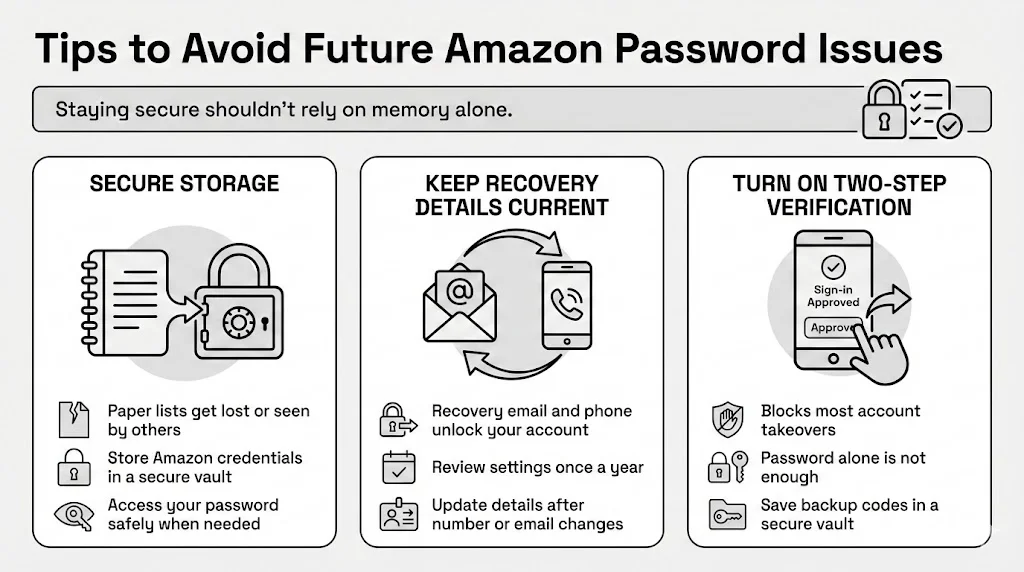
1. Secure Storage
The days of keeping passwords in a spiral notebook are over. Guests can lose, damage physical notebooks, or read in your home.
- The Better Way: Use a secure credential manager or a platform like WhiteVault. By storing your Amazon credentials in your vault, you ensure that even if you forget the password, you always have a secure backup available. You can save, recall, and protect what matters without relying on your memory.
2. Update Contact Details
Your recovery email and phone number are your keys back into the castle.
- Audit Regularly: Once a year, check your login settings. If you switched mobile carriers or dropped an old email provider, update those details on Amazon immediately. Do not wait until you are locked out to realize your recovery code is going to a disconnected number.
3. Enable Two-Step Verification (2SV)
This is the single most effective way to prevent unauthorized access. Microsoft security data indicates that Multi-Factor Authentication (MFA) can block over 99.9% of account compromise attacks. Even if a thief steals your password, they cannot log in without your phone.
- Where to find it: Go to Account > Login & security > Two-Step Verification.
- Pro Tip: Print out the “Backup Codes” Amazon offers when you set up 2SV. Scan these codes and store them in your WhiteVault. If you lose your phone, these codes are your only way back in.
Common Amazon Password Reset Problems and Fixes
Even with a clear guide, technology can be finicky. Here are solutions to the most frequent roadblocks.
“The Reset Link is Not Working”
- Cause: Email providers sometimes mangle links, or the link expired.
- Fix: Copy the link and paste it directly into your browser address bar instead of clicking it. If that fails, restart the process to generate a fresh link.
“I Never Received the Code”
- Cause: Network congestion or aggressive spam filters.
- Fix: Wait 60 seconds before clicking “Resend.” sending multiple requests rapidly can jam the system. Check your “Promotions” or “Updates” tabs in Gmail.
“My Account is Locked”
- Cause: Too many failed login attempts.
- Fix: Wait. Do not keep trying. Wait at least 4 hours. If it remains locked, look for an email from Amazon regarding “Unusual Activity” and follow the instructions therein.
“Old Password Still Works on My Phone”
- Cause: Sync delay.
- Fix: This is actually a security risk. Go to Account > Content & Devices and force a deregistration of devices you do not recognize or aren’t currently using. This forces those devices to ask for the new password.
Best Practices for Protecting Amazon Account Access
Security is a habit, not a one-time task. Integrating these small practices into your routine reduces the risk of needing an emergency Amazon password reset in the future.
Reduce Risk from Shared Devices
If you must use a shared computer, open a “Private” or “Incognito” window. When you close that window, it deletes the cookies and history, ensuring the next person cannot stumble into your account.
Review Recent Sign-In Activity
Amazon does not have a dashboard as detailed as Google’s for login history, but you should monitor your “Archived Orders” and “Browsing History.” If you see items in your history you didn’t look at, someone else might have access.
Keep Recovery Details Current
Make a habit of updating your “Login & Security” settings whenever you experience a major life change—moving houses, changing jobs (and losing a work email), or getting a new phone number.

The Role of WhiteVault
Think of your security strategy as a house. Your password is the key to the front door. Two-factor authentication is the deadbolt. WhiteVault is the fireproof safe inside where you keep the spare keys and the deed. By organizing your recovery codes, your current passwords, and your identity documents in one secure place, you eliminate the panic that comes with losing access.
Conclusion
Losing access to your Amazon account feels stressful, but the recovery process is designed to protect you, not punish you. By following the standard Amazon password reset steps—verifying your identity, setting a strong unique password, and securing that new credential—you turn a moment of panic into an opportunity to upgrade your personal security.
Keep in mind, the goal is not just to get back in for today’s purchase, but to ensure your information remains safe for years to come. Take a moment today to check your recovery settings, enable two-step verification, and store your credentials in a secure place like WhiteVault.
You have the tools to take control of your internet safety. It starts with one secure password.
Frequently Asked Questions (FAQ)
1) How long does an Amazon password reset take?
The standard process takes less than 5 minutes if you have access to your email or phone. If you need to go through account recovery with customer service because you lack access to your verification methods, it can take 24 to 48 hours.
2) What should I do if I no longer have access to my email or phone number?
You must select “I do not have access to this email/phone” during the sign-in help process. You will likely need to contact Amazon Customer Service by phone or chat. They will ask verifying questions about your billing address, recent purchases, or payment methods to prove your identity.
3) Is it safe to reset my Amazon password from a public device?
It is not recommended. Public devices can be infected with malware that captures what you type. If you have no choice, use an “Incognito” or “Private” browser window, and change your password again as soon as you are back on a secure, personal device.
4) Why does Amazon ask for extra security verification?
Amazon monitors for “risk signals.” If you log in from a new location, a new device, or at an unusual time, they ask for extra proof (like an OTP or credit card part) to ensure it is really you and not a hacker trying to steal your account.
5) How often should I change my Amazon password?
Modern security standards (like those from NIST) suggest you only need to change your password if you suspect a breach or if you previously used a weak password. However, ensuring your password is unique (not used on any other site) is more important than changing it frequently.
6) Can I reuse an old password during the reset process?
Amazon may prevent you from using the exact same password you just used, but generally, you should avoid reusing any old passwords. Reusing passwords increases the risk that if one of your old accounts was compromised, your current Amazon account becomes vulnerable too. Always generate a fresh, unique password.


